











Fixing CAPTCHA Errors in Your MCP Server Without Breaking Agents

Aloísio Vítor
Image Processing Expert
09-Jun-2026
TL;DR
- Fixing CAPTCHA errors in your MCP server starts with separating tool-call failures from browser, network, and challenge-token failures.
- MCP tools should return structured error states instead of hiding CAPTCHA blocks inside generic scrape or login errors.
- Stable sessions, consistent proxy routing, correct challenge parameters, and conservative retry logic reduce repeated CAPTCHA loops.
- Use challenge-solving services only for lawful, authorized workflows and avoid private, restricted, or sensitive data.
Introduction
Fixing CAPTCHA errors in your MCP server is mostly an observability and workflow design problem. A Model Context Protocol server can expose browser actions, scraping tools, login helpers, and data extractors, but it should not treat every failed page load as the same error. The server needs to detect when traffic validation appears, preserve the browser state, pass the right parameters to the solver, and return a clear result to the agent. CapSolver is relevant when the task is authorized and the agent needs a reliable CAPTCHA workflow instead of blind retries. Start by making CAPTCHA states explicit, then fix session, token, and proxy issues one layer at a time.
Why CAPTCHA Errors Show Up in MCP Servers
Fixing CAPTCHA errors in your MCP server begins with knowing where the failure originates. The Model Context Protocol tools model encourages explicit tool inputs and outputs, so a CAPTCHA block should be represented as its own state: challenge_detected, token_required, token_rejected, ip_blocked, or session_expired.
Many MCP servers fail because they hide browser state behind a simple function such as fetch_page(url). That abstraction is convenient until the site introduces reCAPTCHA, Cloudflare Challenge, Turnstile, or an image CAPTCHA. At that point, the agent needs more context than a string error.
Build a Useful Error Taxonomy
Use a small error taxonomy before changing solver code. Fixing CAPTCHA errors in your MCP server is faster when every failure has a stable category.
| Error state | Common cause | First check |
|---|---|---|
| Challenge detected | Site requires traffic validation | Capture challenge type and page URL |
| Token invalid | Wrong site key, action, domain, or expired token | Re-read challenge parameters |
| Session mismatch | Token solved in one context and submitted in another | Keep cookies, user agent, and IP stable |
| Score too low | reCAPTCHA v3 risk signal is poor | Review action name and traffic pattern |
| IP blocked | Network reputation or rate limit issue | Slow down and rotate only when permitted |
When using reCAPTCHA, Google states that verification belongs on the backend and includes fields that help diagnose token validity. See Google token verification guidance for the expected server-side validation flow.
Pass Complete Challenge Context
Fixing CAPTCHA errors in your MCP server often comes down to missing parameters. The MCP tool should collect the page URL, challenge type, site key, action, enterprise flag when present, and the browser session identifier. For Cloudflare Turnstile, Cloudflare documents client rendering and token concepts in its Turnstile client rendering documentation.
For CapSolver workflows, use relevant internal guides such as reCAPTCHA v3, identify CAPTCHA parameters, image CAPTCHA handling, web scraping CAPTCHA handling, and Chrome extension installation. Keep the visible workflow neutral: the point is to complete authorized automation, not to access systems without permission.
Keep the Browser Session Stable
The most common MCP CAPTCHA bug is a session mismatch. A token obtained for one browser context may fail if the agent submits it after changing proxy, clearing cookies, reloading too late, or switching user agent. Fixing CAPTCHA errors in your MCP server means the tool should own the browser context until the challenge completes.
Use explicit timeouts. Do not let an LLM agent decide to retry endlessly. If the page is still blocked after a small number of attempts, return a structured failure and ask the orchestration layer to stop or escalate to human review.
Redeem Your CapSolver Bonus Code
Boost your automation budget instantly!
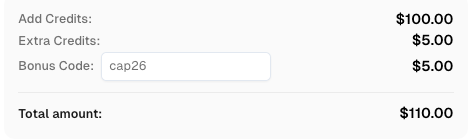
Use bonus code CAP26 when topping up your CapSolver account to get an extra 5% bonus on every recharge — with no limits.
Redeem it now in your CapSolver Dashboard
Add Agent-Safe Retries
Fixing CAPTCHA errors in your MCP server should not mean adding aggressive retries. Rate limits and traffic validation often get worse when the agent repeats the same failed action. Add backoff, preserve logs, and return a machine-readable reason.
For browser automation, follow stable waiting patterns. The same principle applies to MCP tools: wait for the right state, not for a fixed sleep, and make that state visible to the agent before it chooses another action.
Map MCP Tool Outputs to Agent Decisions
Fixing CAPTCHA errors in your MCP server becomes much easier when the server returns a decision-ready object. Avoid returning only page HTML, a screenshot, or a generic exception string. The agent should receive the challenge category, confidence, current URL, visible provider, retry count, and recommended next action. A good tool response might say that the page is a reCAPTCHA v3 score failure and the next safe action is to stop and report diagnostics. Another response might say that a visible image CAPTCHA is present and the workflow requires an approved solving step or human review.
This contract matters because LLM agents are good at reasoning over explicit states but poor at inferring hidden browser security state from partial page text. If the MCP tool reports captcha_detected as normal page content, the agent may keep asking for the next field, click the same button, or summarize the challenge page. If the tool reports a typed state, the planner can route the task to a solver, request approval, switch to a slower queue, or terminate. This is also where compliance belongs. The tool output should distinguish a permitted QA or monitoring task from an unauthorized target, and it should never encourage access to private or restricted data.
When the MCP server supports public-data collection, the tool contract should also reflect the site’s web scraping FAQ assumptions: rate, scope, and authorization affect whether the workflow should proceed. A server-side detector should know how CAPTCHA works before it decides whether to route a task to a solver, because a visible image challenge, score-based reCAPTCHA check, and Cloudflare validation page need different inputs. In permitted automation, a dedicated CAPTCHA solver step is cleaner than hiding challenge handling inside a generic browser action, and AI web scraping and solving CAPTCHA workflows should make that handoff explicit.
Add Observability Without Leaking Sensitive Data
Fixing CAPTCHA errors in your MCP server also requires careful logging. Capture enough information to reproduce the failure, but do not store account credentials, raw CAPTCHA tokens, private page content, cookies, or personal data. A practical log event includes slug or task ID, MCP tool name, target domain, challenge provider, status code, retry count, browser context ID, proxy pool label, and sanitized error message. The OWASP Logging Cheat Sheet is a useful reference for balancing forensic value with sensitive-data handling.
Add screenshots only when your policy allows them and only after redaction. Many login and checkout pages include personal data, so screenshots can create unnecessary risk. If the agent only needs to know that a CAPTCHA appeared, a structured detector is safer than storing the whole page.
Validate the HTTP Layer Separately
Not every MCP CAPTCHA error is a CAPTCHA integration bug. Some are HTTP errors that happen before the challenge appears. A 401 indicates authentication is required, a 403 can mean the server refuses the request, and 429 usually means too many requests. The MDN HTTP status reference is a good neutral source for interpreting these categories. Fixing CAPTCHA errors in your MCP server should include status-aware routing: authentication failures go to credential review, 429s go to rate control, and challenge pages go to the CAPTCHA workflow.
For public-data workflows, also review access rules before scaling. The Robots Exclusion Protocol RFC is not a security boundary, but it is an important signal for crawler behavior. If an agent ignores rate limits, robots guidance, login rules, and account terms, CAPTCHA errors are only one symptom of a broader governance problem.
Test With Deterministic Fixtures
Fixing CAPTCHA errors in your MCP server should not depend only on live websites. Create deterministic test fixtures that simulate each state: plain page, visible challenge, score failure, expired token, hard 403, and rate limit. Unit tests can assert that the MCP server returns the correct structured state. Integration tests can verify that the browser context remains stable between challenge detection and submission. This catches the most common regression: a refactor that opens a new browser tab or proxy route after the token is generated.
Add a final safety test for runaway loops. The agent should stop after a known retry ceiling and return a diagnostic object. If that test fails, the system can accidentally hammer a protected page. The goal is not to force access. The goal is to make authorized automation predictable, auditable, and respectful of the target system.
Conclusion
Fixing CAPTCHA errors in your MCP server requires clear states, complete challenge parameters, stable browser sessions, and responsible retry limits. Treat CAPTCHA as part of the tool contract, not as a random browser exception. For lawful automation where a challenge result must be passed back into an agent workflow, CapSolver can be integrated as one explicit step in the MCP tool flow.
FAQ
Why does my MCP server return generic browser errors for CAPTCHA pages?
Because the tool likely reports only navigation failure. Add challenge detection and return a dedicated CAPTCHA state with URL, challenge type, and session ID.
Should an MCP agent keep retrying when a CAPTCHA appears?
No. Use limited retries with backoff, then return a structured failure. Endless retries can worsen rate limits and traffic validation.
What parameters are usually missing from failed CAPTCHA solves?
Common missing values include site key, page URL, action name for reCAPTCHA v3, enterprise mode, and the original browser session context.
Is solving CAPTCHA in an MCP workflow always allowed?
No. Only use it for lawful, authorized workflows. Technical capability does not grant permission to access private, restricted, or sensitive systems.
Compliance Disclaimer: The information provided on this blog is for informational purposes only. CapSolver is committed to compliance with all applicable laws and regulations. The use of the CapSolver network for illegal, fraudulent, or abusive activities is strictly prohibited and will be investigated. Our captcha-solving solutions enhance user experience while ensuring 100% compliance in helping solve captcha difficulties during public data crawling. We encourage responsible use of our services. For more information, please visit our Terms of Service and Privacy Policy.
More
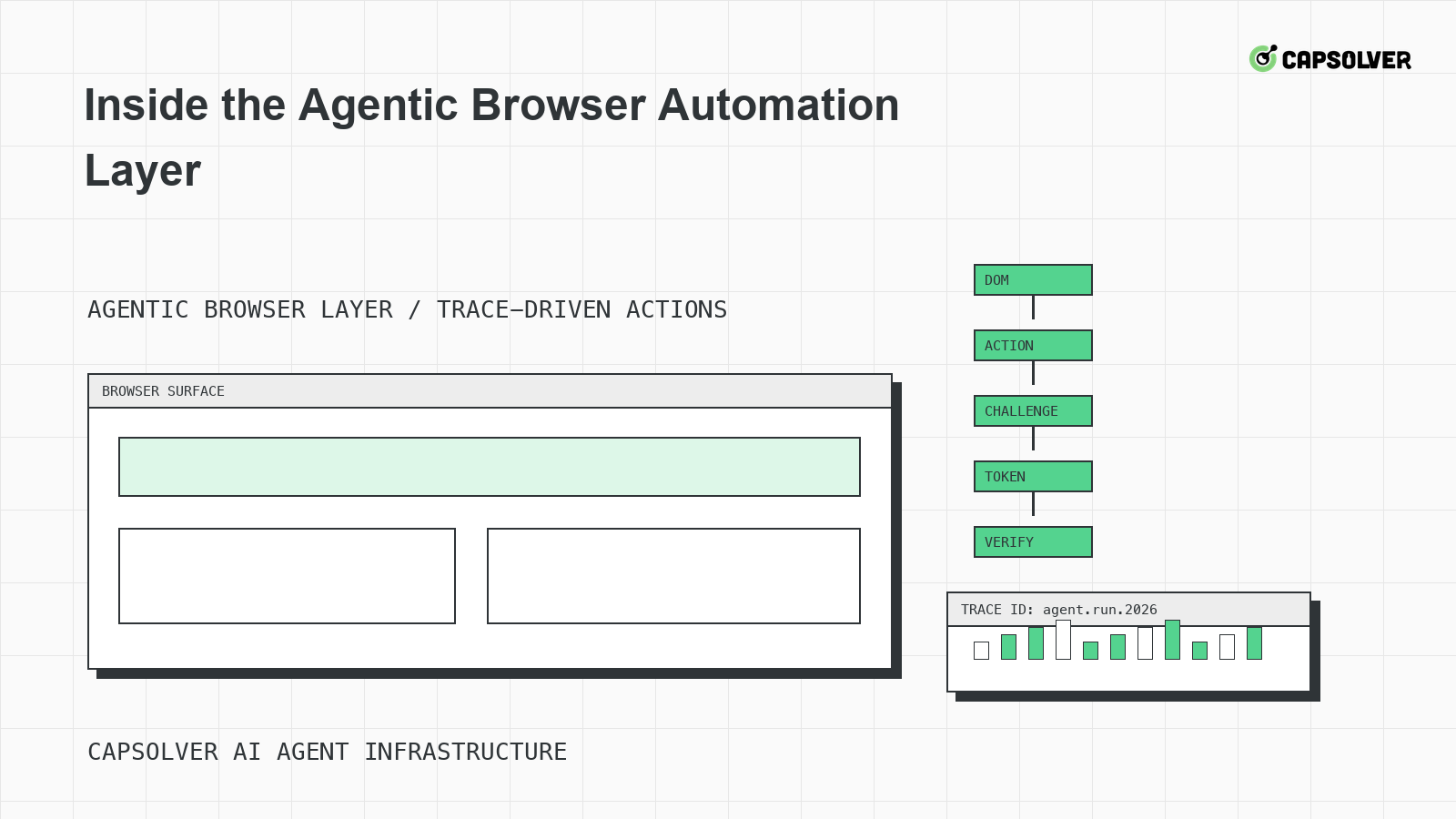
Inside the Agentic Browser Automation Layer
A runtime-level view of the agentic browser automation layer, focused on DOM grounding, planner state, Playwright-style traces, challenge handling, and stop rules.

Nikolai Smirnov
18-Jun-2026
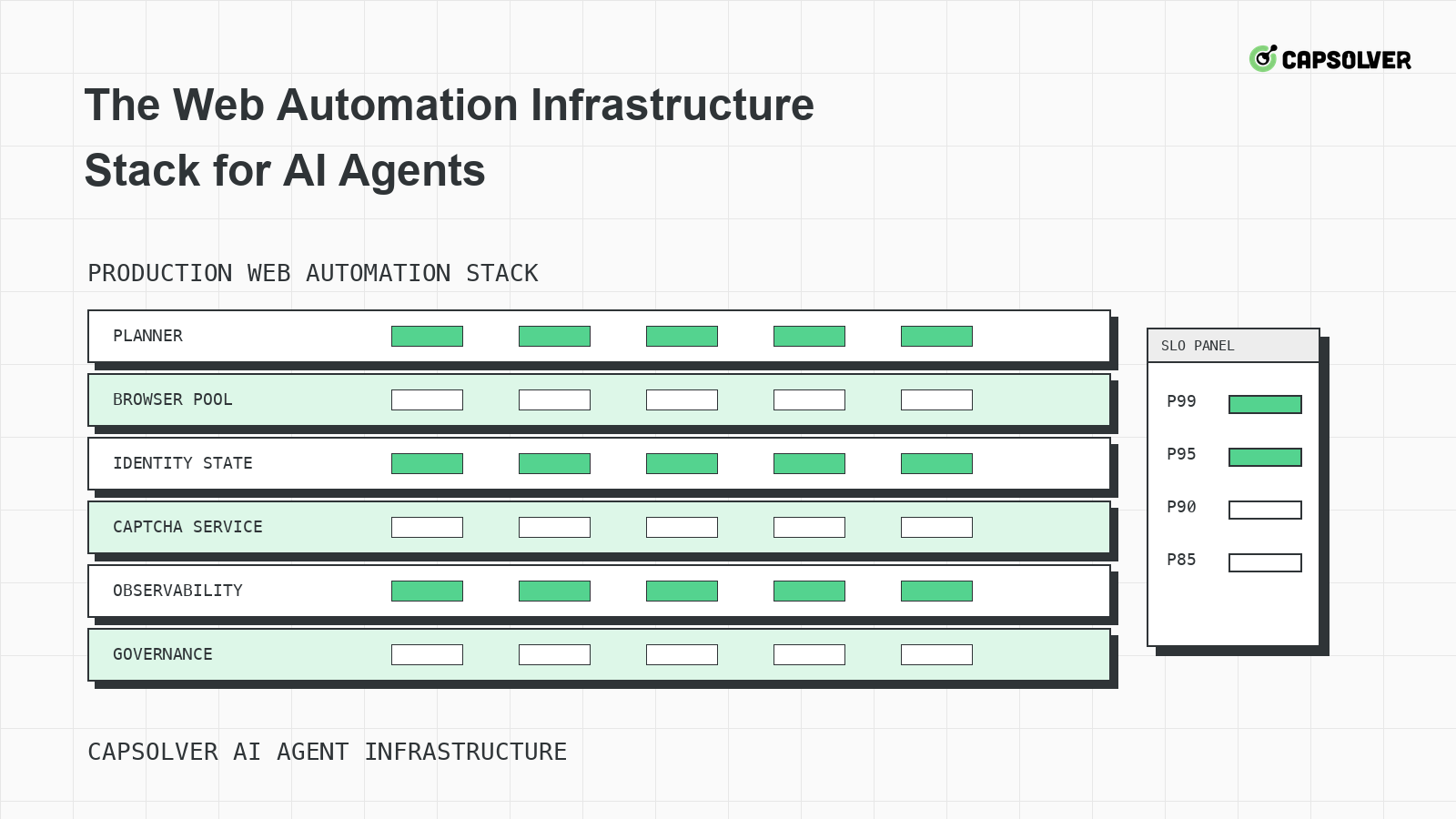
The Web Automation Infrastructure Stack for AI Agents
A layered infrastructure guide for AI agents running web automation, focused on browser pools, identity state, rate limits, observability, and challenge handling.

Emma Foster
18-Jun-2026
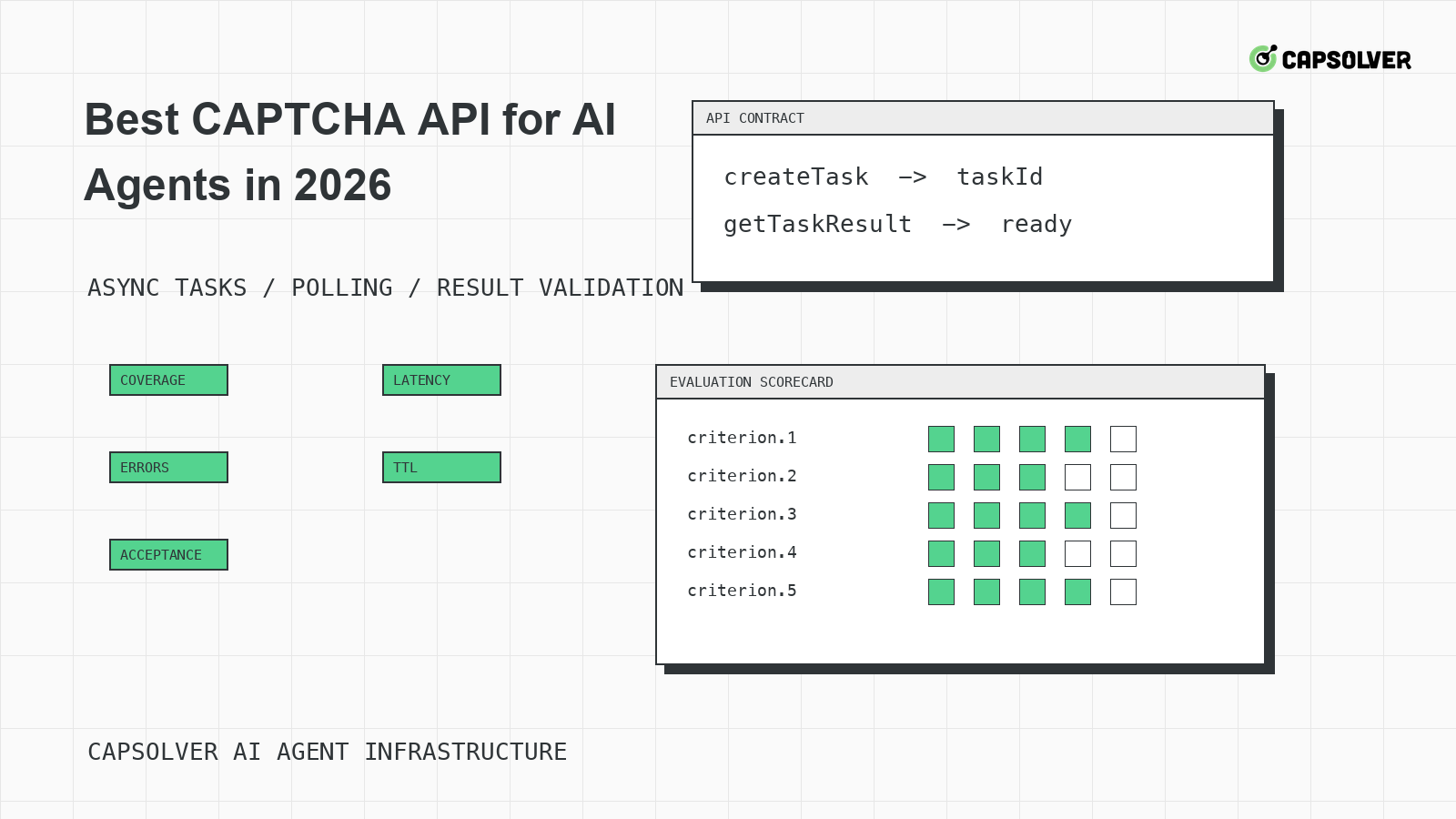
Best CAPTCHA API for AI Agents in 2026
A practical evaluation guide for choosing a CAPTCHA API for AI agents in 2026, centered on documented task coverage, polling contracts, token validation, and operational controls.

Rajinder Singh
18-Jun-2026
Choosing a CAPTCHA Solver for Your Agent Infrastructure
A decision framework for choosing a CAPTCHA solver for agent infrastructure, focused on challenge mapping, session binding, observability, rate controls, and responsible use.

Ethan Collins
18-Jun-2026
CAPTCHA-Solving Infrastructure for AI Agents
A systems architecture guide to CAPTCHA-solving infrastructure for AI agents, focused on form-state handoff, solver queues, cooldowns, and auditability.

Sora Fujimoto
18-Jun-2026
Why Your Agent Keeps Solving CAPTCHAs Wrong
A solver-mismatch guide for AI agents that solve CAPTCHAs wrong, focused on challenge classification, runtime widget context, token binding, and planner progress.
Rajinder Singh
17-Jun-2026