











reCAPTCHA Invalid Site Key or Token? Causes & Fix Guide

Aloísio Vítor
How to use CapSolver
16-Apr-2026
TL;Dr:
- Accurate Parameter Extraction: For
invalid site keyerrors in automation, the primary fix is ensuring you provide CapSolver with the correctwebsiteKeyandwebsiteURL. Use the CapSolver Extension to precisely identify these parameters from the target site. - CapSolver API Key Validation: Verify your
clientKeyfor CapSolver API requests. An incorrect or expired CapSolver API key will prevent task creation and result retrieval. - Timely Token Submission:
Invalid reCAPTCHA tokenoften means the token generated by CapSolver expired before being submitted to the target website. Ensure your automation submits the token promptly after retrieval. - Correct Task Type: Select the appropriate CapSolver task type (e.g.,
ReCaptchaV2TaskProxyLess,ReCaptchaV2EnterpriseTask) matching the reCAPTCHA version and your proxy setup on the target site. - Robust Error Handling: Implement comprehensive error handling for both CapSolver API calls and subsequent submission to the target site to diagnose
recaptcha verification failed please try againissues effectively. - Proxy Management: For high-volume automation, integrate high-quality proxies with CapSolver tasks to avoid IP bans and maintain a good reputation, preventing reCAPTCHA from flagging your requests.
- CapSolver Documentation: Always refer to the official CapSolver reCAPTCHA documentation for the latest API specifications and best practices.
Introduction
For developers and automation engineers, encountering reCAPTCHA challenges is a common hurdle when building web scrapers, data extraction tools, or automated testing suites. Specifically, the messages "reCAPTCHA Invalid Site Key" or "invalid reCAPTCHA token" can halt your automated workflows, leading to data loss and operational inefficiencies. These errors, while seemingly straightforward, often stem from subtle misconfigurations in your automation script or an incomplete understanding of how reCAPTCHA interacts with automated requests. This guide is tailored for those leveraging CapSolver to overcome reCAPTCHA, providing a deep dive into diagnosing and resolving these critical errors. We will focus on practical, code-centric solutions, emphasizing correct parameter extraction, API integration, and best practices for maintaining seamless automation. By the end, you will be equipped to ensure your CapSolver-powered automation runs smoothly, effectively tackling reCAPTCHA challenges.
Understanding reCAPTCHA Errors in Automated Workflows
reCAPTCHA is Google's defense against automated abuse, designed to differentiate human users from bots. For automation engineers utilizing services like CapSolver, encountering reCAPTCHA errors is a common operational challenge. When your automated script, integrated with CapSolver, receives an invalid site key or invalid reCAPTCHA token message, it signals a critical breakdown in the reCAPTCHA solving process. Understanding these errors from an automation perspective is the first step toward a robust solution.
The "Invalid Site Key" Error in Automation
In the context of automation, an invalid site key error means that the websiteKey (the public key identifying the reCAPTCHA instance on the target website) provided in your CapSolver task creation request is incorrect or unauthorized for the target domain. This error prevents CapSolver from even initiating the reCAPTCHA solving process, as it cannot correctly identify the reCAPTCHA challenge it needs to address. Common reasons for this error in automated scripts include:
- Incorrect
websiteKey: ThewebsiteKeypassed to CapSolver'screateTaskmethod does not match the actual site key embedded on the target website. This is often due to manual transcription errors or using an outdated key. - Mismatched
websiteURL: ThewebsiteURLprovided in your CapSolver task request does not precisely match the domain where the reCAPTCHA is hosted. Google's reCAPTCHA service performs domain validation, and any discrepancy will result in an invalid key error. - Dynamic
websiteKey: Some websites might dynamically generate or change their reCAPTCHAwebsiteKey. If your script doesn't adapt to these changes, it will continue to send an outdated key to CapSolver. - Typographical Errors: Simple copy-paste errors when extracting the
websiteKeyorwebsiteURLfrom the target website.
The "Invalid reCAPTCHA Token" Error in Automation
An invalid reCAPTCHA token error, when using CapSolver, typically occurs after CapSolver has successfully solved the reCAPTCHA and returned a token to your automation script. This error arises when your script attempts to submit this token to the target website, but the website's server-side verification rejects it. This indicates a problem with how your automation handles the token post-CapSolver, rather than an issue with CapSolver's solving capability itself. Key causes in automated workflows include:
- Token Expiration: reCAPTCHA tokens are time-sensitive, usually expiring within two minutes. If your automation script experiences delays between receiving the token from CapSolver and submitting it to the target website, the token may expire, leading to an
invalid recaptcha tokenerror. - Single-Use Token Violation: Each reCAPTCHA token is designed for a single successful verification. If your automation attempts to reuse a token, or if the target website's server-side logic processes the token multiple times, subsequent attempts will fail.
- Incorrect Submission Method: Your automation script might not be submitting the token to the target website in the expected manner (e.g., incorrect form field name, missing headers, or wrong request type).
- Target Website's Server-Side Logic: The target website's server might have additional validation checks beyond basic token verification, or it might be experiencing temporary issues, causing it to reject valid tokens. This can manifest as
recaptcha verification failed please try again. - CapSolver API Key Issues: While less common for
invalid token(more forinvalid site key), an incorrect or expired CapSolverclientKeywould prevent task creation, meaning no token would be generated in the first place. Always ensure your CapSolver API key is valid and active.
Fixing "reCAPTCHA Invalid Site Key" Errors in Automation
When your automated script encounters an invalid site key error while attempting to solve reCAPTCHA via CapSolver, the core issue lies in providing CapSolver with incorrect or outdated target website parameters. The solution focuses on accurately identifying and supplying the websiteKey and websiteURL to your CapSolver createTask request.
Step 1: Accurately Identify websiteKey and websiteURL
Purpose: CapSolver needs precise information about the reCAPTCHA instance on the target website to solve it. An invalid site key error from CapSolver almost always means the websiteKey or websiteURL you provided in your API request does not match what the target website is actually using. This step guides you on how to extract these parameters reliably.
Operation:
- Use CapSolver Extension: The most reliable method to identify the correct reCAPTCHA parameters is by using the CapSolver Extension. Install the extension in your browser and navigate to the target webpage containing the reCAPTCHA.
- Extract Parameters: The CapSolver Extension is designed to automatically detect and display the
websiteKey(often referred to assitekeyordata-sitekey) and thewebsiteURL(the page URL where the reCAPTCHA is present). It can also help identify other crucial parameters likepageActionorrecaptchaDataSValuefor more complex reCAPTCHA implementations. - Manual Inspection (Alternative): If the extension is not feasible, you can manually inspect the target webpage's source code. Look for a
divelement with the classg-recaptchaand extract the value of itsdata-sitekeyattribute. ThewebsiteURLis simply the URL of the page you are currently on.html<div class="g-recaptcha" data-sitekey="YOUR_TARGET_SITE_KEY"></div>
Precautions:
- Dynamic Content: Be aware that some websites load reCAPTCHA dynamically via JavaScript. The
websiteKeymight not be immediately visible in the initial HTML source. The CapSolver Extension is particularly useful in these scenarios as it captures parameters after dynamic loading. - Exact URL: Always use the exact
websiteURLwhere the reCAPTCHA is displayed, including any subdomains or specific paths. Minor discrepancies can lead to validation failures. - Version Specifics: Ensure the extracted
websiteKeycorresponds to the reCAPTCHA version (v2 or v3) you intend to solve with CapSolver. Different versions use different keys and require different CapSolver task types.
Step 2: Verify Your CapSolver API Key (clientKey)
Purpose: While an invalid site key error points to issues with the target website's reCAPTCHA parameters, it's equally important to ensure your CapSolver account is correctly authenticated. An incorrect or expired CapSolver API key (clientKey) will prevent any task from being created or processed, leading to a perceived failure in solving reCAPTCHA.
Operation:
- Access CapSolver Dashboard: Log in to your CapSolver Dashboard.
- Retrieve API Key: Locate your
clientKey(API Key) in your account settings. Copy it carefully. - Update Your Script: Ensure the
CAPSOLVER_API_KEYvariable in your automation script is updated with the correct, active key.
Precautions:
- Security: Never hardcode your
clientKeydirectly into publicly accessible code. Use environment variables or a secure configuration management system. - Balance: Ensure your CapSolver account has sufficient balance. An insufficient balance can also lead to task creation failures, which might be misinterpreted as an
invalid site keyissue.
Step 3: Configure CapSolver createTask Request Correctly
Purpose: Once you have accurately identified the websiteKey and websiteURL, and verified your CapSolver clientKey, the next step is to construct your CapSolver createTask request with these parameters. This ensures CapSolver receives all necessary information to solve the reCAPTCHA.
Operation:
- Select Task Type: Choose the appropriate CapSolver task type based on the reCAPTCHA version and whether you are using your own proxies. For reCAPTCHA v2, common types include
ReCaptchaV2TaskProxyLess(CapSolver's proxy) orReCaptchaV2Task(your own proxy). For reCAPTCHA v3, useReCaptchaV3TaskProxyLessorReCaptchaV3Task. - Populate Parameters: Pass the extracted
websiteKeyandwebsiteURLto the corresponding fields in yourcreateTaskpayload.
Example CapSolver createTask Payload (Python):
python
import requests

CAPSOLVER_API_KEY = "YOUR_CAPSOLVER_API_KEY"
TARGET_SITE_KEY = "6Le-wvkSAAAAAPBMRTvw0Q4Muexq9bi0DJwx_mJ-" # Extracted from target site
TARGET_SITE_URL = "https://www.google.com/recaptcha/api2/demo" # Extracted from target site

create_task_payload = {
    "clientKey": CAPSOLVER_API_KEY,
    "task": {
        "type": "ReCaptchaV2TaskProxyLess", # Or ReCaptchaV2Task if using your own proxy
        "websiteKey": TARGET_SITE_KEY,
        "websiteURL": TARGET_SITE_URL
        # Add other parameters like 'isInvisible', 'pageAction', 'proxy' if needed
    }
}

try:
    response = requests.post("https://api.capsolver.com/createTask", json=create_task_payload)
    response_data = response.json()
    if response_data.get("errorId") == 0:
        print(f"CapSolver task created successfully: {response_data.get("taskId")}")
    else:
        print(f"CapSolver task creation failed: {response_data.get("errorDescription")}")
except requests.exceptions.RequestException as e:
    print(f"Network error during CapSolver task creation: {e}")
Precautions:
- Refer to Docs: Always consult the official CapSolver reCAPTCHA documentation for the most up-to-date task types and parameter requirements. These can vary based on reCAPTCHA versions and specific website implementations.
- Error Logging: Implement robust logging for CapSolver API responses. The
errorDescriptionfield is invaluable for debugging task creation failures.
Fixing "reCAPTCHA Invalid Token" Errors in Automation with CapSolver
An invalid reCAPTCHA token error in your automated workflow, after CapSolver has successfully returned a token, indicates a problem with how your script handles and submits that token to the target website. This section focuses on ensuring the token generated by CapSolver is used correctly and promptly.
Step 1: Ensure Timely Token Submission to the Target Website
Purpose: reCAPTCHA tokens are designed to be short-lived, typically expiring within two minutes. If your automation script takes too long to receive the token from CapSolver and then submit it to the target website, the token will become invalid, leading to a recaptcha verification failed please try again message from the target site.
Operation:
- Minimize Latency: Design your automation script to minimize any delays between retrieving the
gRecaptchaResponsefrom CapSolver and submitting it to the target website. This means processing the CapSolver result and making the subsequent request to the target site as quickly as possible. - Polling Strategy: When polling CapSolver for the task result, use an efficient polling interval (e.g., 1-3 seconds) to retrieve the token as soon as it's ready. Avoid excessively long
time.sleep()calls.
Example of Timely Token Retrieval and Submission (Conceptual Python):
python
import requests
import time

# ... (CapSolver task creation and polling logic from previous section)

# Assuming 'recaptcha_token' is successfully obtained from CapSolver
recaptcha_token = solve_recaptcha_v2_with_capsolver() # Function from previous example

if recaptcha_token:
    print(f"CapSolver provided reCAPTCHA Token: {recaptcha_token}")

    # Immediately prepare and send the request to the target website
    target_website_url = "https://www.example.com/submit_form"
    form_data = {
        "username": "testuser",
        "password": "testpass",
        "g-recaptcha-response": recaptcha_token # The field name expected by the target website
    }

    try:
        target_response = requests.post(target_website_url, data=form_data)
        if target_response.status_code == 200:
            print("Form submitted successfully to target website.")
            # Further processing of target_response
        else:
            print(f"Target website submission failed with status {target_response.status_code}: {target_response.text}")
            # Analyze target_response.text for specific error messages like "invalid recaptcha token"
    except requests.exceptions.RequestException as e:
        print(f"Network error during submission to target website: {e}")
else:
    print("Failed to get reCAPTCHA token from CapSolver.")
Precautions:
- Server-Side Clock Skew: Ensure your automation server's clock is synchronized. Significant clock skew can affect the perceived validity of time-sensitive tokens.
- Network Reliability: A stable network connection between your automation script and both CapSolver's API and the target website is critical to prevent delays.
Step 2: Understand and Handle Single-Use Tokens
Purpose: Each reCAPTCHA token is intended for a single successful verification by the target website. Attempting to reuse a token, or if the target website's server-side logic processes the token multiple times, will result in an invalid reCAPTCHA token error on subsequent attempts.
Operation:
- One Token, One Use: Design your automation to request a new reCAPTCHA token from CapSolver for every interaction with the target website that requires reCAPTCHA verification. Never store and reuse tokens.
- Retry Logic: If a submission to the target website fails with an
invalid reCAPTCHA tokenerror, your automation should initiate a new CapSolver task to obtain a fresh token and then retry the submission.
Precautions:
- State Management: Ensure your automation's state management correctly identifies when a new reCAPTCHA token is needed versus when an existing one can be used (which should be only once).
Step 3: Verify CapSolver Task Type and Parameters
Purpose: While an invalid site key error is more directly linked to incorrect websiteKey or websiteURL, an invalid reCAPTCHA token can sometimes indirectly result from using the wrong CapSolver task type or missing parameters during the createTask call. For instance, if the target site uses reCAPTCHA v2 Invisible, but you submit a ReCaptchaV2TaskProxyLess without isInvisible: true, CapSolver might solve it incorrectly, leading to a token that the target site rejects.
Operation:
- Match Task Type to reCAPTCHA Version: Double-check that the CapSolver task type you are using (e.g.,
ReCaptchaV2TaskProxyLess,ReCaptchaV3TaskProxyLess) accurately reflects the reCAPTCHA version implemented on the target website. - Include All Necessary Parameters: Refer to the CapSolver reCAPTCHA documentation for the specific reCAPTCHA version. Ensure you are providing all required and relevant optional parameters in your
createTaskpayload, such asisInvisible,pageAction,recaptchaDataSValue, orenterprisePayload.
Precautions:
- Dynamic Parameters: Some reCAPTCHA implementations might require dynamic parameters (e.g.,
recaptchaDataSValue). Use the CapSolver Extension to capture these if they are present on the target site.
Step 4: Troubleshooting CapSolver API Key and Balance
Purpose: Although less direct causes for an invalid reCAPTCHA token (as they usually prevent token generation altogether), it's a fundamental check. If CapSolver cannot process your request due to an invalid clientKey or insufficient balance, you won't receive a token, and your automation will eventually fail with an invalid token error when it tries to submit a non-existent token.
Operation:
- Check CapSolver
clientKey: Confirm yourclientKeyis correct and active in your CapSolver Dashboard. - Verify Account Balance: Ensure your CapSolver account has sufficient funds to create and solve tasks. You can check your balance via the CapSolver API or dashboard.
Precautions:
- Error Handling for CapSolver API: Implement checks for
errorIdanderrorDescriptionin CapSolver'screateTaskandgetTaskResultresponses. This will help differentiate between CapSolver-side issues and target website-side issues. For example, anerrorIdother than 0 increateTaskresponse indicates a problem with your CapSolver request or account, not necessarily the reCAPTCHA itself.
Redeem Your CapSolver Bonus Code
Boost your automation budget instantly!
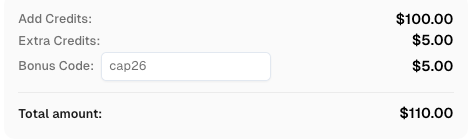
Use bonus code CAP26 when topping up your CapSolver account to get an extra 5% bonus on every recharge — with no limits.
Redeem it now in your CapSolver Dashboard
Common Troubleshooting Scenarios for CapSolver Automation
Even with correct parameter extraction and timely token submission, automated reCAPTCHA solving can encounter various issues. This section addresses common problems faced by automation engineers using CapSolver, providing targeted solutions.
1. CapSolver Task Creation Fails or Returns Generic Errors
Problem: Your script sends a createTask request to CapSolver, but it fails immediately or returns a non-zero errorId with a generic errorDescription.
Causes:
- Invalid CapSolver API Key (
clientKey): The most common reason. YourclientKeyis incorrect, expired, or has insufficient permissions. - Insufficient Balance: Your CapSolver account may not have enough funds to process the request.
- Incorrect Task Type: You might be using a task type that doesn't exist or doesn't match the reCAPTCHA version you're trying to solve (e.g., trying to solve v3 with a v2 task type).
- Malformed Request Payload: The JSON payload sent to CapSolver's
createTaskendpoint is syntactically incorrect or missing required fields.
Solutions:
- Verify
clientKey: Double-check yourCAPSOLVER_API_KEYagainst your CapSolver Dashboard. Ensure it's active and correctly copied. - Check Balance: Log in to your CapSolver dashboard to confirm you have sufficient balance. Top up if necessary.
- Consult CapSolver Docs: Refer to the specific CapSolver reCAPTCHA documentation for the correct task types and required parameters for reCAPTCHA v2 and v3. Ensure your payload strictly adheres to the API specification.
- Log CapSolver Responses: Always log the full JSON response from CapSolver's
createTaskendpoint. TheerrorDescriptionfield will provide precise details about why the task failed.
2. CapSolver Task Status Remains "Processing" Indefinitely
Problem: After creating a task, polling getTaskResult continuously returns "status": "processing", and you never receive a "status": "ready" with a token.
Causes:
- Complex reCAPTCHA: The target website's reCAPTCHA might be particularly complex or adaptive, requiring more time for CapSolver to solve.
- Poor Proxy Quality (if provided): If you're supplying your own proxies to CapSolver, low-quality or blacklisted proxies can significantly delay or prevent solving.
- Rate Limiting/Blocking by Target Site: The target website might be detecting and actively delaying or blocking attempts to solve reCAPTCHA from your automation's apparent origin (even if using CapSolver's proxy, the target site might have other detection mechanisms).
Solutions:
- Increase Polling Timeout: Allow for a longer timeout in your polling loop, especially for reCAPTCHA v3 or enterprise versions, which can take longer. However, avoid indefinite loops.
- Review Proxy Quality: If using your own proxies, ensure they are high-quality, residential, or mobile proxies. Consider rotating them frequently. For
ReCaptchaV2TaskProxyLess, CapSolver manages proxies, so this is less likely an issue. - Adjust Automation Behavior: If the target site is actively blocking, consider adjusting your automation's request patterns (e.g., adding more realistic delays, changing user-agents, using different IP addresses via proxies) before initiating the CapSolver task.
- Contact CapSolver Support: If tasks consistently get stuck in "processing" for an unusually long time (e.g., several minutes), provide the
taskIdto CapSolver support for investigation.
3. Target Website Rejects Token with "reCAPTCHA verification failed. Please try again."
Problem: CapSolver successfully returns a reCAPTCHA token, but when your automation submits it to the target website, the website responds with a generic failure message, indicating the token was not accepted.
Causes:
- Token Expiration (as discussed): The most common reason. The token expired between CapSolver returning it and your script submitting it.
- Single-Use Token Violation (as discussed): Your script attempted to reuse an already verified token.
- Incorrect Submission Parameters: Your automation is not submitting the token to the target website in the exact format or field name the website expects. This is a frequent cause of
recaptcha verification failed please try again. - Additional Website-Specific Checks: The target website might have additional, non-reCAPTCHA-related security checks that your automation is failing (e.g., cookie validation, specific headers, JavaScript fingerprinting).
- reCAPTCHA v3 Score Threshold: For reCAPTCHA v3, even if CapSolver returns a token, the score might be below the target website's acceptance threshold. CapSolver aims for high scores, but website configurations vary.
Solutions:
- Minimize Submission Latency: Optimize your script to submit the token to the target website immediately after retrieval from CapSolver.
- Verify Submission Payload: Carefully inspect the target website's form submission (using browser developer tools) to identify the exact field name for the reCAPTCHA token (usually
g-recaptcha-response) and any other required parameters. Ensure your automation's POST request payload matches this precisely. - Simulate Browser Behavior: Ensure your automation accurately mimics a real browser's behavior, including sending appropriate headers, cookies, and user-agents. This can sometimes influence the target site's acceptance of the token.
- Adjust reCAPTCHA v3 Threshold: If using reCAPTCHA v3, and the issue is a low score, you might need to adjust your automation's behavior to appear more human-like, or if possible, configure CapSolver for higher score requirements (though CapSolver generally optimizes for the highest possible score).
- Analyze Target Website Response: Log the full response from the target website after submitting the token. This can sometimes contain more specific error messages or clues about why the token was rejected.
Comparison Summary: CapSolver Task Types for reCAPTCHA
Choosing the correct CapSolver task type is fundamental for successful reCAPTCHA solving in automation. This table summarizes key CapSolver task types for reCAPTCHA:
| CapSolver Task Type | reCAPTCHA Version | Proxy Requirement | Description |
|---|---|---|---|
ReCaptchaV2TaskProxyLess |
v2 | CapSolver's Proxy | Solves reCAPTCHA v2 using CapSolver's internal proxies. Ideal for quick integration without managing your own proxy infrastructure. |
ReCaptchaV2Task |
v2 | Your Own Proxy | Solves reCAPTCHA v2 using a proxy you provide. Useful for maintaining specific IP origins or integrating with existing proxy pools. |
ReCaptchaV2EnterpriseTaskProxyLess |
v2 Enterprise | CapSolver's Proxy | Solves reCAPTCHA v2 Enterprise using CapSolver's internal proxies. Designed for more complex enterprise reCAPTCHA implementations. |
ReCaptchaV2EnterpriseTask |
v2 Enterprise | Your Own Proxy | Solves reCAPTCHA v2 Enterprise using a proxy you provide. Offers flexibility for enterprise-level automation. |
ReCaptchaV3TaskProxyLess |
v3 | CapSolver's Proxy | Solves reCAPTCHA v3 using CapSolver's internal proxies. Returns a token with a score, suitable for automated score-based verification. |
ReCaptchaV3Task |
v3 | Your Own Proxy | Solves reCAPTCHA v3 using a proxy you provide. Allows for custom proxy integration in v3 automation. |
Always refer to the CapSolver documentation for the most current and detailed information on task types and their specific parameters. This ensures you are using the most effective method for your automation needs.
Performance Optimization for CapSolver-Powered Automation
Optimizing your CapSolver integration is crucial for efficient and reliable automated reCAPTCHA solving. This involves strategies to minimize latency, manage resources, and ensure your automation remains undetected and effective.
1. Efficient CapSolver API Calls and Polling
Purpose: Minimizing the time spent communicating with the CapSolver API directly impacts the overall speed of your automation. Efficient API calls and polling reduce latency, which is critical given the time-sensitive nature of reCAPTCHA tokens.
Operation:
- Keep-Alive Connections: When making multiple requests to
api.capsolver.com, utilize HTTP keep-alive connections. This reduces the overhead of establishing a new TCP connection for eachcreateTaskorgetTaskResultrequest, significantly speeding up communication. - Optimized Polling Interval: After creating a task, poll
getTaskResultat an optimal interval. Too frequent polling wastes resources, while too infrequent polling risks token expiration. A common practice is to start with a shorter interval (e.g., 1-2 seconds) and gradually increase it if the task remainsprocessing. - Batch Processing (if applicable): If your workflow involves solving multiple reCAPTCHAs, explore if batch processing or parallel task creation with CapSolver is feasible to improve throughput.
Precautions:
- CapSolver Rate Limits: Be mindful of CapSolver API rate limits. While typically generous, excessive polling or rapid task creation without sufficient delays can lead to temporary blocks. Implement exponential backoff for retries if you encounter rate limit errors.
2. Strategic Proxy Usage with CapSolver
Purpose: For robust automation, especially at scale, strategic proxy usage is paramount. Proxies help distribute requests, mask your automation's origin, and maintain a good reputation with target websites, preventing reCAPTCHA from flagging your requests as suspicious. CapSolver integrates seamlessly with your own proxies.
Operation:
- Choose the Right Task Type: If you need to control the IP address from which the reCAPTCHA is solved, use CapSolver task types that support custom proxies (e.g.,
ReCaptchaV2Task,ReCaptchaV3Task). - High-Quality Proxies: Invest in high-quality, residential, or mobile proxies. These proxies have better reputations and are less likely to be flagged by reCAPTCHA. Avoid free or public proxies, as they are often blacklisted.
- Proxy Rotation: Implement a proxy rotation strategy. Regularly changing the IP address used for reCAPTCHA solving tasks makes your automation appear more like diverse human users, reducing the likelihood of detection and
recaptcha verification failed please try againerrors. - Geographical Relevance: Use proxies located in the same geographical region as your target audience or the target website's servers. This can improve reCAPTCHA solving success rates and reduce latency.
Example CapSolver createTask with Proxy (Python):
python
# ... (previous CapSolver code)

create_task_payload = {
    "clientKey": CAPSOLVER_API_KEY,
    "task": {
        "type": "ReCaptchaV2Task", # Use task type that supports proxies
        "websiteKey": TARGET_SITE_KEY,
        "websiteURL": TARGET_SITE_URL,
        "proxy": "http://user:pass@ip:port" # Your proxy details
    }
}

# ... (rest of CapSolver code)
Precautions:
- Proxy Health Monitoring: Continuously monitor the health and performance of your proxies. Replace slow or unresponsive proxies to maintain optimal automation speed.
- Proxy Authentication: Ensure your proxy authentication details (username, password) are correctly configured in the CapSolver task payload.
3. Managing Concurrency and Request Frequency
Purpose: When running multiple automated tasks that interact with reCAPTCHA, managing concurrency and request frequency is vital. This prevents overwhelming the target website, triggering rate limits from Google, or exhausting your CapSolver balance too quickly. Uncontrolled requests can lead to temporary blocks or recaptcha verification failed please try again errors.
Operation:
- Rate Limiting Your Automation: Implement rate limiting in your automation scripts. This controls the number of reCAPTCHA solving requests sent to CapSolver and the subsequent submissions to the target website per unit of time. Use
time.sleep()or more advanced token bucket algorithms. - Concurrency Control: Limit the number of simultaneous reCAPTCHA solving tasks. While CapSolver can handle high volumes, your own infrastructure and the target website might have limitations. Start with a conservative number and gradually increase it while monitoring performance.
- Exponential Backoff for Retries: If a CapSolver task fails or a submission to the target website is rejected, implement an exponential backoff strategy for retries. This involves waiting for progressively longer periods before retrying, reducing the load and increasing the chance of success without being overly aggressive.
Precautions:
- Target Website Policies: Always be aware of the target website's terms of service regarding automated access. Overly aggressive request patterns can lead to permanent bans, even if you are solving reCAPTCHA legitimately.
- CapSolver Cost Management: Higher concurrency and request frequency directly correlate with increased CapSolver usage and costs. Balance performance needs with budget considerations.
By diligently applying these performance optimization strategies, you can significantly enhance the efficiency, reliability, and stealth of your CapSolver-powered automation. This proactive approach helps to prevent recaptcha invalid site key and invalid recaptcha token issues from disrupting your automated workflows, ensuring smooth and continuous operation.
Conclusion
For automation engineers, encountering reCAPTCHA Invalid Site Key or invalid reCAPTCHA token errors can be a significant impediment to efficient data collection and process automation. However, by understanding the nuances of these errors within an automated context and leveraging powerful tools like CapSolver, these challenges are entirely surmountable. The key lies in meticulous parameter extraction, timely token submission, and robust error handling within your automation scripts.
CapSolver provides a compliant and highly effective solution for navigating reCAPTCHA challenges in automated workflows. By integrating CapSolver, you empower your automation to reliably obtain valid reCAPTCHA tokens, ensuring uninterrupted operation and data flow. This not only resolves the immediate recaptcha verification failed please try again issues but also enhances the overall resilience and efficiency of your automated systems.
Ready to elevate your automation and conquer reCAPTCHA challenges with confidence? Explore CapSolver's comprehensive reCAPTCHA solutions today and ensure your automated processes run seamlessly, without being hindered by captcha roadblocks.
FAQ
Q1: What does "reCAPTCHA Invalid Site Key" mean when using CapSolver?
A1: When you encounter "reCAPTCHA Invalid Site Key" while using CapSolver, it typically means the websiteKey or websiteURL you provided in your CapSolver createTask request does not accurately match the reCAPTCHA configuration on the target website. CapSolver cannot proceed with solving if these parameters are incorrect. The best practice is to use the CapSolver Extension to extract the exact websiteKey and websiteURL from the target page.
Q2: Why is my CapSolver-generated reCAPTCHA token showing as "invalid" on the target website?
A2: An "invalid reCAPTCHA token" after CapSolver has successfully returned one usually indicates that the token expired before your automation script could submit it to the target website, or your script attempted to reuse an already verified token. reCAPTCHA tokens are single-use and time-sensitive (typically expiring within two minutes). Ensure your automation submits the token promptly and requests a new token from CapSolver for each verification attempt.
Q3: How can I prevent "recaptcha verification failed please try again" errors in my automated scripts?
A3: To prevent these errors, ensure:
- Accurate Parameters: The
websiteKeyandwebsiteURLprovided to CapSolver are correct. - Valid CapSolver API Key: Your
clientKeyfor CapSolver is active and has sufficient balance. - Timely Submission: The CapSolver-generated token is submitted to the target website immediately.
- Correct Submission Format: The token is submitted to the target website in the exact field name and format it expects (e.g.,
g-recaptcha-response). - Appropriate Task Type: You are using the correct CapSolver task type for the reCAPTCHA version on the target site.
Q4: What CapSolver task type should I use for reCAPTCHA v3?
A4: For reCAPTCHA v3, you should use ReCaptchaV3TaskProxyLess if you want CapSolver to manage the proxies, or ReCaptchaV3Task if you intend to provide your own proxies. These task types are designed to return a reCAPTCHA v3 token along with a score, which your automation can then use for server-side verification against the target website.
Q5: How do proxies help with reCAPTCHA automation using CapSolver?
A5: Proxies, especially high-quality residential or mobile proxies, help your automation appear more legitimate to reCAPTCHA. By rotating IP addresses and mimicking diverse user origins, proxies reduce the likelihood of your automated requests being flagged as suspicious, thereby improving reCAPTCHA solving success rates and preventing IP bans. CapSolver allows you to integrate your own proxies with specific task types like ReCaptchaV2Task or ReCaptchaV3Task.
Compliance Disclaimer: The information provided on this blog is for informational purposes only. CapSolver is committed to compliance with all applicable laws and regulations. The use of the CapSolver network for illegal, fraudulent, or abusive activities is strictly prohibited and will be investigated. Our captcha-solving solutions enhance user experience while ensuring 100% compliance in helping solve captcha difficulties during public data crawling. We encourage responsible use of our services. For more information, please visit our Terms of Service and Privacy Policy.
More
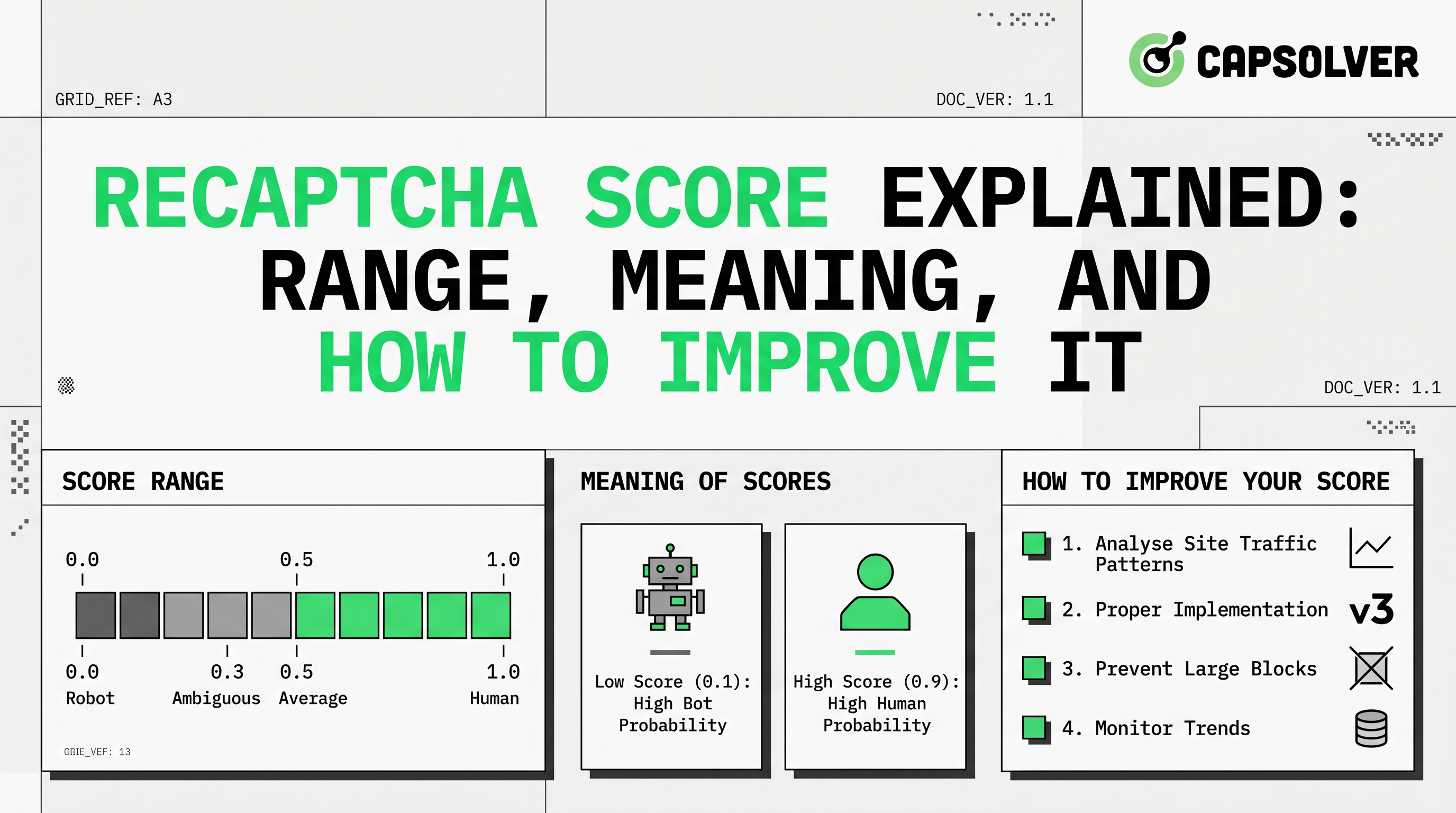
reCAPTCHA Score Explained: Range, Meaning, and How to Improve It
Understand reCAPTCHA v3 score range (0.0 to 1.0), its meaning, and how to improve your score. Learn how to handle low scores and optimize user experience.

Rajinder Singh
16-Apr-2026
reCAPTCHA Invalid Site Key or Token? Causes & Fix Guide
Facing "reCAPTCHA Invalid Site Key" or "invalid reCAPTCHA token" errors? Discover common causes, step-by-step fixes, and troubleshooting tips to resolve reCAPTCHA verification failed issues. Learn how to fix reCAPTCHA verification failed please try again.
Aloísio Vítor
16-Apr-2026
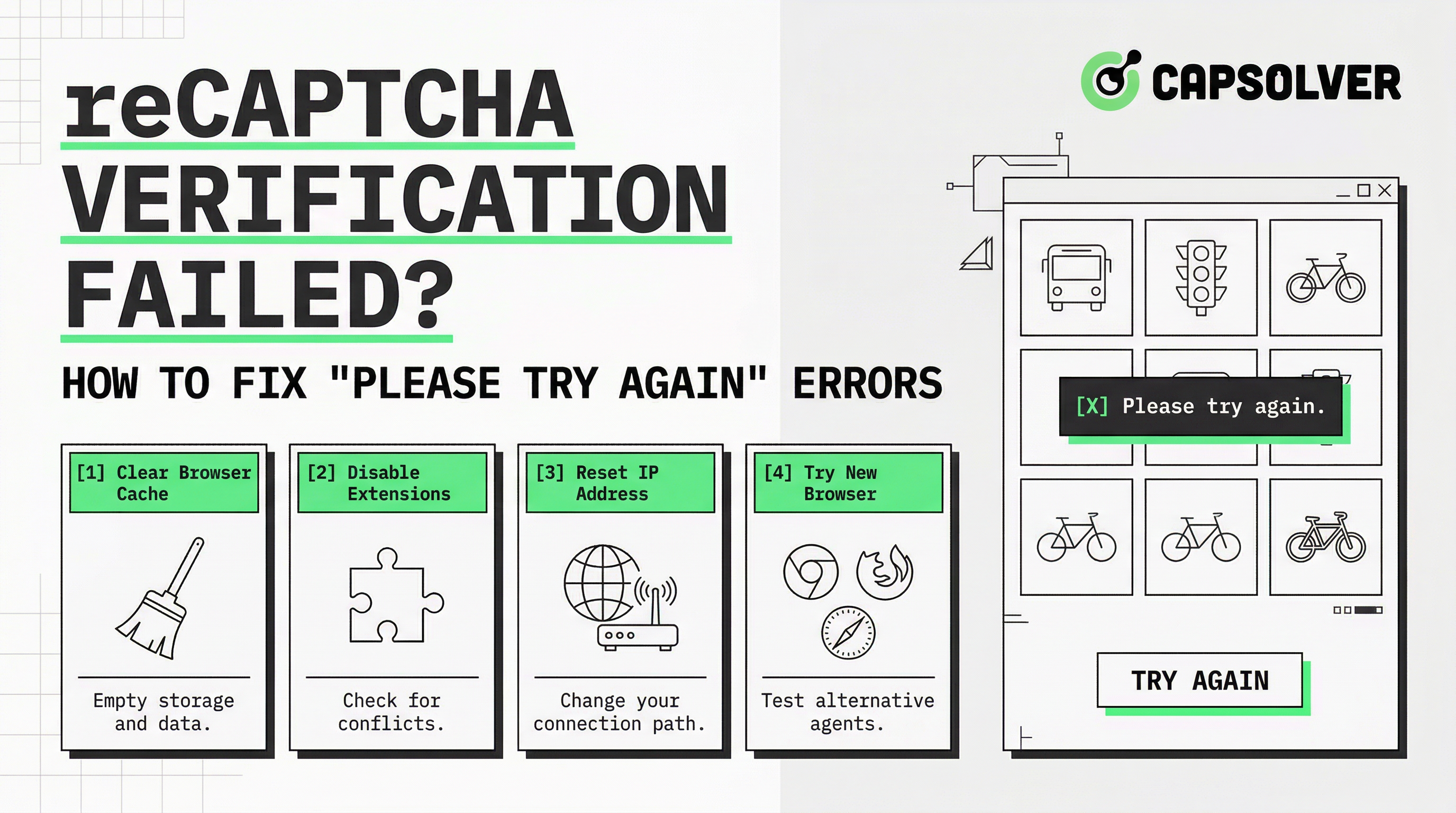
reCAPTCHA Verification Failed? How to Fix "Please Try Again" Errors
Fix reCAPTCHA verification failed errors fast. Step-by-step manual fixes for users and a Python API guide for developers using CapSolver. Covers v2, v3, and Enterprise.

Adélia Cruz
15-Apr-2026
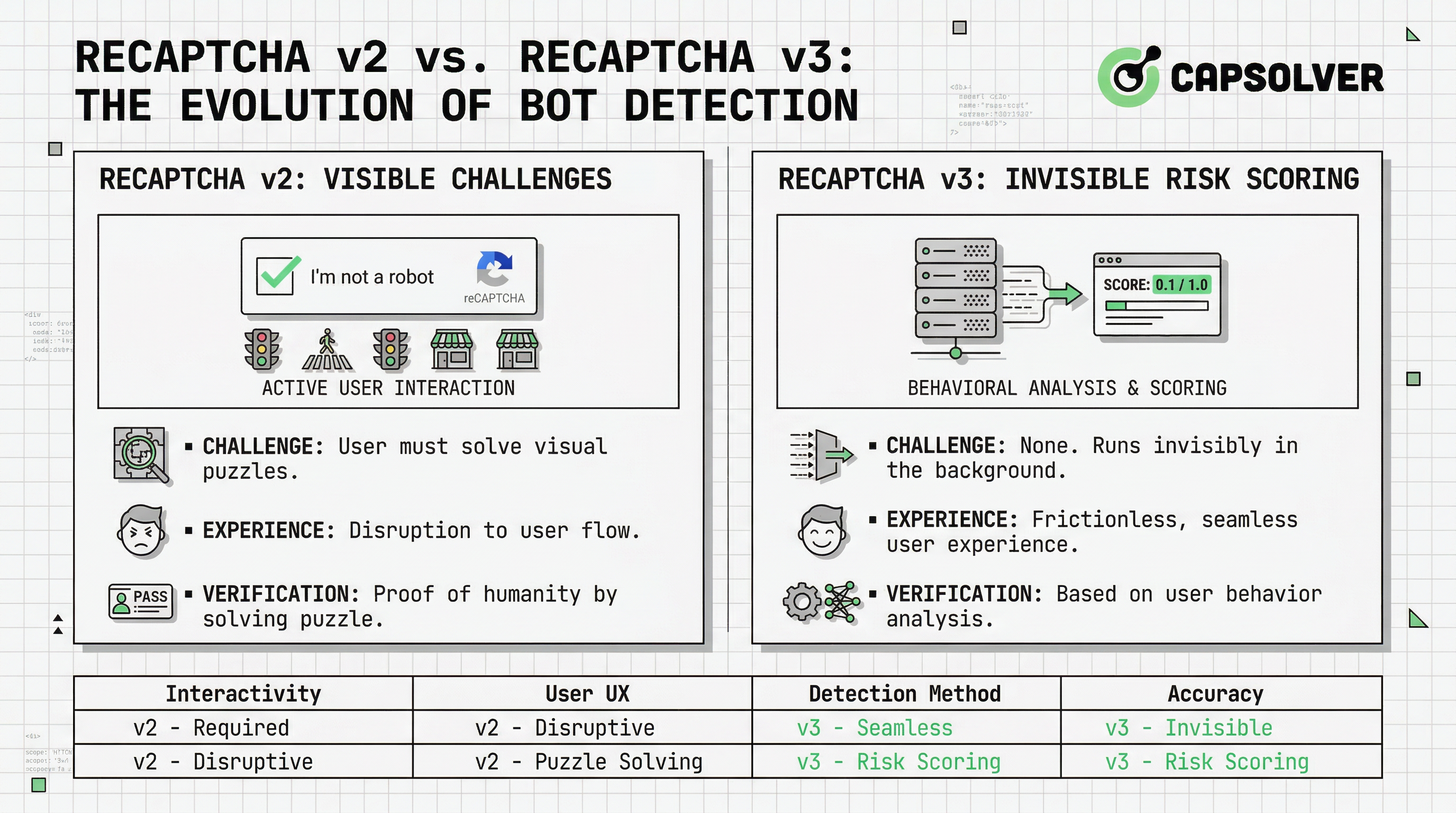
reCAPTCHA v2 vs v3: Key Differences Every Developer Should Know
Understand the difference between reCAPTCHA v2 and v3 — how each works, when to use them, and how automated workflows handle both. A clear, technical comparison for developers.

Nikolai Smirnov
15-Apr-2026
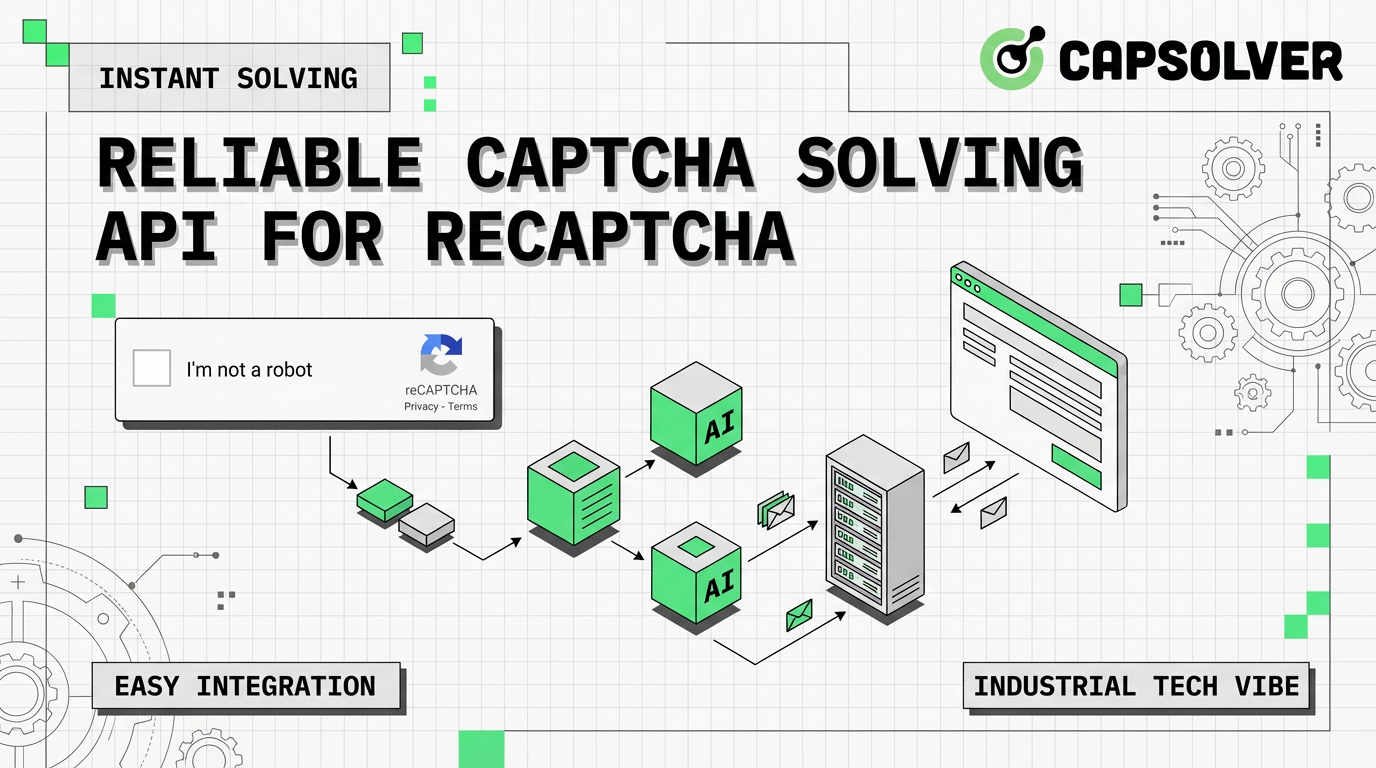
Reliable CAPTCHA Solving API for reCAPTCHA: What to Look For
Looking for a reliable CAPTCHA solving API for reCAPTCHA? Compare top providers on speed, cost, and success rate. Find the best solution for your automation needs.
Rajinder Singh
09-Apr-2026
Optimize CAPTCHA Solving API Response Time for Faster Automation
Learn how to optimize CAPTCHA solving API response time for faster and more reliable automation. This guide covers key factors like CAPTCHA complexity, API performance, and polling strategies, with practical tips using CapSolver to achieve sub-10-second solve times.

Ethan Collins
03-Apr-2026