




Claude Code CAPTCHA Solver: CapSolver MCP Setup Guide

Khadija Santos
How to use CapSolver
13-Oct-2026
TL;DR
- Connect Claude Code to the official
capsolver-mcppackage to expose supported CAPTCHA-solving tools. - Start by listing supported CAPTCHA types; a successful tool connection does not prove that a paid solving request will succeed.
- Use
solve_captchawhen you already have the supported challenge type, page URL, and sitekey. - The page tools open their own browser session; they do not automatically continue an existing Claude browser tab.
- A returned token or filled widget still needs the target application's final acceptance check.
Claude Code can help write or debug a browser task, but it needs an actual solving tool when a supported CAPTCHA interrupts the approved operation. Asking the model to “try harder” does not supply the site parameters, API connection, or result handling that the challenge requires.
CapSolver exposes those capabilities through its MCP service. This guide covers installing the package, connecting it to Claude Code, checking the available tools, and choosing a solving call. The examples concern your own pages or permitted automation tasks. They do not automate account creation, purchasing, or access to restricted data.
What Can Claude Code Do with CapSolver MCP?
Claude Code can discover and call CapSolver's MCP tools after you configure and approve the server.
The official MCP service exposes five tools:
| Tool | What you use it for |
|---|---|
get_supported_captchas |
Check the server's registered CAPTCHA types and handlers |
get_balance |
Query the configured CapSolver account |
solve_captcha |
Request a token from supported challenge parameters |
detect_captchas |
Inspect a page URL for supported CAPTCHA widgets |
solve_on_page |
Open a page, detect supported challenges, solve, and optionally fill results |
The tool names describe separate operations. A balance query does not recognize a page, and detecting a widget does not solve it. Start with the operation you actually need.
The installed version checked for this guide, capsolver-mcp 0.1.3, listed reCaptchaV2, reCaptchaV3, and cloudflare through its supported-type tool. In this interface, the Cloudflare handler concerns Turnstile. Do not interpret the name as universal support for every Cloudflare response or full-page challenge.
The REST API offers other task families, but those are not automatically added to this MCP tool set. In particular, do not pass an ImageToText task to solve_captcha merely because CapSolver's separate API supports image recognition.
Install the Official Packages
Install the CapSolver core, MCP server, and browser dependencies in the Python environment that Claude Code will launch.
The following commands pin the core and MCP versions used here:
bash
python -m pip install capsolver-core==0.1.1 "capsolver-mcp[browser]==0.1.3"
python -m playwright install chromium
The installation follows CapSolver's official package instructions. The browser extra and Chromium are needed for the page tools. The Playwright browser installation guide explains that the browser binaries are a separate dependency from the Python package.
Use the Python executable from this environment in the next step. If you install into a virtual environment and configure a different Python, the client may report that it cannot import capsolver_mcp even though installation succeeded elsewhere.
You also need Claude Code and a CapSolver account key for real solving. Store that key as CAPSOLVER_API_KEY in the environment used to start Claude Code. Do not paste it into a chat prompt or commit it to a shared project file.
The package connection and local detection path can be checked separately from paid recognition. This guide does not demonstrate a live paid solve; that step requires your account and the current parameters of an approved target.
Add CapSolver to the Project MCP Configuration
Add a capsolver entry to the project's .mcp.json, pointing to the Python environment where you installed the packages.
The configuration below uses CapSolver's documented Python-module launch pattern and Claude Code's environment-variable expansion. Replace the Python path with the real absolute path for your environment:
json
{
  "mcpServers": {
    "capsolver": {
      "command": "/absolute/path/to/venv/bin/python",
      "args": ["-m", "capsolver_mcp"],
      "env": {
        "CAPSOLVER_API_KEY": "${CAPSOLVER_API_KEY}"
      }
    }
  }
}
If .mcp.json already contains other servers, add this entry inside its existing mcpServers object rather than replacing the file. The reference keeps the key value outside the JSON file, but the variable still needs to be available when Claude Code starts.
Claude Code's MCP configuration documentation covers project scope, environment expansion, and server approval. Start Claude Code from the intended project, review the project-server approval prompt, and approve this server only after confirming the command and package are the ones you installed.
Check the configuration from that project directory:
bash
claude mcp listInside an interactive Claude Code session, use /mcp to inspect server status and available controls. A pending-approval status means the project server still needs your review. It is different from a missing executable or failed connection.
Check the Tools Before Requesting a Solve
Ask Claude Code to list supported CAPTCHA types before asking it to spend account credits.
A suitable first request is:
Use the CapSolver
get_supported_captchastool and tell me which CAPTCHA types this server currently supports. Do not submit a solving task.
That confirms the client can reach a real tool and gives you the installed server's actual coverage. MCP's connection lifecycle separates initialization from later operations; establishing the connection is only the beginning of a usable integration.
For an account check, you can then ask for get_balance. Keep the response private if it contains account information. A failure here points to account access or service communication and should be resolved before attempting a paid solve.
Do not judge readiness from a model's statement that it “knows CapSolver.” Inspect the actual tool result. A discovered tool, a successful account query, and a completed CAPTCHA solve establish different facts.
Redeem Your CapSolver Bonus Code
Boost your automation budget instantly!
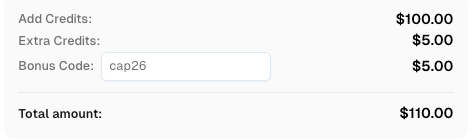
Use bonus code CAP26 when topping up your CapSolver account to get an extra 5% bonus on every recharge — with no limits.
Redeem it now in your CapSolver Dashboard
Use Token Mode for Known Challenge Parameters
Use solve_captcha when your approved browser or application flow already supplies the required type, page URL, and sitekey.
For example, give Claude Code a bounded instruction such as:
Use CapSolver
solve_captchaonce for the reCAPTCHA v2 on my approved test page. Use the exact page URL and sitekey I provided. If either is missing, report that missing input rather than guessing. Return the tool status without printing the full token in your summary.
The tool's schema uses captcha_type, website_url, and website_key. Check the discovered schema for additional parameters required by the challenge you are handling. Do not copy REST task names into the MCP type field: reCaptchaV2 is the MCP value, while the REST API has its own documented task names.
Your application then needs to consume the returned token through the target's intended flow. The MCP call itself does not submit every form or verify a business result. For page-specific reCAPTCHA inputs, consult the reCAPTCHA v2 task documentation.
If a parameter is unknown, inspect the current approved page with the appropriate browser tools. A sitekey remembered from another page is not evidence for the current widget. Keep the solve connected to the actual operation being debugged.
Use Page Tools with Their Browser Boundary in Mind
The page tools accept a URL and operate in a browser session created by the MCP service.
For detection, a useful request is:
Call CapSolver
detect_captchason this approved page URL and report the detected type. Do not solve it yet.
When solving that page is the intended operation, solve_on_page can perform its documented detection, solving, and fill-back sequence. Review the observed challenge and supported coverage before asking for that call.
The important boundary is visible in the official MCP implementation: these tools open a browser for the call and close it afterward. They do not attach themselves to a tab held by a separate browser MCP or automatically inherit its login state.
This makes a direct, reachable test page a clearer starting point than a page available only after several private session steps. If your task needs to remain on a browser page you already control, use a supported integration that operates on that existing page. The CapSolver Core SDK documents browser-adapter capabilities for that different integration requirement.
The existing Claude Computer Use guide discusses an adjacent browser-agent surface. Claude Computer Use and this Claude Code MCP setup should not be treated as interchangeable configuration.
Fix Setup Errors Before Repeating CAPTCHA Calls
Most setup failures can be narrowed to the executable path, environment, browser installation, or task input.
If the server command cannot be found, use the absolute Python path shown above. If the package cannot be imported, verify that the same Python environment contains capsolver-mcp and capsolver-core.
If page detection reports a missing browser executable, run the Chromium installation command in the environment that launches the MCP server. Token mode does not require a browser just to call the solving service, so distinguish a browser startup failure from a solver API failure.
If the server connects but an API call fails, retain the returned error code and a redacted summary. Check the account key, supported type, required inputs, and current page state before another attempt.
If a solve returns a token but the original application is unchanged, inspect result consumption. Confirm that the result was used by the intended workflow and that you did not assume two separate browser sessions shared state.
Keep a small limit on repeated attempts. When the same error remains unresolved, return the evidence for review rather than instructing the agent to retry indefinitely.
Build Reliable Automation Workflows with CapSolver
Start with a real MCP connection, inspect the installed tool set, and request the operation that matches the challenge in your approved task.
CapSolver gives Claude Code a documented CAPTCHA-solving capability. Correct inputs and a clear browser boundary make that capability useful; the final application response tells you whether the intended task actually completed.
FAQ
Q: Do I need browser dependencies for every MCP tool?
No. The page tools need the browser extra and Chromium. Token solving and account or coverage queries do not need to open a browser just to call their corresponding service or local capability.
Q: Can CapSolver MCP continue my existing browser tab?
The page tools in the checked version open and close their own browser session. Do not assume that they control a tab owned by another browser tool.
Q: Does the MCP server support every CapSolver REST task?
No. Check get_supported_captchas and the discovered tool schema. Separate REST capabilities are not automatically exposed through this MCP package.
Q: Why does Claude Code show pending approval?
A project MCP server may require approval before use. Review it in Claude Code and confirm the configured command rather than treating approval status as an API-key error.
Q: Does a successful solve mean the agent finished its task?
No. Verify that the result was consumed by the intended application and that the requested page operation completed. A token or filled widget is an intermediate result.
Compliance Disclaimer: The information provided on this blog is for informational purposes only. CapSolver is committed to compliance with all applicable laws and regulations. The use of the CapSolver network for illegal, fraudulent, or abusive activities is strictly prohibited and will be investigated. Our captcha-solving solutions enhance user experience while ensuring 100% compliance in helping solve captcha difficulties during public data crawling. We encourage responsible use of our services. For more information, please visit our Terms of Service and Privacy Policy.
More
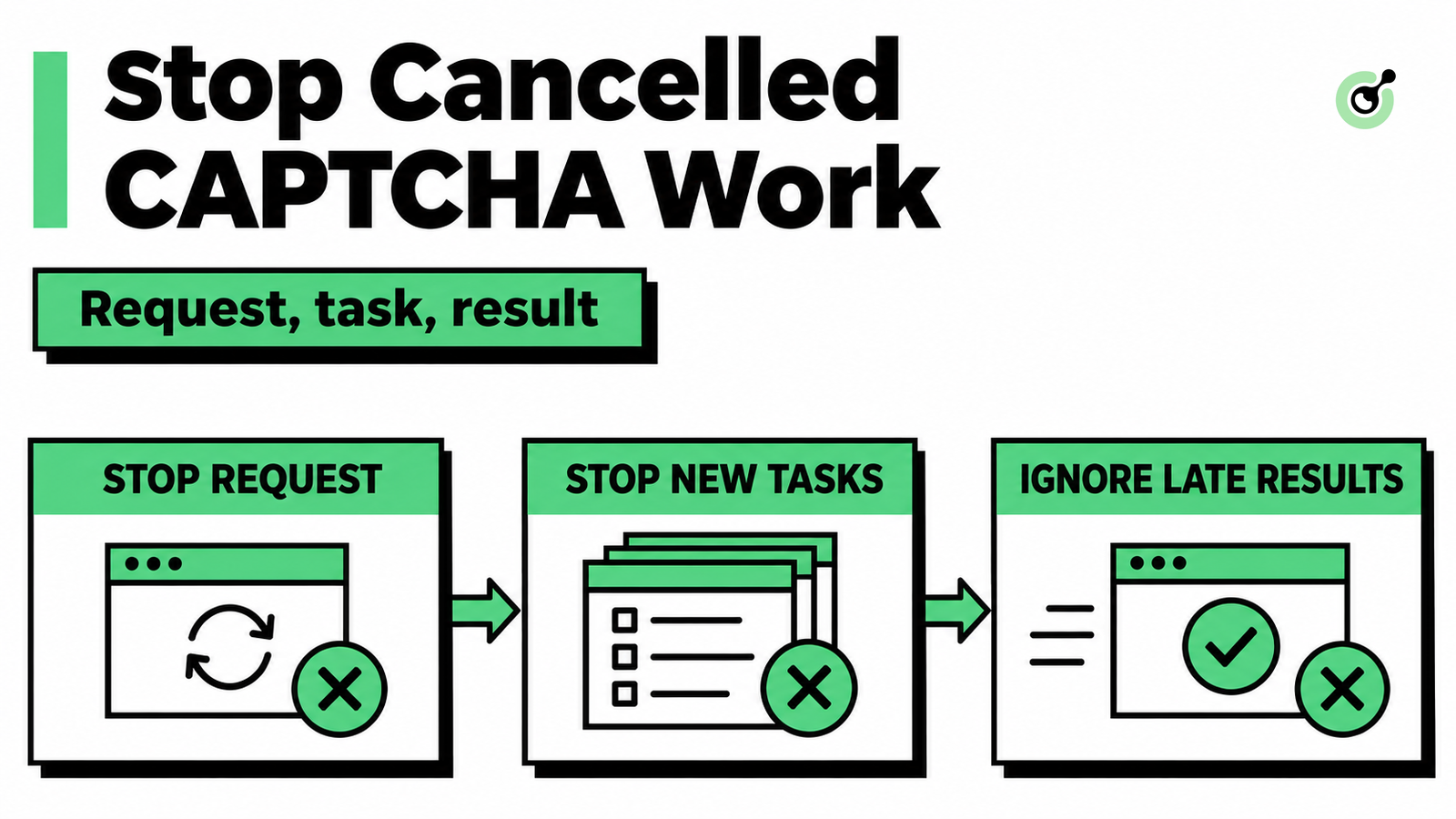
MCP CAPTCHA Cancellation: How to Stop Agent Tool Calls
Handle MCP CAPTCHA cancellation in AI agents. Stop new calls, distinguish remote tasks from local waits, and prevent late results from restarting work.
Khadija Santos
03-Nov-2026
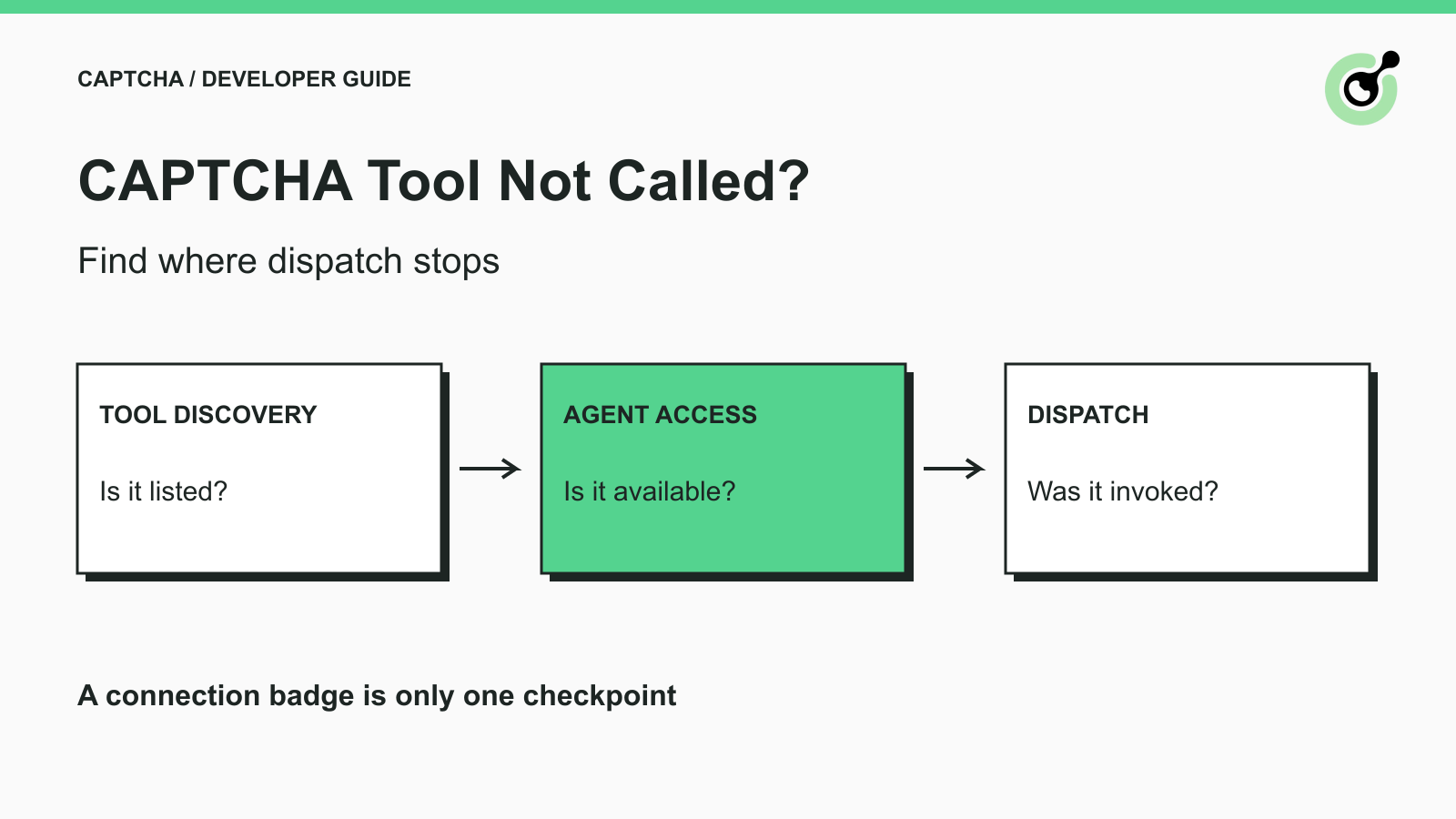
CAPTCHA Tool Connected but Your AI Agent Never Calls It?
Fix CAPTCHA tools that connect but never run. Check discovery, agent visibility, required inputs, approvals, and executor dispatch before changing solver settings.

Ethan Collins
02-Nov-2026
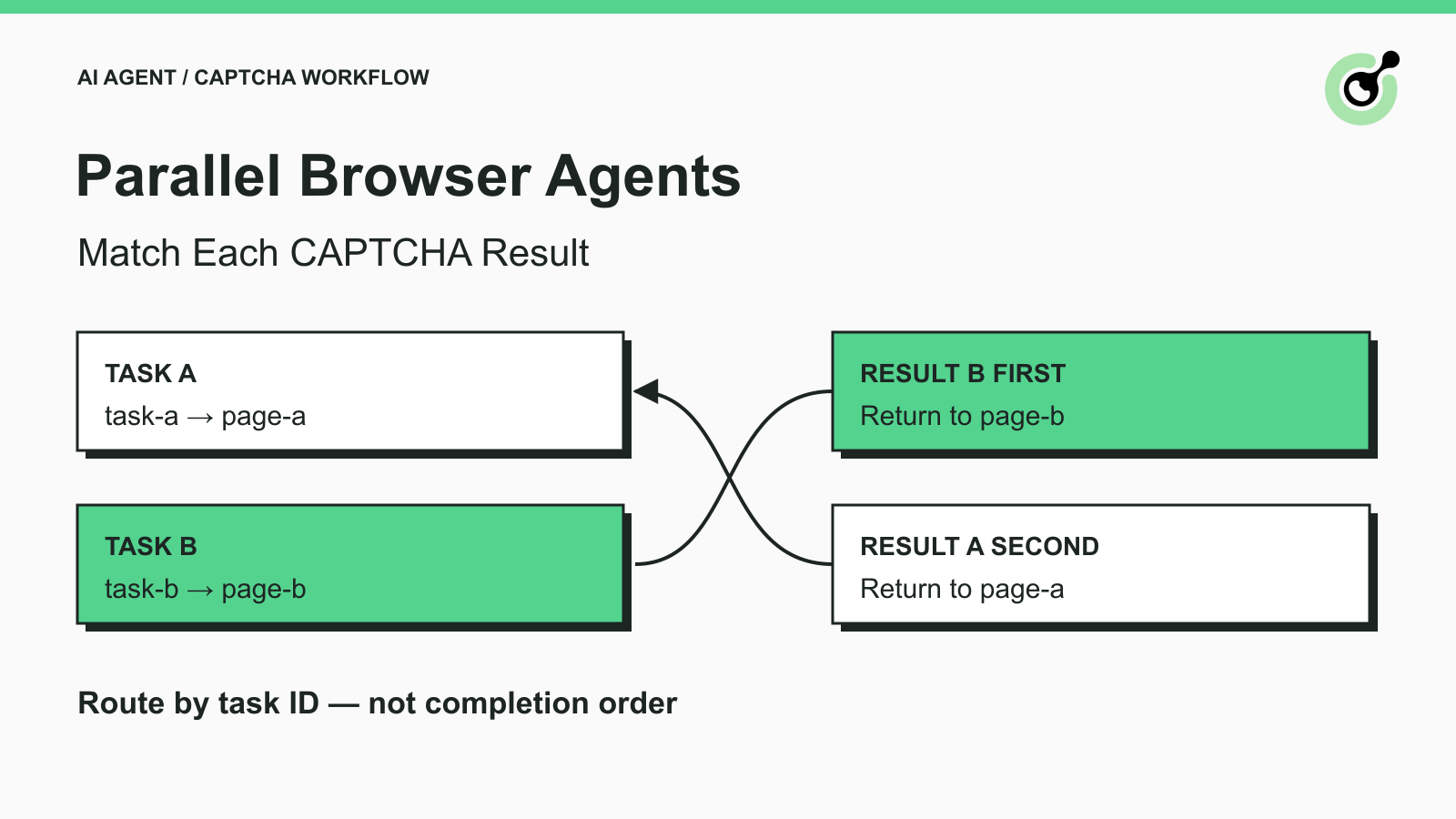
How to Match CAPTCHA Results to Parallel Browser Agent Tasks
Keep parallel browser agents from mixing CAPTCHA results. Map task IDs to page owners, reject stale responses, and test routing before applying a solution.
Khadija Santos
29-Oct-2026
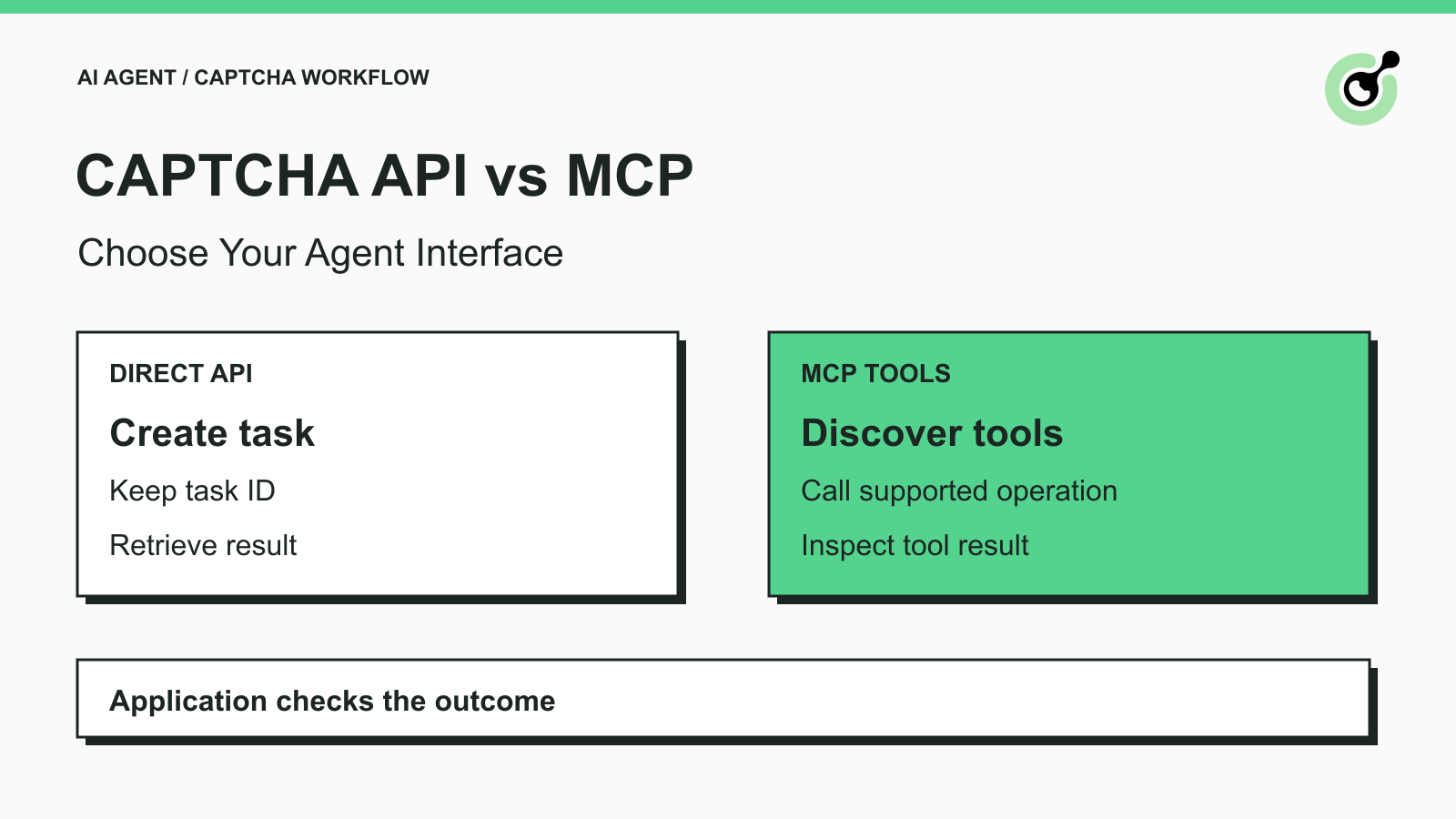
How to Choose Between a CAPTCHA API and MCP for AI Agents
Choose a CAPTCHA API or MCP for your AI agent by comparing task control, tool discovery, result handling, and browser responsibilities before you integrate.
Khadija Santos
29-Oct-2026
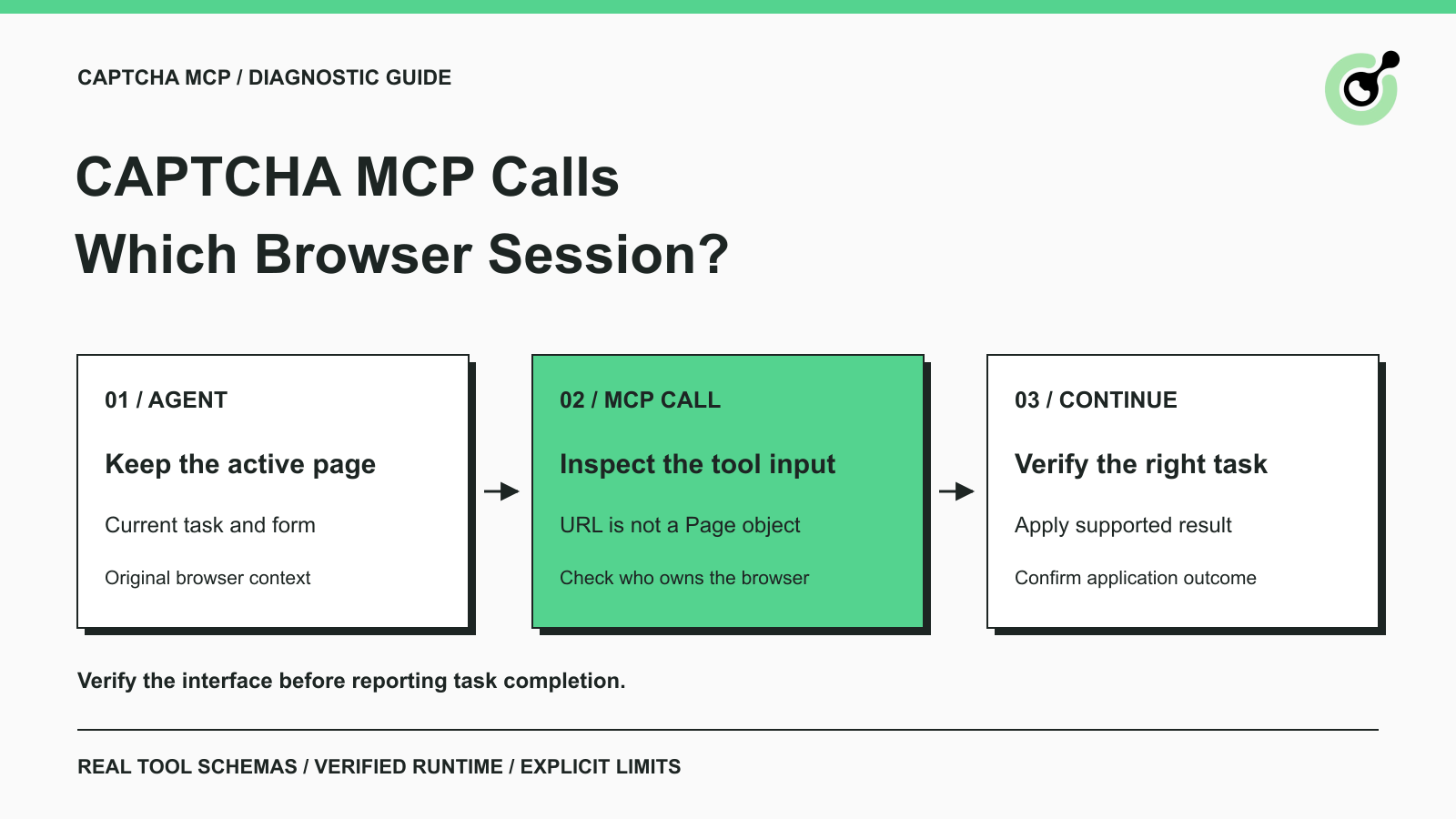
How to Fix CAPTCHA MCP Calls Using the Wrong Browser Session
Diagnose CAPTCHA MCP calls that open a different browser session. Inspect tool inputs, keep the original page, and verify the task before continuing.
Khadija Santos
28-Oct-2026
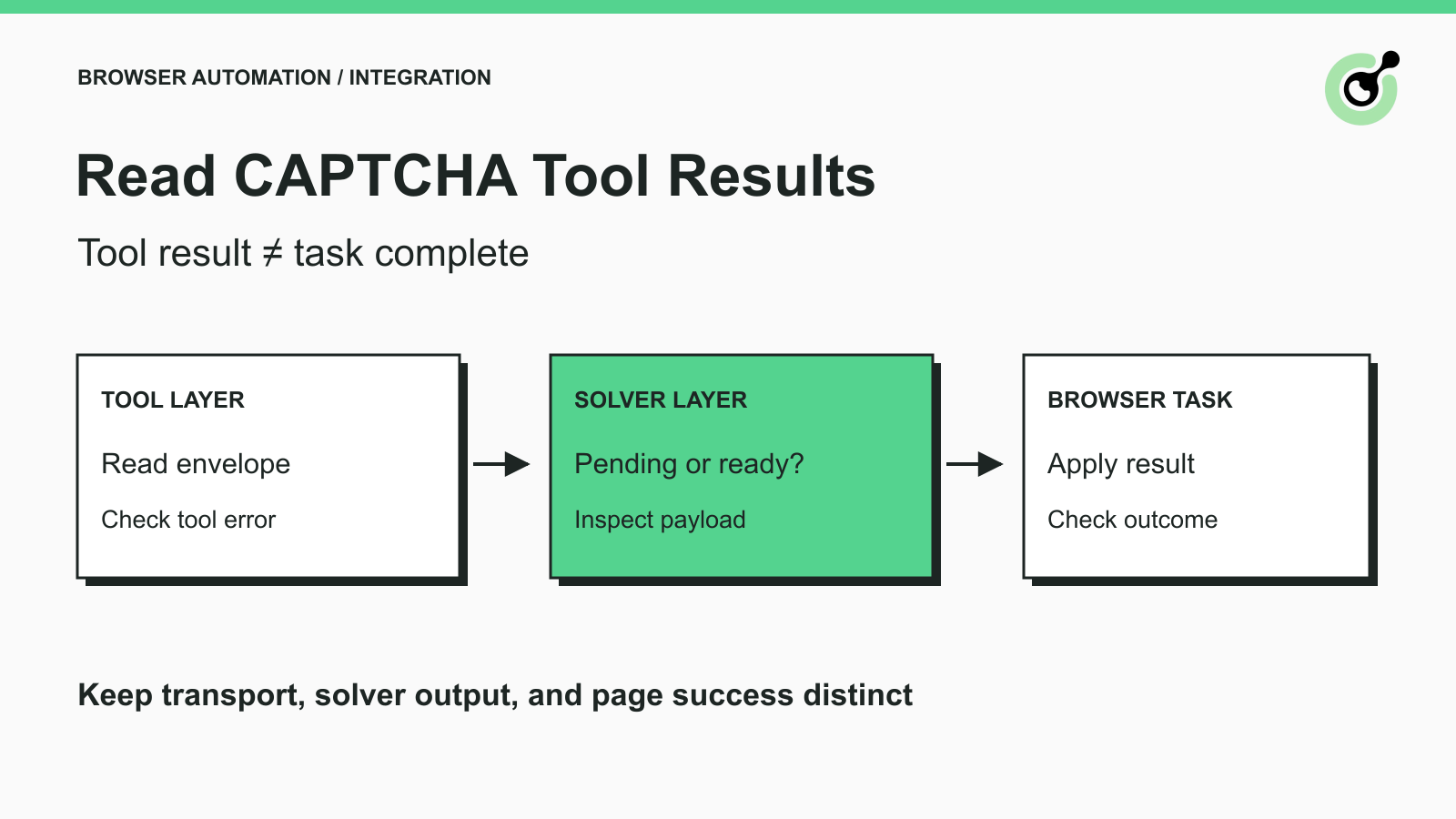
How to Return CAPTCHA Tool Results an AI Agent Can Use
Read CAPTCHA tool results correctly: distinguish transport errors, pending tasks, solver output, and browser success before letting an AI agent continue.
Khadija Santos
28-Oct-2026