




How to Set Up CAPTCHA Solver Tools in Gemini CLI with MCP

Khadija Santos
How to use CapSolver
21-Oct-2026
TL;DR
- Gemini CLI can connect to a local CAPTCHA solver through its
mcpServersconfiguration. - Point the client at the Python environment's executable to avoid PATH problems.
- Start with tool discovery before enabling a paid solve in an approved workflow.
- A connected MCP service does not prove that an account can solve a challenge or that a browser form has completed.
- Folder trust and tool approval are separate controls; keep tool confirmations enabled.
Gemini CLI CAPTCHA solver setup starts with a tool connection. If your terminal agent helps maintain browser tests or another permitted web workflow, the solver belongs at the specific CAPTCHA checkpoint. It should not replace ordinary page navigation, application validation, or your decision about which operations the agent may perform.
CapSolver exposes a local MCP service that Gemini CLI can discover. This guide connects the two using their documented interfaces, explains how to check the connection, and shows where a solving tool fits afterward. The runnable setup targets macOS and Linux. It does not require a target website to establish the connection, and it does not assume that Gemini CLI already controls a browser.
What does a CAPTCHA solver add to Gemini CLI?
A CAPTCHA solver gives Gemini CLI a callable capability for a challenge that the surrounding workflow has already identified and is permitted to handle. Gemini CLI loads the server configuration and presents available tools. The MCP process supplies the tool definitions and performs the requested operation.
For a QA team testing its own application, the browser test may reach a CAPTCHA widget after entering test data. A solver can handle the supported challenge at that point, while the test still owns the form inputs and the assertion that the application accepted the submission. Installing an MCP service alone does not build those browser steps.
Google documents the client connection in its MCP server configuration guide. CapSolver documents the corresponding MCP service and tool roles. The two interfaces meet at a local stdio process, so a separate client adapter is unnecessary for initial discovery.
What do you need before connecting the tools?
You need a supported Node.js runtime, Python, an isolated project directory, and the official client and server packages. The setup was checked with Node.js 24.16.0, Python 3.12.14, Gemini CLI 0.65.0, and capsolver-mcp 0.1.3. These versions identify the tested combination rather than a requirement to remain on them indefinitely.
The official Gemini CLI installation instructions explain the client prerequisites. Use Python 3.10 or newer and a Node.js version supported by the pinned Gemini package. A separate environment lets you test the connection without replacing an existing agent setup.
There are two different credentials to understand. Gemini's model authentication allows the CLI to generate responses. A CapSolver API key authorizes account operations such as a paid solve. Neither credential substitutes for the other. The connection check below does not submit a CAPTCHA or request a model response; later solving and conversational use require their respective account setup.
Install the local server and client
Install the official packages in the directory where you will test the connection. From a new working directory, create a Python environment and install the pinned packages:
bash
python3 -m venv py
py/bin/python -m pip install capsolver-mcp==0.1.3
npm init -y
npm install --save-dev @google/gemini-cli@0.65.0
The Python installation brings in the core dependency. Check the installed versions if you reproduce this guide later: a dependency change may alter tools or output even when your configuration stays the same. Keep the environment associated with the project so another terminal session can locate it reliably.
The base MCP package is sufficient for this connection. Browser-oriented tools have additional dependencies. You do not need those tools to establish the initial connection. The official registry installation walkthrough explains the published package and installation routes.
Configure the MCP server in Gemini CLI
Configure Gemini CLI to launch the Python interpreter inside the environment you created. Merge this entry into your existing user settings at ~/.gemini/settings.json; preserve unrelated settings and servers. Replace the executable path with the full path to your project's py/bin/python.
json
{
  "mcpServers": {
    "capsolver": {
      "command": "/absolute/path/to/project/py/bin/python",
      "args": ["-m", "capsolver_mcp"],
      "env": {
        "CAPSOLVER_API_KEY": "${CAPSOLVER_API_KEY}"
      },
      "includeTools": ["get_supported_captchas", "solve_captcha"],
      "trust": false,
      "timeout": 60000
    }
  }
}
The absolute interpreter path resolves a common setup problem: the shell knows about an environment, but the client launches a different Python. The variable reference keeps a literal account key out of the JSON file. Supply the real key through your normal secret-management process before requesting an account operation.
This starter configuration exposes the capability query and token-oriented solving tool. It leaves browser-oriented tools outside the allowlist, giving you time to decide how the browser session should be managed. The timeout is a client setting in milliseconds, not a promise about CAPTCHA completion time.
Keep folder trust separate from server trust
Gemini CLI may disable MCP servers when the current folder is untrusted. Follow Google's trusted-folder workflow for a project you own and have reviewed. Trust the intended project scope rather than changing unrelated folders.
The server's trust: false setting serves a different purpose: it retains tool-call confirmation behavior. A trusted working directory does not mean every future tool call should be approved automatically. Keep that distinction when moving from connection diagnostics to a real application workflow.
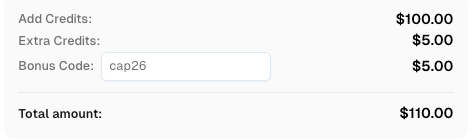
Redeem Your CapSolver Bonus Code
Boost your automation budget instantly!
Use bonus code CAP26 when topping up your CapSolver account to get an extra 5% bonus on every recharge — with no limits.
Redeem it now in your CapSolver Dashboard
Verify the connection before requesting a solve
Verify the configured service with Gemini CLI's MCP listing command from the project directory:
bash
npx --no-install gemini mcp listThe successful check showed the capsolver server using stdio with a Connected status. The displayed command included the interpreter path and -m capsolver_mcp. Your absolute path will differ. A Disabled result points to a configuration or trust decision; a failed connection calls for checking the executable and process startup.
Once normal Gemini authentication is configured, inspect the tools through the client's MCP interface. A useful first request is to ask for supported CAPTCHA types without solving anything. The intended tool is get_supported_captchas; do not substitute an account balance or solving request when you only need a capability check.
The verification boundary is precise: the local Gemini CLI connection was exercised against the real MCP process. No model-driven conversation, paid challenge, or browser form completion is claimed by that check. Those are separate acceptance tests for the workflow you choose to build.
Put the solver at an explicit browser checkpoint
Put the solving operation between a confirmed CAPTCHA detection and the next application-level verification. For an owner-controlled browser test, the intended order is: reach the test form, identify the supported challenge, request the appropriate operation, apply the documented result, and check the application's response.
The token-oriented solve_captcha tool fits an application that already knows the necessary challenge parameters and owns the remaining browser work. Read its actual input schema before requesting a call. An old challenge or a URL from a different environment does not become valid because the client is connected.
CapSolver also documents detect_captchas and solve_on_page as browser-based tools. They require the browser extra and Chromium, and their session behavior must suit your application. A URL-based tool should not be assumed to share the cookies or active page of an unrelated browser controlled by another agent. If you need to operate on a page already owned by your program, review the core SDK's page-oriented interfaces before choosing another integration route.
For a first rollout, choose one approved test workflow and write down its completion signal. A form test might require an expected confirmation state after submitting known test data. A returned token is evidence about the solver operation; the confirmation state is evidence about the application. Keep both in your test results without logging credentials or full tokens.
Troubleshoot setup without repeating paid calls
Troubleshoot the failed stage before starting another challenge. Repeating a paid solve is unnecessary when the actual problem is a Python path or a disabled MCP service.
- If the process cannot start, confirm that the configured interpreter exists and contains the package.
- If Gemini lists the service as disabled, check folder trust and whether the server was explicitly disabled.
- If the service connects but a tool is missing, compare the allowlist and any exclusions with the exact advertised name.
- If an account operation fails, check the key and account requirements without treating discovery as authentication proof.
- If a result arrives but the form does not complete, inspect result handling and application validation before changing the MCP transport.
Make one change at a time and repeat the lowest-cost check that can confirm it. After an upgrade, rediscover the tool names and schemas before reusing an older prompt. A small setup record containing package versions, the server name, and tool scope is usually more useful than a large log of unredacted requests.
Move from connected tools to a tested workflow
Move to real solving after the local connection and intended browser handoff are clear. Start with the narrowest tool scope for the approved task, then verify the application's final state independently. CapSolver can provide the CAPTCHA operation while Gemini CLI helps coordinate the surrounding work.
Use your CapSolver dashboard to prepare the account for that separate solving test. Keep the connection check as a quick diagnostic after client or package changes.
FAQ
Q: Does Gemini CLI solve CAPTCHAs on its own after this configuration?
No. The configuration connects an external MCP tool provider. The surrounding workflow still needs valid inputs, an approved operation, and an application-result check.
Q: Do I need a CapSolver API key to see Connected?
The tested local connection succeeded without an account operation. A paid solve needs a valid key and applicable account requirements; Connected does not validate either.
Q: Why is my MCP server disabled in an unfamiliar folder?
Gemini CLI's folder-trust policy can suppress MCP servers in an untrusted directory. Review the folder and follow the client trust flow for the intended scope.
Q: Why does the configuration expose only two tools?
The example allows the capability query and token-solving tool. Revise the list only after reviewing other tools, their dependencies, and their workflow fit.
Q: Does a page-solving tool reuse my existing browser tab?
Do not assume it does. Check the documented session model; a URL-based operation and a page object owned by your browser program are different interfaces.
Q: What should I test after the MCP connection works?
Test one authorized end-to-end workflow with valid credentials and an observable application outcome. Record solver status separately from the page's final result.
Compliance Disclaimer: The information provided on this blog is for informational purposes only. CapSolver is committed to compliance with all applicable laws and regulations. The use of the CapSolver network for illegal, fraudulent, or abusive activities is strictly prohibited and will be investigated. Our captcha-solving solutions enhance user experience while ensuring 100% compliance in helping solve captcha difficulties during public data crawling. We encourage responsible use of our services. For more information, please visit our Terms of Service and Privacy Policy.
More
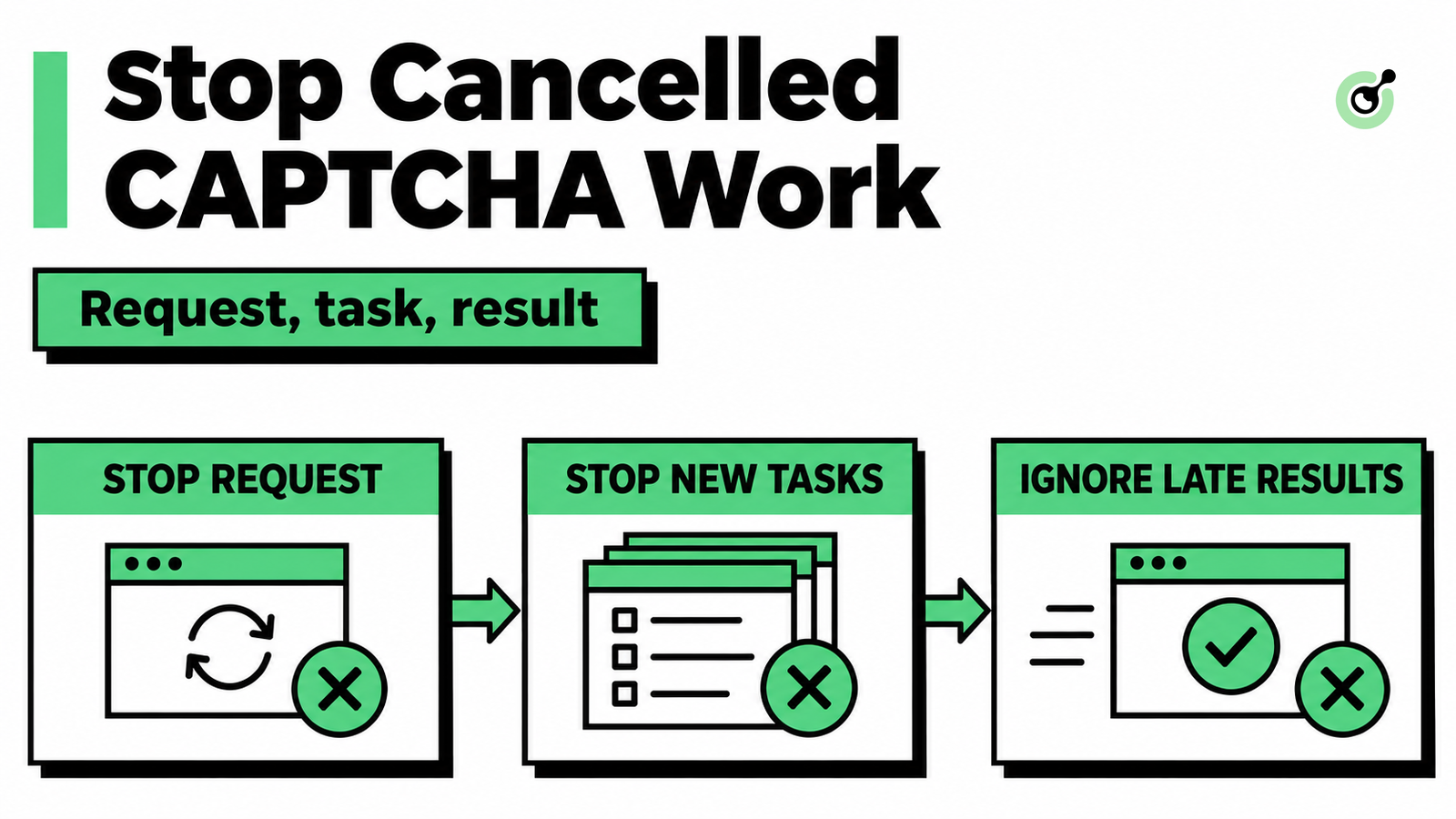
MCP CAPTCHA Cancellation: How to Stop Agent Tool Calls
Handle MCP CAPTCHA cancellation in AI agents. Stop new calls, distinguish remote tasks from local waits, and prevent late results from restarting work.
Khadija Santos
03-Nov-2026
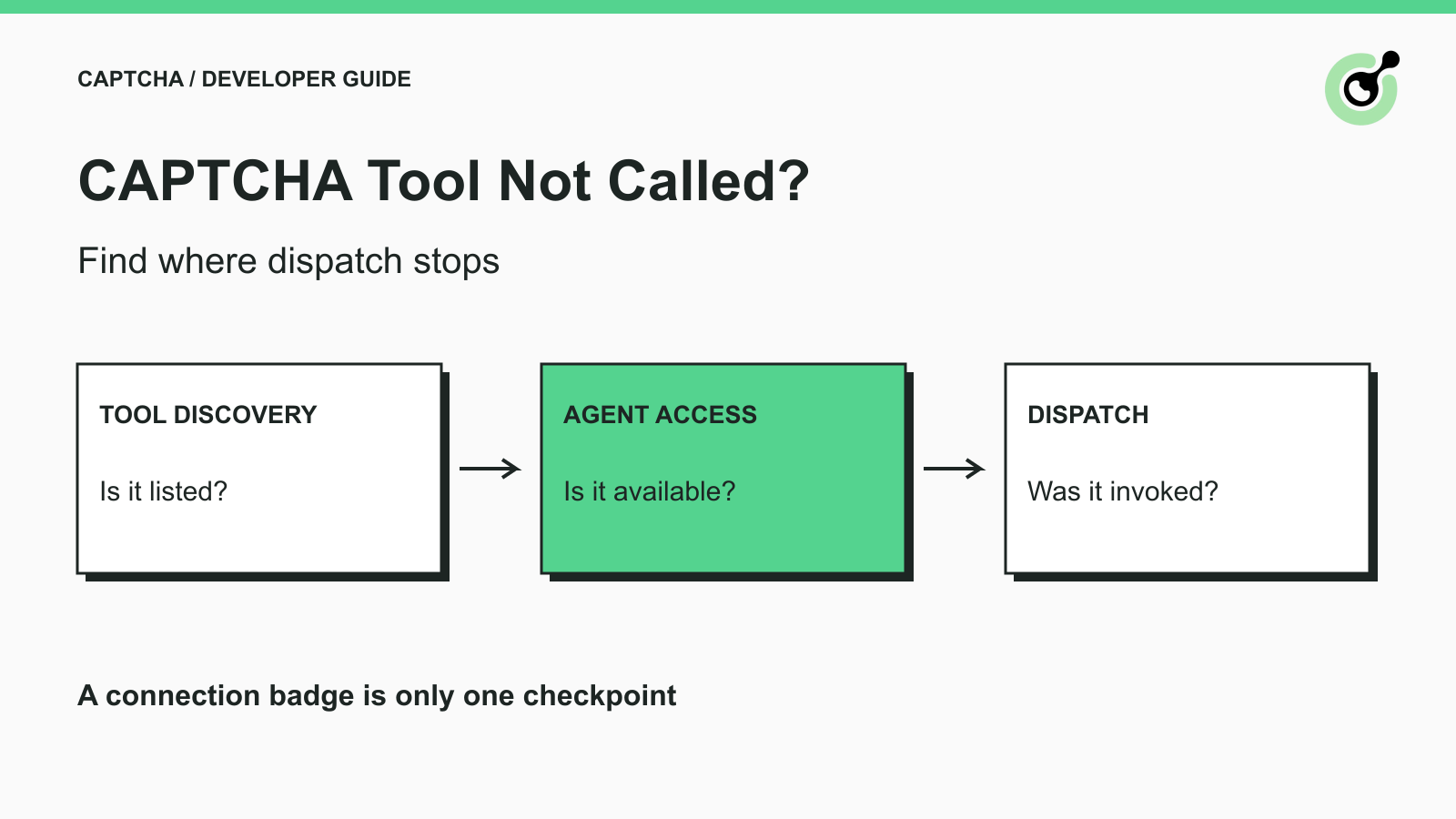
CAPTCHA Tool Connected but Your AI Agent Never Calls It?
Fix CAPTCHA tools that connect but never run. Check discovery, agent visibility, required inputs, approvals, and executor dispatch before changing solver settings.

Ethan Collins
02-Nov-2026
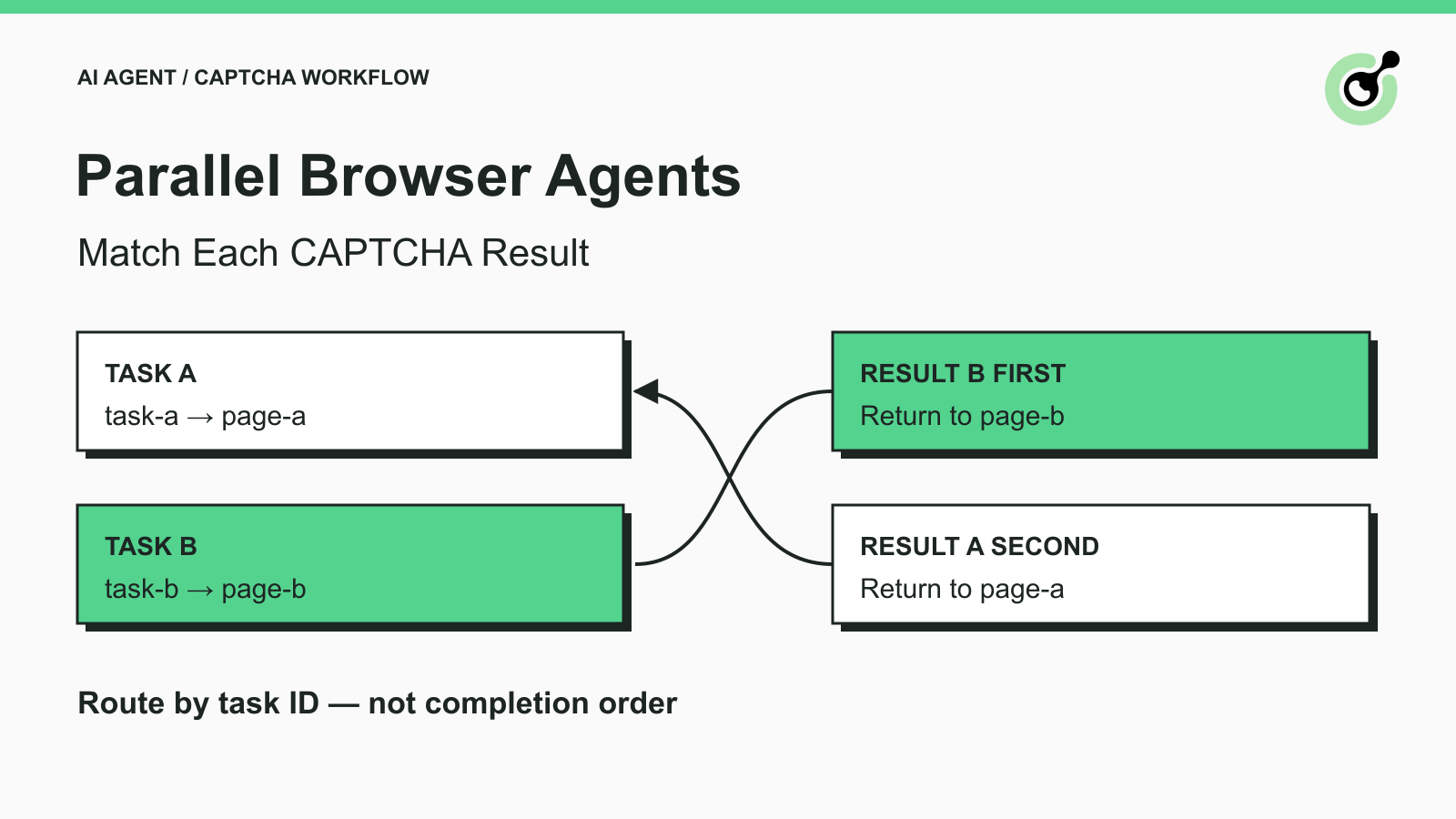
How to Match CAPTCHA Results to Parallel Browser Agent Tasks
Keep parallel browser agents from mixing CAPTCHA results. Map task IDs to page owners, reject stale responses, and test routing before applying a solution.
Khadija Santos
29-Oct-2026
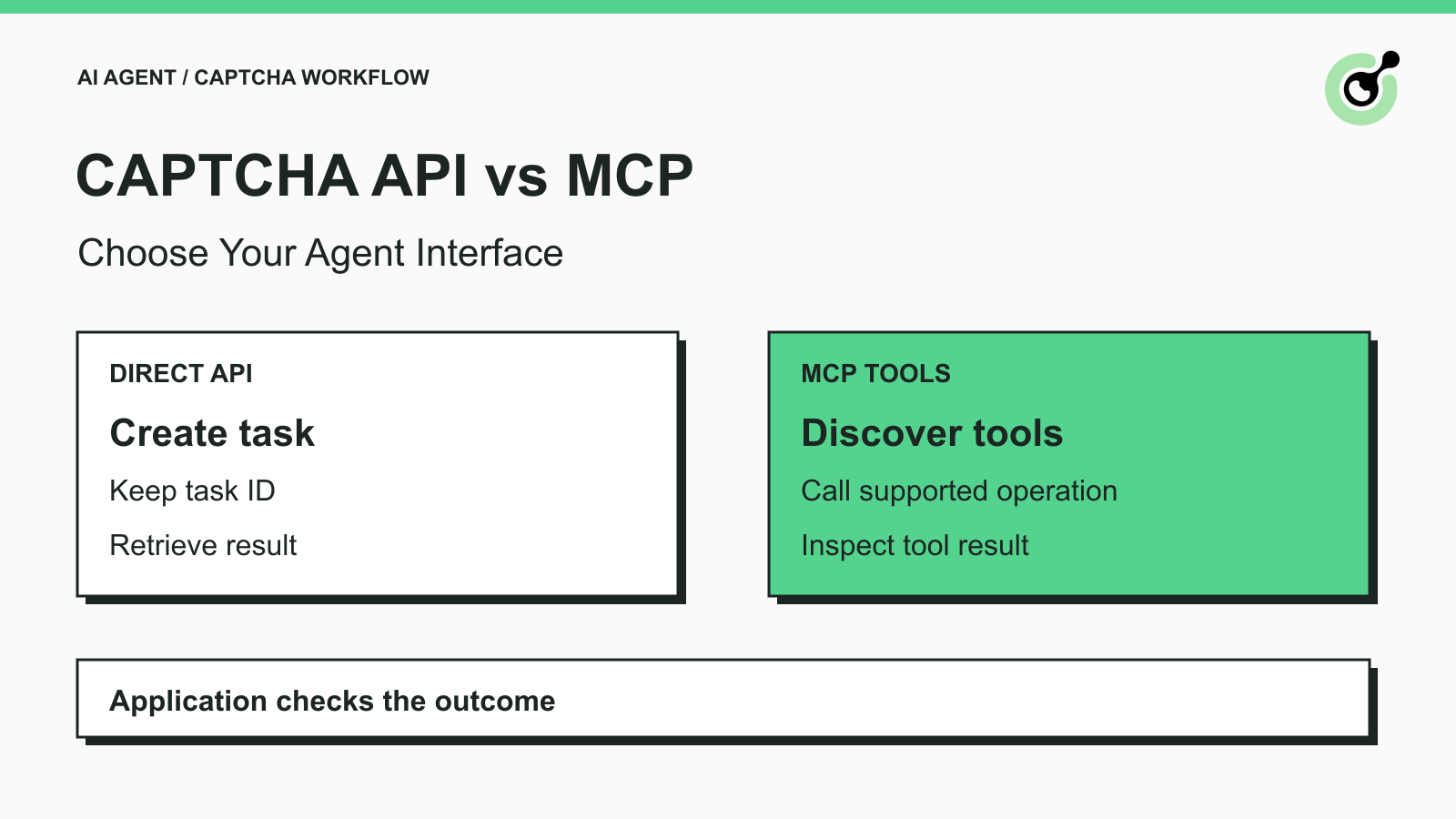
How to Choose Between a CAPTCHA API and MCP for AI Agents
Choose a CAPTCHA API or MCP for your AI agent by comparing task control, tool discovery, result handling, and browser responsibilities before you integrate.
Khadija Santos
29-Oct-2026
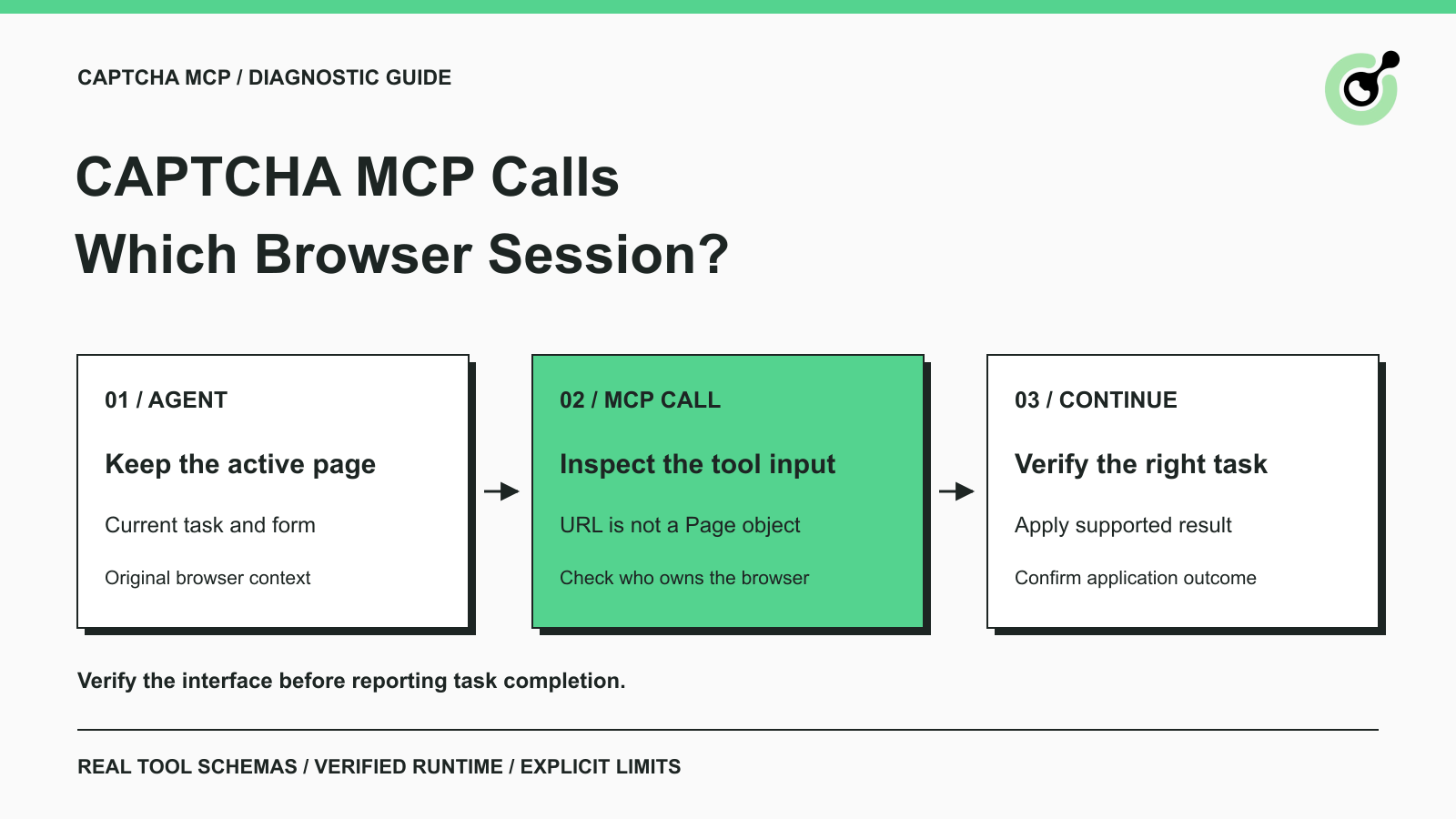
How to Fix CAPTCHA MCP Calls Using the Wrong Browser Session
Diagnose CAPTCHA MCP calls that open a different browser session. Inspect tool inputs, keep the original page, and verify the task before continuing.
Khadija Santos
28-Oct-2026
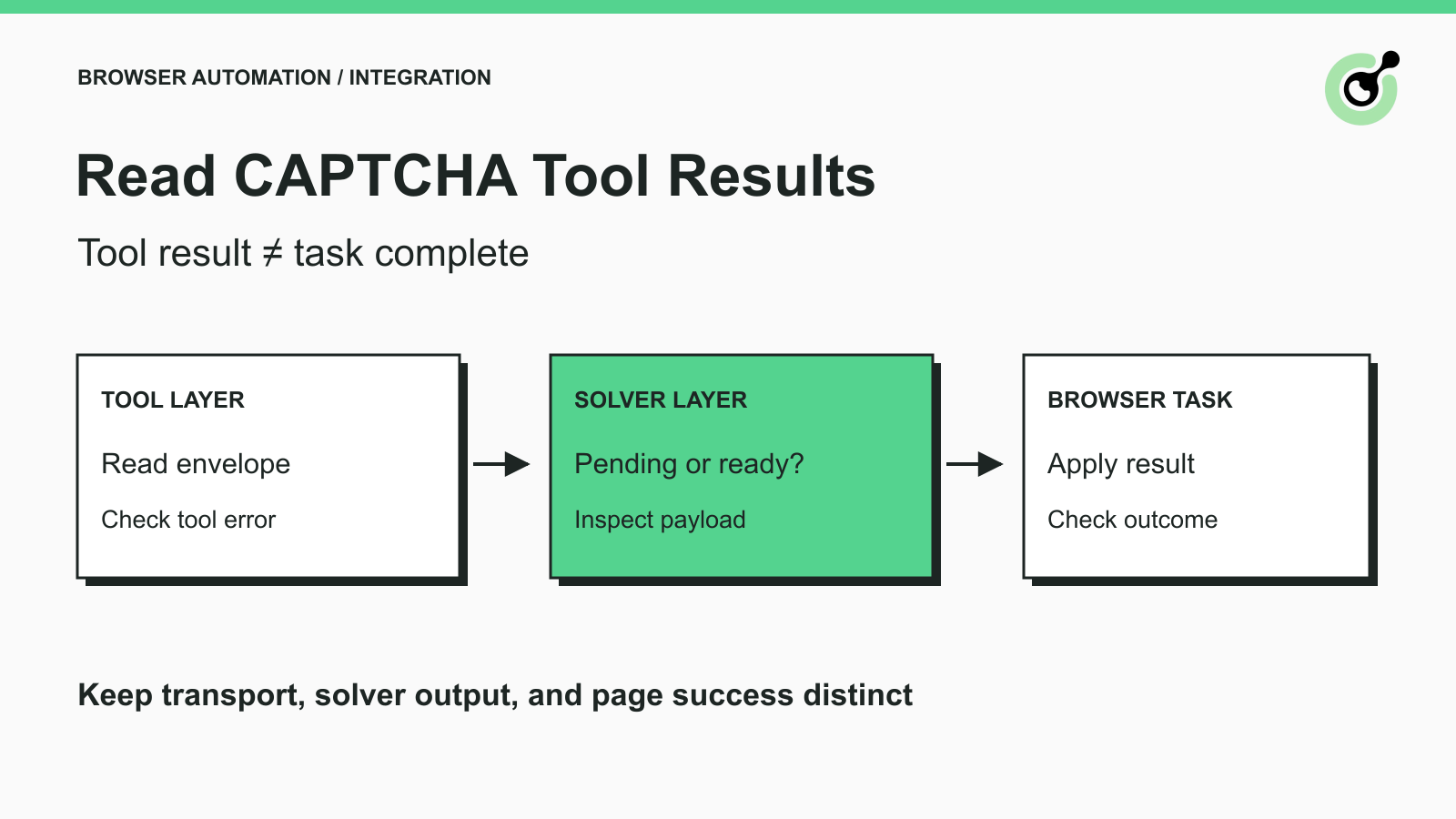
How to Return CAPTCHA Tool Results an AI Agent Can Use
Read CAPTCHA tool results correctly: distinguish transport errors, pending tasks, solver output, and browser success before letting an AI agent continue.
Khadija Santos
28-Oct-2026