




How to Connect CapSolver MCP to rtrvr Browser Agents

Khadija Santos
How to use CapSolver
23-Sep-2026
TL;DR
- rtrvr can call an external CAPTCHA tool through MCP. Its tool system accepts Streamable HTTP or SSE servers and exposes imported tools with qualified names.
- Use the token-mode tool for session-bound browser work. It returns a token without opening a second browser, leaving rtrvr responsible for the original tab and the application-specific submission step.
- Do not confuse two tools named
solve_captcha. rtrvr documents a built-in browser action with that name, while the external MCP server imports a separate qualified tool such ascapsolver.solve_captcha. - A returned token is not proof that the browser task succeeded. Verify the same tab, the intended application response, retry limits, and the final workflow state.
Introduction: Connect a typed challenge tool to rtrvr
rtrvr combines a Chrome extension, cloud browsers, an API, MCP, a CLI, and an SDK for agent-driven browser work. Its tool-calling layer can also connect external MCP servers and invoke their tools from chats or reusable JavaScript subroutines. CapSolver fits this architecture as a separate challenge-handling service for websites and test environments you own or are authorized to automate.
This guide shows the narrow integration that the two documented interfaces actually support. rtrvr keeps control of the active browser tab. CapSolver MCP supplies a typed token-mode tool. A small rtrvr subroutine validates the request, calls the qualified MCP tool, and returns a structured result to the workflow. The final page update remains an application-specific step because a CAPTCHA token is bound to challenge context and is not a generic click result.
The guide does not assume an official native partnership between the products. It also does not claim that CapSolver MCP can attach to rtrvr's internal browser object. Instead, it uses rtrvr's published external-tool contract and CapSolver's published MCP tool schema.
What the rtrvr and CapSolver integration supports
rtrvr's Tool Calling documentation says that users can connect an MCP server by URL, enable imported tools, call them directly with @toolname, and compose them inside a custom tool with rtrvr.callTool(name, params). Imported MCP tools are saved with a server prefix, which is important when two systems publish the same tool name.
CapSolver's MCP Service documentation exposes five tools:
| Tool | Requires a browser in the MCP process? | Best fit in this integration |
|---|---|---|
solve_captcha |
No | Return a token from explicit challenge parameters |
get_supported_captchas |
No | Confirm tool discovery and supported handlers |
get_balance |
No | Confirm authentication before a test |
detect_captchas |
Yes | Inspect a URL in a separate Playwright browser |
solve_on_page |
Yes | Open, inspect, and fill a separate Playwright page |
For a logged-in rtrvr tab, solve_captcha is the practical starting point. The browser-based CapSolver MCP tools start their own Playwright session. They do not receive rtrvr's current tab, cookies, local storage, or in-page state. That makes solve_on_page useful for an independent, authorized page check, but not a transparent continuation of an existing rtrvr session.
There is also a naming collision to handle deliberately. rtrvr documents solve_captcha as one of its built-in pageAction tools. CapSolver MCP publishes a tool with the same short name. After connecting the external server, inspect the tool list and call its full imported name, normally capsolver.solve_captcha. Do not let a planner guess which one you intended.
Architecture and responsibility boundaries
Keep the integration in four layers:
| Layer | Responsibility | Evidence to retain |
|---|---|---|
| rtrvr browser | Navigate, preserve the authorized session, classify the page, and verify the final state | tab ID, URL, page state, final application response |
| rtrvr subroutine | Validate inputs, select the qualified tool, set limits, and return a typed result | selected tool name, request ID, state, error code |
| CapSolver MCP | Validate the task schema, call the CapSolver service, and return a structured solution or error | success flag, challenge type, documented error fields |
| Target application | Accept or reject the token in its own supported integration path | server-side acceptance, route change, expected domain result |
This separation prevents three common mistakes. First, the model does not invent task fields. Second, a token response is not recorded as a completed business action. Third, an access refusal, login wall, MFA prompt, or unsupported challenge is not sent repeatedly to the solver.
Use this pattern only on systems you own or have permission to test or automate. Keep payment, identity verification, account creation, private data access, and other sensitive workflows behind explicit human approval and the applicable service rules.
Step 1: Start CapSolver MCP over Streamable HTTP
rtrvr connects external MCP servers by URL, while CapSolver MCP defaults to local stdio. Start the same server with Streamable HTTP so the rtrvr extension can reach it.
bash
python -m venv .venv
source .venv/bin/activate
pip install capsolver-core
pip install capsolver-mcp

export CAPSOLVER_API_KEY="YOUR_CAPSOLVER_API_KEY"
capsolver-mcp --transport streamable-http --host 127.0.0.1 --port 8000
The official MCP Python SDK uses /mcp as the default Streamable HTTP path, so the local endpoint is:
text
http://127.0.0.1:8000/mcpBinding to 127.0.0.1 keeps the service local. The --api-key option or CAPSOLVER_API_KEY environment variable authenticates the server to CapSolver; it is not a client-authentication layer for anyone who can reach the MCP port. Do not bind this command directly to a public interface. If a remote rtrvr environment must reach it, deploy it behind authenticated HTTPS, restrict the allowed network, protect the API key in a secret store, and review the MCP server's origin and transport settings.
The token-mode tools do not require Playwright. Install the browser extra only when you have a separate authorized use for detect_captchas or solve_on_page:
bash
pip install "capsolver-mcp[browser]"
playwright install chromium
Step 2: Connect and verify the MCP server in rtrvr
Open rtrvr's Tools section, add the local MCP URL, and enable only the tools the workflow needs. rtrvr documents support for Streamable HTTP, SSE, and OAuth-protected MCP servers. For this local setup, use the Streamable HTTP URL from the previous step.
Start with two non-browser calls:
text
@capsolver.get_supported_captchas
@capsolver.get_balance
The exact prefix is assigned by rtrvr when the server is connected. If it differs, use the name shown in the Tools panel. A custom subroutine can also call await rtrvr.listTools() and inspect every available tool's name, description, parameter schema, and source.
These checks answer different questions. get_supported_captchas proves that rtrvr discovered the external tool. get_balance proves that the MCP process received a working account credential. Neither check proves that a real challenge can be completed, but both separate configuration failures from task failures before you spend time debugging a browser flow.
Do not put a real API key in an rtrvr prompt, page recording, screenshot, or repository. Keep it in the MCP process environment. If the process logs tool arguments, redact tokens, keys, URLs containing sensitive query parameters, and any target-specific identifiers before retaining logs.
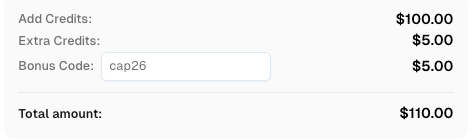
Redeem Your CapSolver Bonus Code
Boost your automation budget instantly!
Use bonus code CAP26 when topping up your CapSolver account to get an extra 5% bonus on every recharge — with no limits.
Redeem it now in your CapSolver Dashboard
Step 3: Add a deterministic rtrvr subroutine
rtrvr custom JavaScript tools can call connected MCP tools through rtrvr.callTool. The following subroutine does four things before it returns a token: validates the URL, allowlists the supported challenge types, discovers the qualified external tool, and normalizes failure states.
javascript
const allowedTypes = new Set(["reCaptchaV2", "reCaptchaV3", "cloudflare"]);

function fail(state, message, details = {}) {
  return { ok: false, state, message, ...details };
}

if (!allowedTypes.has(captchaType)) {
  return fail("unsupported_challenge", `Unsupported type: ${captchaType}`);
}

const parsed = new URL(websiteUrl);
if (parsed.protocol !== "https:") {
  return fail("policy_block", "Only approved HTTPS targets are allowed");
}

const tools = await rtrvr.listTools();
const solver = tools.find((tool) =>
  tool.source === "mcp" &&
  (tool.name === "capsolver.solve_captcha" || tool.name.endsWith(".solve_captcha"))
);

if (!solver) {
  return fail("configuration_error", "CapSolver MCP solve_captcha was not found");
}

const result = await rtrvr.callTool(solver.name, {
  captcha_type: captchaType,
  website_url: websiteUrl,
  website_key: websiteKey,
  version: version || null,
  page_action: pageAction || null,
  min_score: minScore || null,
  invisible: invisible ?? null,
  enterprise: enterprise ?? null,
  cdata: cdata || null,
  timeout: 90,
  polling_interval: 5,
});

if (!result?.success || !result?.solution?.token) {
  return fail("solve_failed", result?.error || "No token returned", {
    errorCode: result?.error_code || null,
    httpStatus: result?.http_status || null,
  });
}

return {
  ok: true,
  state: "token_ready",
  captchaType: result.solution.captcha_type,
  token: result.solution.token,
  expiresAt: result.solution.expire_time || null,
};
Define captchaType, websiteUrl, websiteKey, and the optional fields as tool parameters in rtrvr. The example intentionally does not scrape a site key from arbitrary pages or inject a token into an unknown application. For a test application you control, add a separate adapter that reads the exact challenge parameters from your application contract and submits the result through the supported form or server endpoint.
The included local test covers the orchestration branch logic with a mocked rtrvr tool runtime. A live handshake still requires an rtrvr account, an active browser device or cloud context, a CapSolver API key, and an authorized test page.
Step 4: Keep the token bound to the original browser state
CAPTCHA solutions are context-sensitive. The challenge type, public site key, page URL, action name, session state, and sometimes proxy or user-agent data can affect whether the target application accepts a result. The browser workflow must therefore preserve the original tab and submit the returned token in the manner expected by the application.
Use a typed workflow state instead of a generic retry loop:
page_ready: the intended page loaded and its identity is verified.challenge_detected: a supported challenge is present and parameters came from trusted page evidence.solve_requested: one bounded MCP call was created for that challenge instance.token_ready: the service returned a token, but no application success is claimed yet.submitted: the application-specific adapter submitted the token in the same authorized session.accepted: the intended route, API response, or page state confirms success.revieworstopped: the state is ambiguous, unsupported, sensitive, or over budget.
Do not call solve_on_page as a shortcut for this session-bound flow. The current CapSolver MCP implementation opens a new headless Chromium page for that tool, performs detection and filling there, and closes the browser afterward. That is a valid standalone operation, but it is a different session from rtrvr's extension or cloud browser. Use it only when a separate session is acceptable and explicitly authorized.
Step 5: Verify the application result
A successful MCP response means the tool returned a solution object. It does not mean a login, form submission, extraction job, or browser task completed. Verification should occur in rtrvr on the original tab.
Use at least three checks:
- Tab continuity: the tab ID, host, and intended workflow step still match the request that produced the challenge.
- Application acceptance: a documented route, DOM state, or server response confirms that the application accepted the result.
- Business outcome: the intended authorized task completed without silently switching pages, accounts, or records.
If the page shows the same challenge again, stop after the configured attempt budget. Repeated challenge loops can indicate an expired token, mismatched parameters, proxy or user-agent inconsistency, unsupported challenge variation, or a broader access policy decision. More calls do not prove progress.
Record states and error codes, not secrets. A useful event contains a correlation ID, timestamp, tool name, challenge type, target host, attempt number, state transition, latency, and final application outcome. Do not retain the solution token or API key in ordinary logs.
Troubleshooting the rtrvr MCP integration
| Symptom | Likely cause | Check |
|---|---|---|
| MCP server does not appear | Wrong URL, process stopped, or transport mismatch | Confirm http://127.0.0.1:8000/mcp and Streamable HTTP mode |
capsolver.solve_captcha is missing |
Imported tool disabled or server prefix differs | Open the Tools panel or inspect rtrvr.listTools() |
A different solve_captcha runs |
Short-name collision with rtrvr's built-in page action | Call the full MCP-qualified tool name |
| Balance check fails | API key missing or invalid in the MCP process | Check the environment and restart the server |
| Tool returns unsupported type | captcha_type does not match the published enum |
Use get_supported_captchas and an allowlist |
| Token is returned but page does not continue | Wrong challenge parameters, expired context, or missing application-specific submission | Re-read trusted page evidence and verify the target response |
solve_on_page succeeds elsewhere but rtrvr tab is unchanged |
The tool launched a separate browser session | Use token mode for the rtrvr session and submit through an approved adapter |
| Remote connection is rejected | Localhost-only binding, DNS-rebinding protection, or missing authenticated proxy | Use an approved HTTPS deployment with explicit network and origin configuration |
Production checklist
Before moving beyond a test page, confirm all of the following:
- the target and browser workflow are authorized;
- the CapSolver tool is selected by its qualified MCP name;
- challenge parameters come from trusted runtime evidence, not model guesses;
- API keys stay in an environment or secret store;
- the MCP endpoint is local or protected by authenticated HTTPS and network controls;
- token handling is separated from application-specific submission;
- retries are bounded per challenge instance and per workflow;
- logs omit API keys, solution tokens, sensitive URLs, and private page data;
- rtrvr verifies the final state in the original tab;
- sensitive account, payment, identity, and private-data actions require explicit review;
- unsupported or ambiguous states stop safely.
This checklist is more important than adding another planner prompt. Most integration failures occur at the boundary between browser state, tool inputs, service output, and application acceptance. Those are runtime contracts, not language-model reasoning problems.
Conclusion
rtrvr provides the external-tool surface needed to call CapSolver MCP, but the reliable integration is narrower than simply enabling a tool. Start CapSolver MCP over Streamable HTTP, connect the endpoint in rtrvr, verify discovery with non-browser tools, and call the external solver by its qualified name. For active rtrvr sessions, use token mode and keep page submission and outcome verification inside the original browser workflow. Treat separate-browser tools as separate sessions, retain typed evidence, and stop on unsupported or ambiguous states. In authorized browser-agent workflows, CapSolver supplies the documented challenge tool while rtrvr remains responsible for browser context and final application success.
Add CAPTCHA handling to an authorized rtrvr workflow
Review the five published tools in the CapSolver MCP documentation, then connect a local or properly protected endpoint from rtrvr's Tools panel. Use the CapSolver Dashboard to test one approved workflow before expanding the integration.
FAQ
Q: Does rtrvr have a native CapSolver integration?
The reviewed documentation does not claim a native partnership or built-in CapSolver provider. The integration in this guide uses rtrvr's general MCP tool connection and CapSolver's public MCP server.
Q: Why not call the short name solve_captcha?
rtrvr documents a built-in browser action with that name, and CapSolver MCP publishes the same short name. Use the qualified imported name shown in the Tools panel, such as capsolver.solve_captcha, to avoid ambiguity.
Q: Can CapSolver MCP use the browser tab already open in rtrvr?
Not through the documented MCP tools. Token mode needs explicit challenge parameters and returns a token, while the browser-mode tools launch a separate Playwright browser.
Q: Should I expose the local MCP port to the internet?
No. Keep it on localhost for local use. A shared deployment needs authenticated HTTPS, network restrictions, secret management, origin controls, and an explicit security review.
Q: How do I know the browser task succeeded?
Verify the result in the original rtrvr tab using the expected route, DOM state, API response, and business outcome. A returned token alone is not success evidence.
Compliance Disclaimer: The information provided on this blog is for informational purposes only. CapSolver is committed to compliance with all applicable laws and regulations. The use of the CapSolver network for illegal, fraudulent, or abusive activities is strictly prohibited and will be investigated. Our captcha-solving solutions enhance user experience while ensuring 100% compliance in helping solve captcha difficulties during public data crawling. We encourage responsible use of our services. For more information, please visit our Terms of Service and Privacy Policy.
More
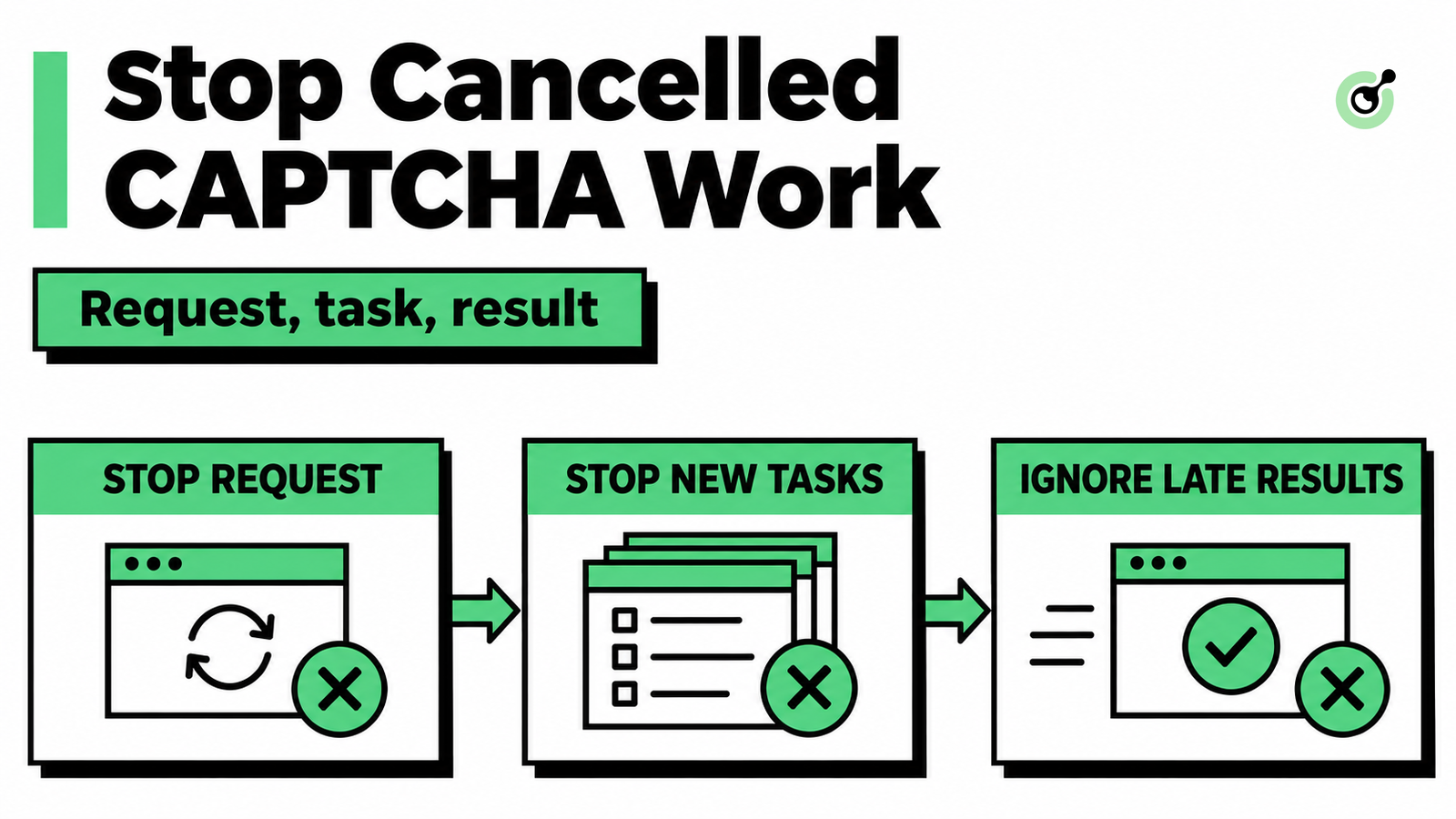
MCP CAPTCHA Cancellation: How to Stop Agent Tool Calls
Handle MCP CAPTCHA cancellation in AI agents. Stop new calls, distinguish remote tasks from local waits, and prevent late results from restarting work.
Khadija Santos
03-Nov-2026
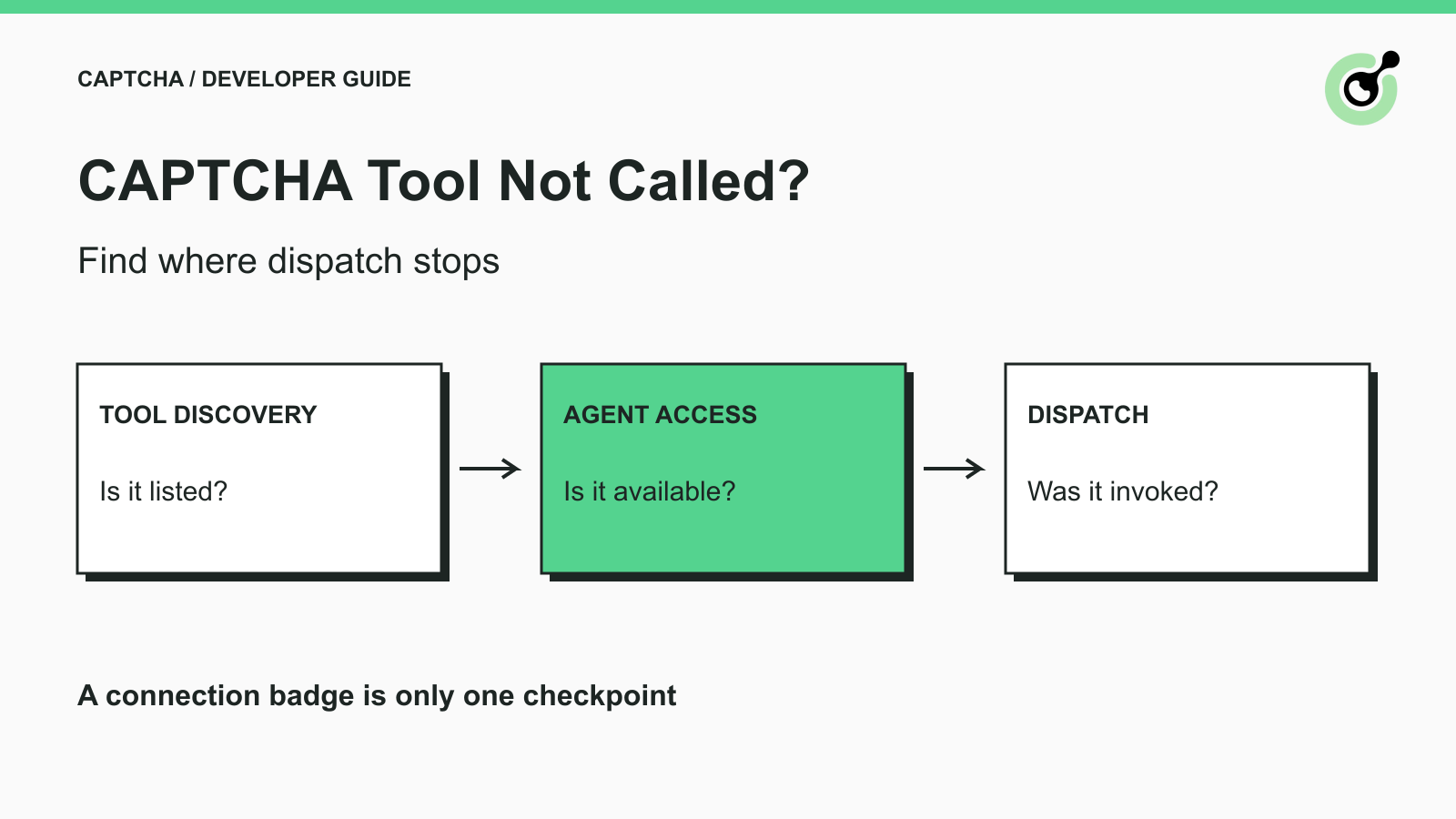
CAPTCHA Tool Connected but Your AI Agent Never Calls It?
Fix CAPTCHA tools that connect but never run. Check discovery, agent visibility, required inputs, approvals, and executor dispatch before changing solver settings.

Ethan Collins
02-Nov-2026
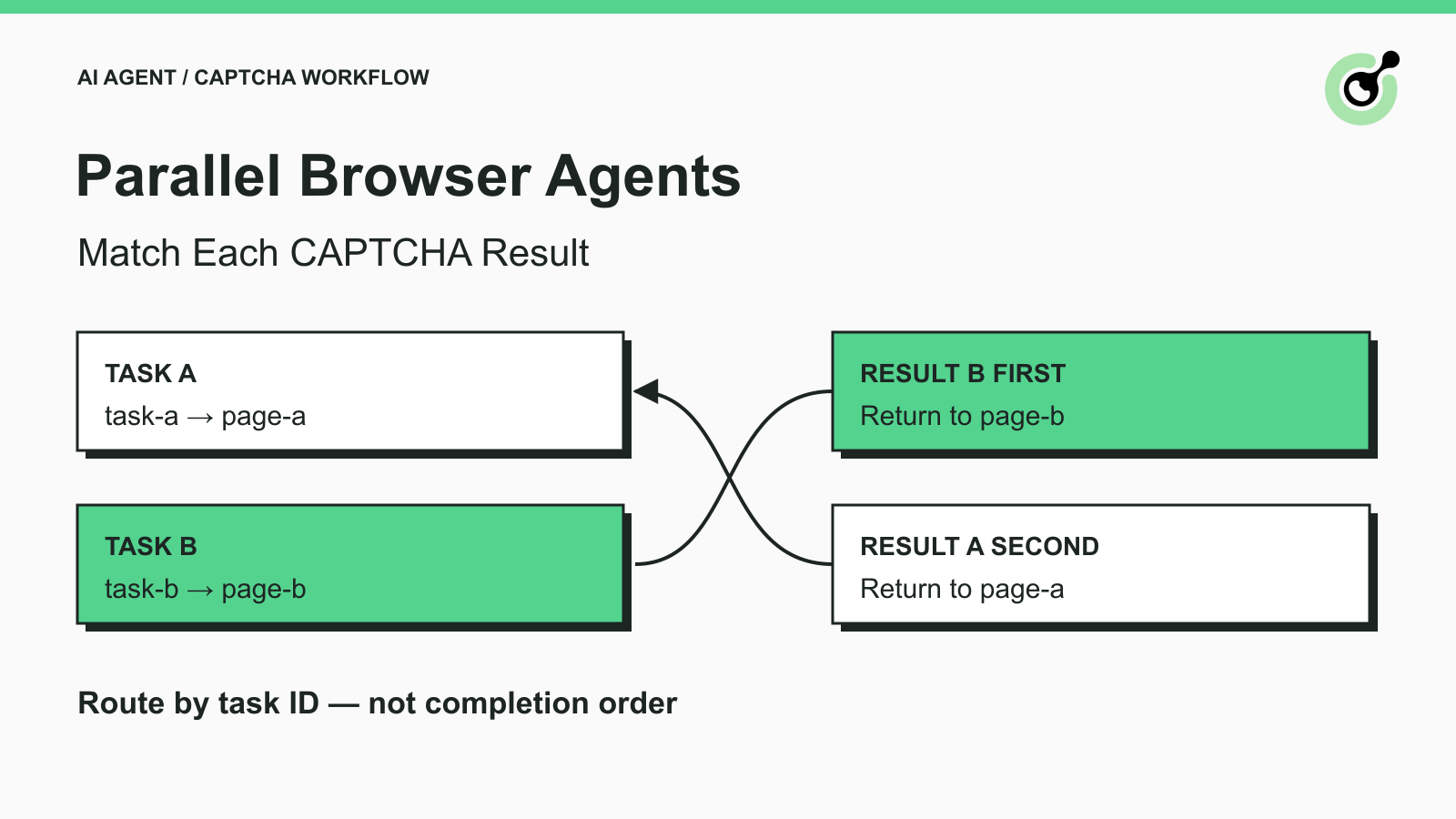
How to Match CAPTCHA Results to Parallel Browser Agent Tasks
Keep parallel browser agents from mixing CAPTCHA results. Map task IDs to page owners, reject stale responses, and test routing before applying a solution.
Khadija Santos
29-Oct-2026
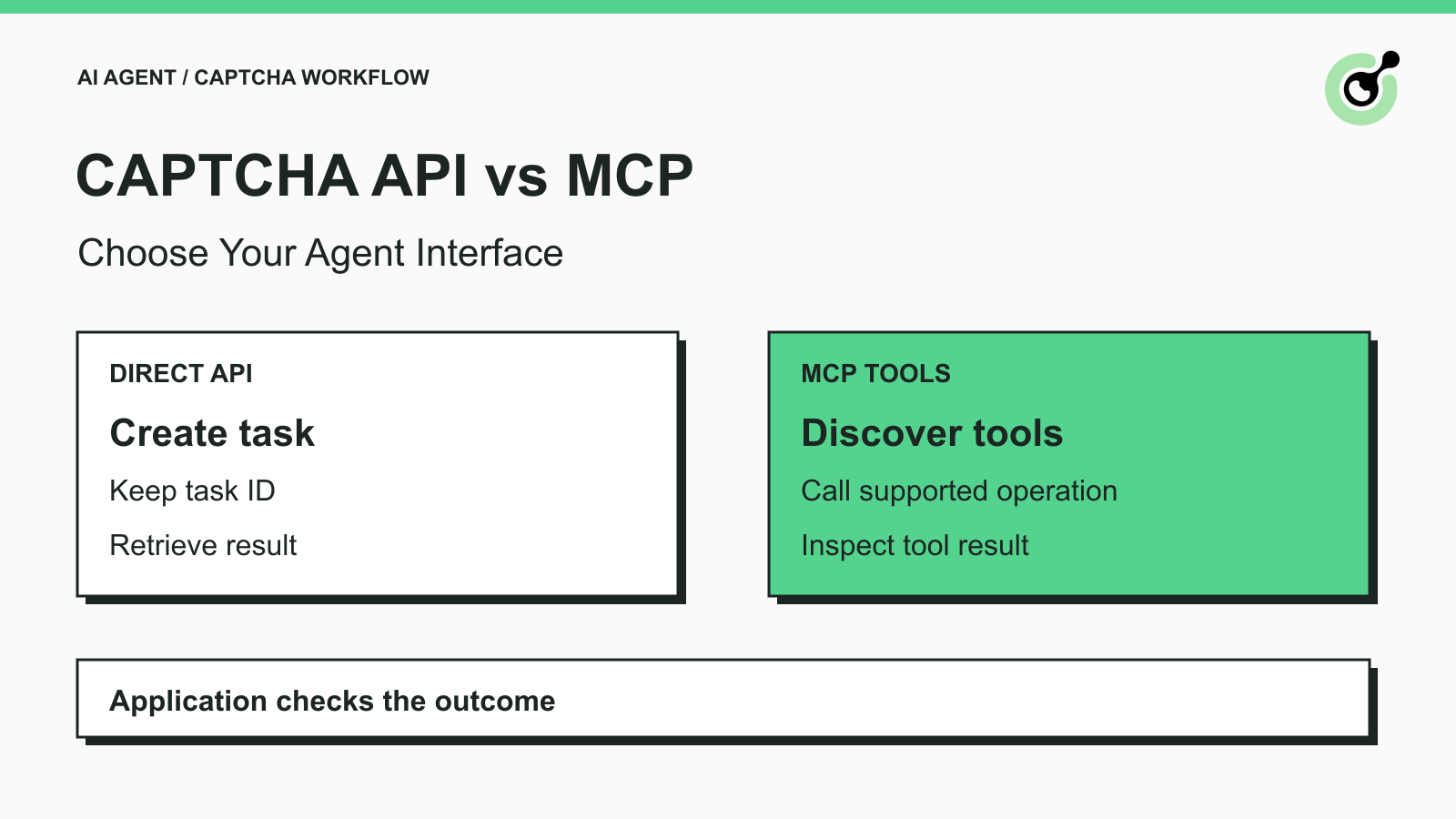
How to Choose Between a CAPTCHA API and MCP for AI Agents
Choose a CAPTCHA API or MCP for your AI agent by comparing task control, tool discovery, result handling, and browser responsibilities before you integrate.
Khadija Santos
29-Oct-2026
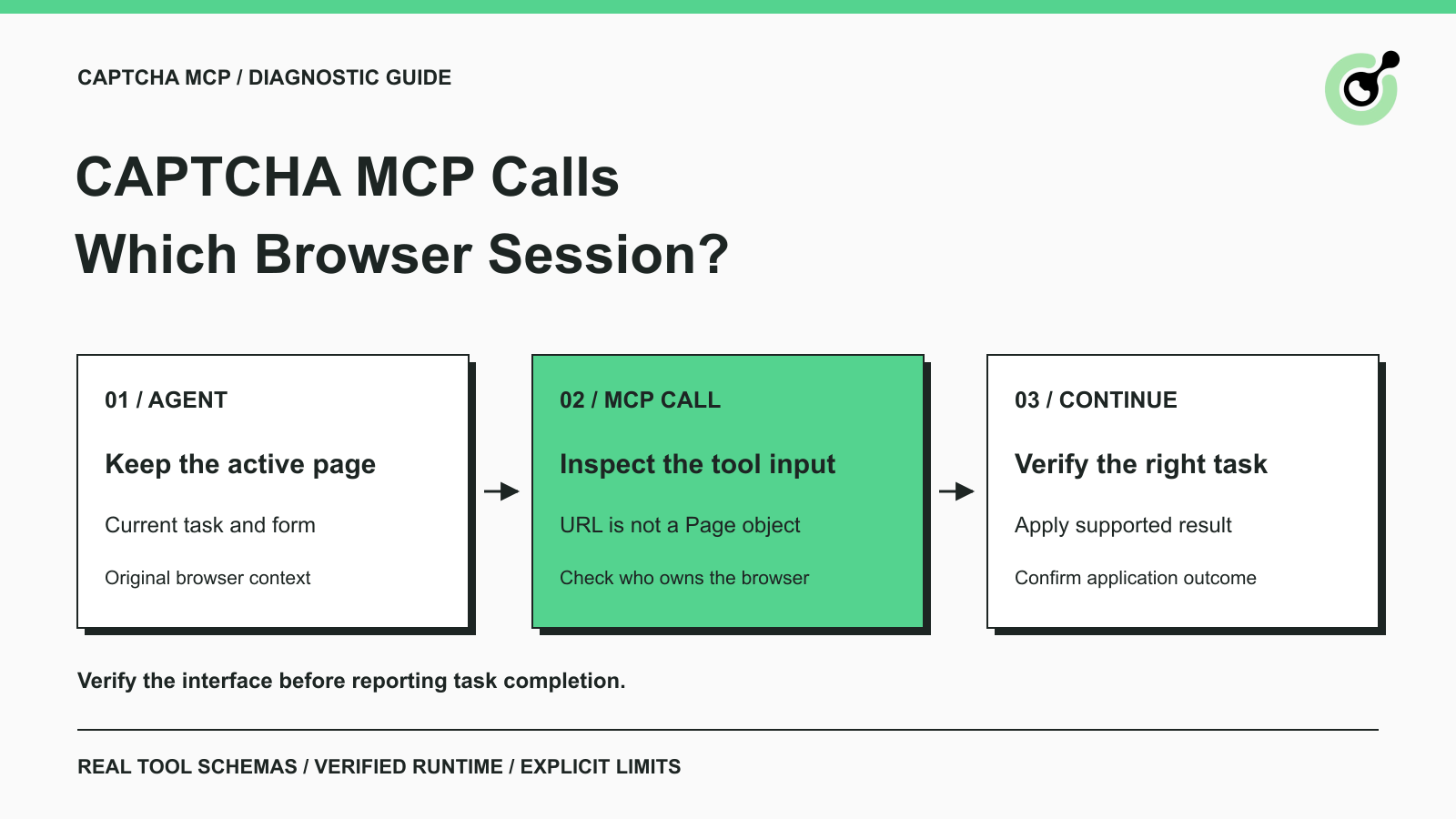
How to Fix CAPTCHA MCP Calls Using the Wrong Browser Session
Diagnose CAPTCHA MCP calls that open a different browser session. Inspect tool inputs, keep the original page, and verify the task before continuing.
Khadija Santos
28-Oct-2026
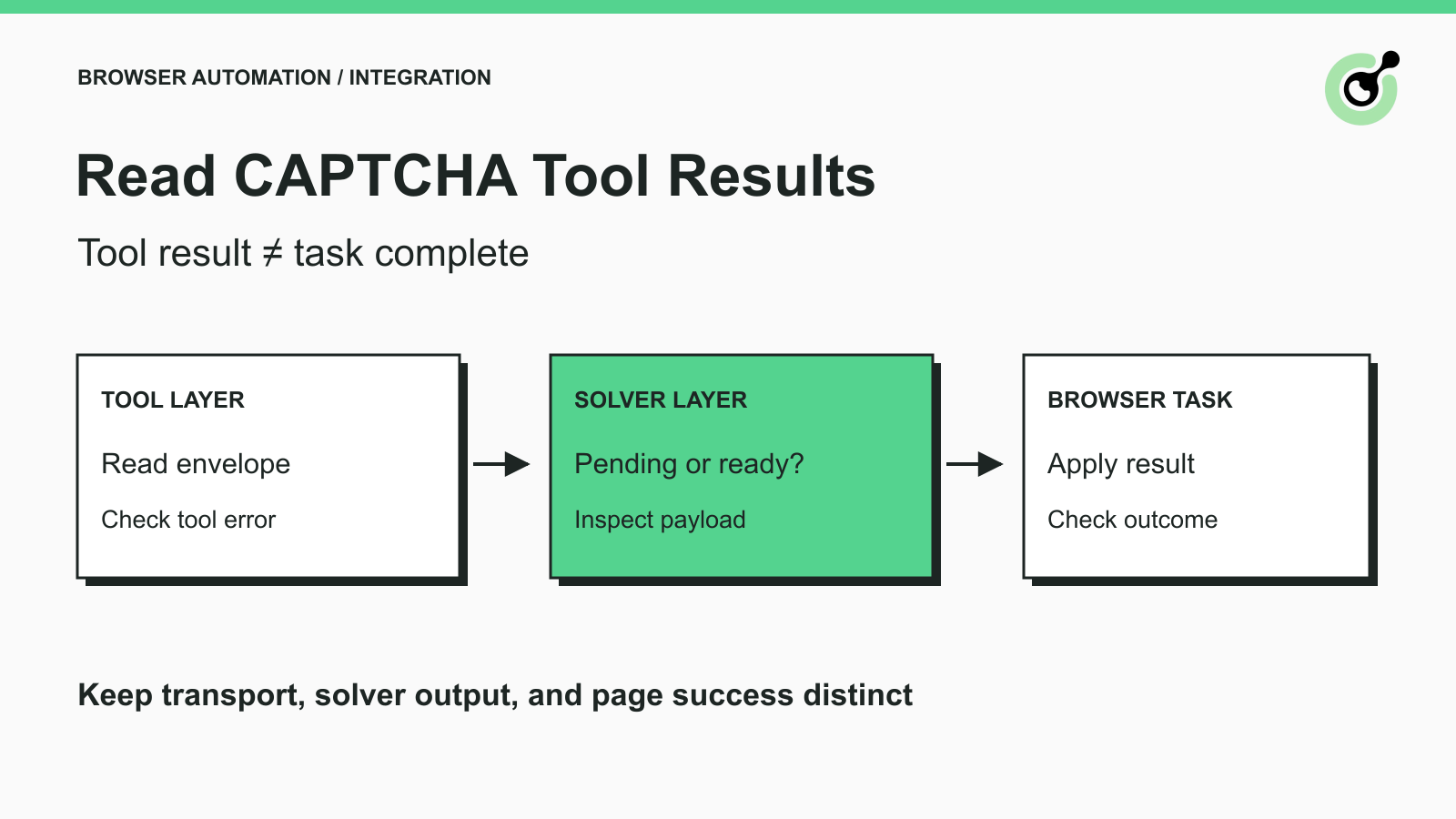
How to Return CAPTCHA Tool Results an AI Agent Can Use
Read CAPTCHA tool results correctly: distinguish transport errors, pending tasks, solver output, and browser success before letting an AI agent continue.
Khadija Santos
28-Oct-2026