




How to Detect CAPTCHA in Robot Framework Browser Tests

Aloísio Vítor
How to use CapSolver
26-Oct-2026
TL;DR
- Robot Framework can call a small Python keyword library that uses the official CapSolver Core SDK to inspect a CAPTCHA page.
- The example returns the detected CAPTCHA type, page URL, and sitekey to a Robot test.
- Run the test against an owned development page using Google's public reCAPTCHA test key.
- The keyword opens and closes its own browser; it does not attach to a SeleniumLibrary or Browser Library session.
- Detection confirms the input-discovery step. It neither solves the CAPTCHA nor proves that a production form accepts a solver result.
A Robot Framework browser test can fail because the page now shows a CAPTCHA rather than the content the next assertion expects. Increasing a generic timeout does not explain that change. A specific CAPTCHA check can give the test a useful result: the challenge type and parameters that an approved solver workflow would need.
Robot Framework is an open-source framework for acceptance testing and robotic process automation. Its keyword syntax lets teams express checks while Python libraries implement the underlying operations. This tutorial connects a Python keyword to CapSolver's official Core SDK and verifies that Robot receives real detection results from a browser page.
Where CAPTCHA detection belongs in a Robot test
CAPTCHA detection belongs at a known page checkpoint, before the test treats a blocked page as a normal application response.
For example, a permitted browser workflow expects a search form but instead reaches a challenge. The useful first question is whether a supported CAPTCHA is present. A recognition result can then inform a controlled next step: use the documented solving integration, pause for human action, or record a specific test failure.
This is different from treating every missing element as a CAPTCHA. A page can also fail because its application script did not load, its route changed, or a selector is wrong. Keep CAPTCHA detection separate from those diagnoses.
The Robot Framework user guide documents Python test libraries and keyword execution. The small library below uses that extension point. It is an example integration, not a claim that Robot Framework ships with a native CapSolver library.
Install the packages in one environment
Install Robot Framework, Playwright, and the Core SDK in the same Python environment so the test runner can import all three.
The example uses Python 3.12, Robot Framework 7.5, Playwright 1.64.0, and capsolver-core 0.1.1. The framework's official repository is the source for its project background and supported installation routes.
bash
python -m pip install robotframework==7.5 playwright==1.64.0 capsolver-core==0.1.1
python -m playwright install chromium
Run installation and tests with the same interpreter. A common setup failure is installing a browser library in one environment and running Robot from another. The import then fails before the page is ever opened.
This example only detects a widget and reads its public parameters. Paid solving would require a valid solver API key, account readiness, and a separate approved workflow. No paid result is produced by the test below.
Create an owned CAPTCHA fixture
Create index.html in a dedicated fixture directory and serve it on your own machine.
Google documents the public reCAPTCHA v2 test key in its automated testing guidance. The fixture uses that key to load a recognizable widget without using a production site's configuration.
html
<!doctype html><html><head><title>Owned CAPTCHA test fixture</title></head><body>
<h1>Owned development page</h1>
<div class="g-recaptcha" data-sitekey="6LeIxAcTAAAAAJcZVRqyHh71UMIEGNQ_MXjiZKhI"></div>
<script src="https://www.google.com/recaptcha/api.js" async defer></script>
</body></html>
Start a local server from that directory:
bash
python -m http.server 8766 --bind 127.0.0.1The widget script still needs network access to Google. If the fixture's widget does not load, inspect that prerequisite before interpreting an empty detection result. The local server exposes the fixture only on the loopback interface.
A test key is useful for checking wiring and recognition. It is not representative evidence for production challenge difficulty, paid solving performance, or application acceptance. Keep those separate tests in the release checklist.
Add the Python keyword library
Save the following library as CaptchaCheck.py beside your Robot test file.
The library calls the documented get_captcha_info method from the Core SDK. The Robot-specific wrapper is deliberately small: it starts an event loop, opens a browser, reads the information, and closes the browser in a finally block.
python
import asyncio
from robot.api.deco import keyword
from capsolver_core import create_capsolver
from playwright.async_api import async_playwright

@keyword("Inspect CAPTCHA Page")
def inspect_captcha_page(url):
    return asyncio.run(_inspect(url))

async def _inspect(url):
    async with async_playwright() as pw:
        browser = await pw.chromium.launch(headless=True)
        try:
            page = await browser.new_page()
            await page.goto(url, wait_until="networkidle")
            async with create_capsolver() as cap:
                infos = await cap.get_captcha_info(page)
            return [{"type": item.type.value, "url": item.website_url,
                     "site_key": item.website_key} for item in infos]
        finally:
            await browser.close()
The returned list contains plain dictionaries, which are convenient for Robot assertions. An empty list means that this inspection returned no matching information. It should not be converted into a claim that no possible challenge exists anywhere in the workflow.
The page-load wait is appropriate for this small fixture. A production application with persistent network activity may need a different, page-specific readiness condition. Do not copy networkidle into every application and assume it proves that the relevant widget has finished rendering.
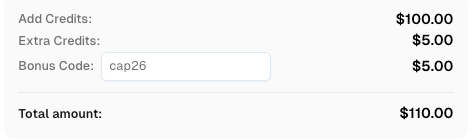
Redeem Your CapSolver Bonus Code
Boost your automation budget instantly!
Use bonus code CAP26 when topping up your CapSolver account to get an extra 5% bonus on every recharge — with no limits.
Redeem it now in your CapSolver Dashboard
Run the Robot test and inspect its result
Save the following as captcha.robot beside the library and run it while the local fixture server is available.
robotframework
*** Settings ***
Library    CaptchaCheck.py
Library    Collections

*** Variables ***
${PAGE_URL}    http://127.0.0.1:8766/

*** Test Cases ***
Identify The Fixture CAPTCHA
    ${items}=    Inspect CAPTCHA Page    ${PAGE_URL}
    Should Not Be Empty    ${items}
    ${first}=    Get From List    ${items}    0
    Should Be Equal    ${first}[type]    reCaptchaV2
    Log    ${items}
bash
python -m robot --outputdir results captcha.robotThe test asserts that the detector returned a result and that the fixture is identified as reCaptchaV2. Its log contains the returned page URL and public sitekey. Robot's generated report tells you whether those assertions passed.
A pass establishes a specific chain: Robot invoked your Python keyword, Playwright opened the fixture, the Core SDK inspected the real page, and the returned data reached Robot's assertions. The code closes the browser even when an exception occurs.
Read failures at the stage where they happen. An import error is a dependency problem. A navigation error is a page-access problem. A timeout may mean the fixture did not settle. A failed type assertion means the returned data did not match the fixture expectation. These conditions need different corrections.
Connect detection to a solver workflow carefully
Detection supplies information for a solver decision, but the next step must preserve the page context that the task requires.
The official SDK guide describes browser solving as a separate operation. If your production workflow needs to solve and continue on the same page, keep that page and its browser context alive through the operation. The diagnostic keyword in this article closes its browser and therefore is not a drop-in continuation step for an existing logged-in session.
Teams already using SeleniumLibrary or Robot Framework Browser should also distinguish their active browser from the one opened by this example. Sharing a URL does not share cookies, prior interactions, or a page object. Avoid claiming that a challenge was solved in the test's active browser when the work actually occurred in another one.
For ordinary owned-site regression tests, provider test keys may be the simpler choice. Use a real solver path only when the test objective requires validating that integration. The reCAPTCHA test-key guide explains that boundary in more detail.
Build Reliable Automation Workflows with CapSolver
Use a small, explicit checkpoint to distinguish a recognized CAPTCHA from a generic element failure. CapSolver provides the detection capability in this example; Robot Framework turns its result into a readable test assertion. Add paid solving only as a separately verified step with the correct page ownership and application outcome checks.
FAQ
Q: Does this Robot test solve the CAPTCHA?
No. It detects the fixture's CAPTCHA and returns its public parameters. The test does not request a paid solution or verify a production form submission.
Q: Is this an official Robot Framework plugin?
No. The Python keyword wrapper is an example built around Robot Framework's documented library mechanism and the official Core SDK. The exact wrapper is included so its behavior is inspectable.
Q: Can I use the same keyword inside SeleniumLibrary tests?
You can call the keyword, but it opens a separate Playwright browser. It does not inspect or continue the SeleniumLibrary browser session. An existing-session integration needs an explicit, supported handoff.
Q: Why does the fixture return an empty list?
Check whether the widget script loaded, whether the expected page is being served, and whether the SDK supports the challenge present. An empty result alone does not identify the cause.
Q: Do I need a solver API key for this example?
The demonstrated parameter-detection check does not submit a paid solving task. A production solving step requires the credentials and prerequisites documented for that operation.
Q: Should every automated test call a CAPTCHA solver?
No. Use provider test mechanisms for routine owned-site regression tests when appropriate. Reserve solver integration tests for the workflow they are meant to validate, and keep them bounded.
Compliance Disclaimer: The information provided on this blog is for informational purposes only. CapSolver is committed to compliance with all applicable laws and regulations. The use of the CapSolver network for illegal, fraudulent, or abusive activities is strictly prohibited and will be investigated. Our captcha-solving solutions enhance user experience while ensuring 100% compliance in helping solve captcha difficulties during public data crawling. We encourage responsible use of our services. For more information, please visit our Terms of Service and Privacy Policy.
More
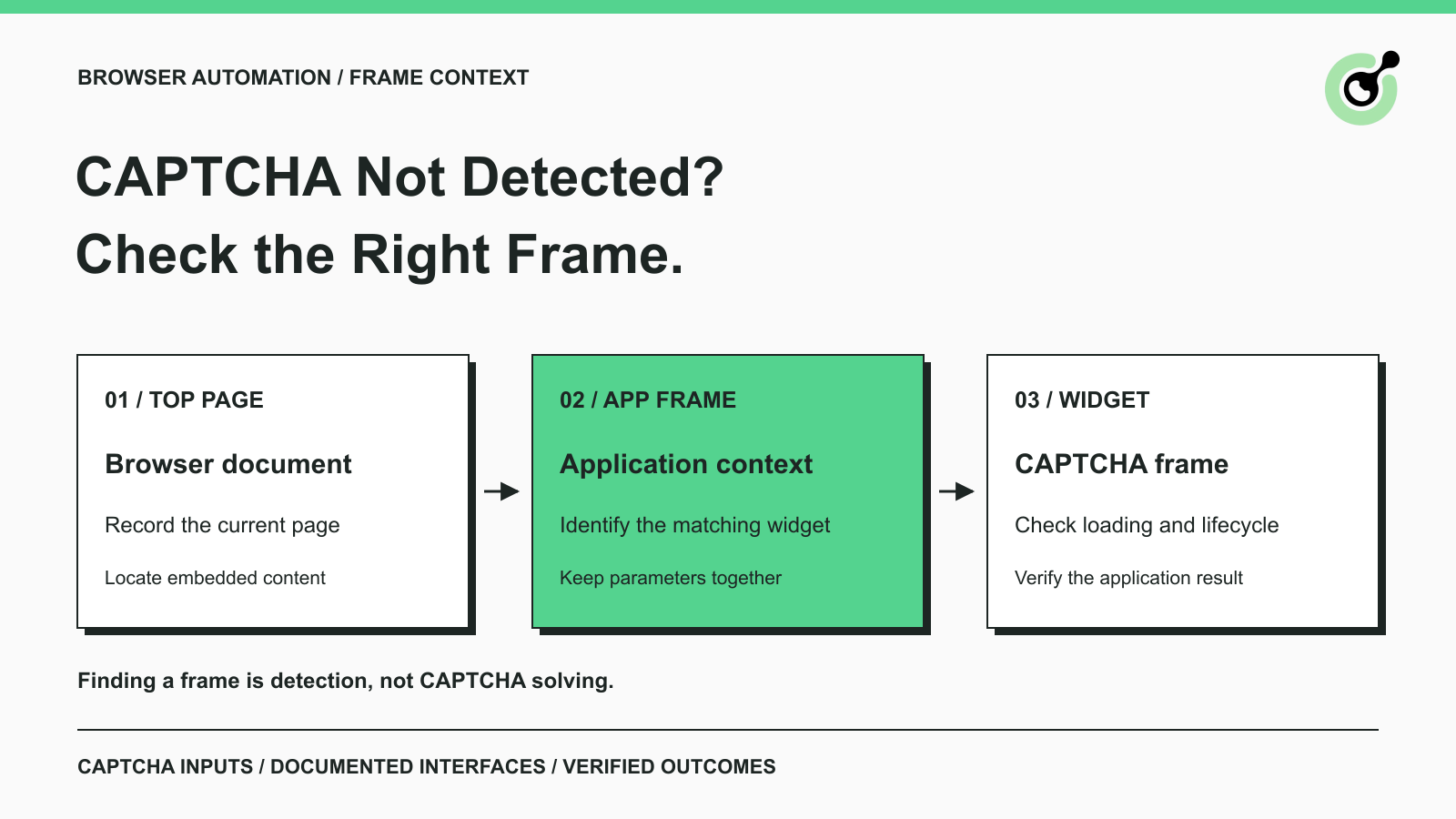
CAPTCHA in an iframe Not Detected? How to Find the Right Frame
Find why a visible CAPTCHA is missed inside an iframe. Check document context, widget loading, site parameters, and the browser handoff to your solver.

Nikolai Smirnov
27-Oct-2026
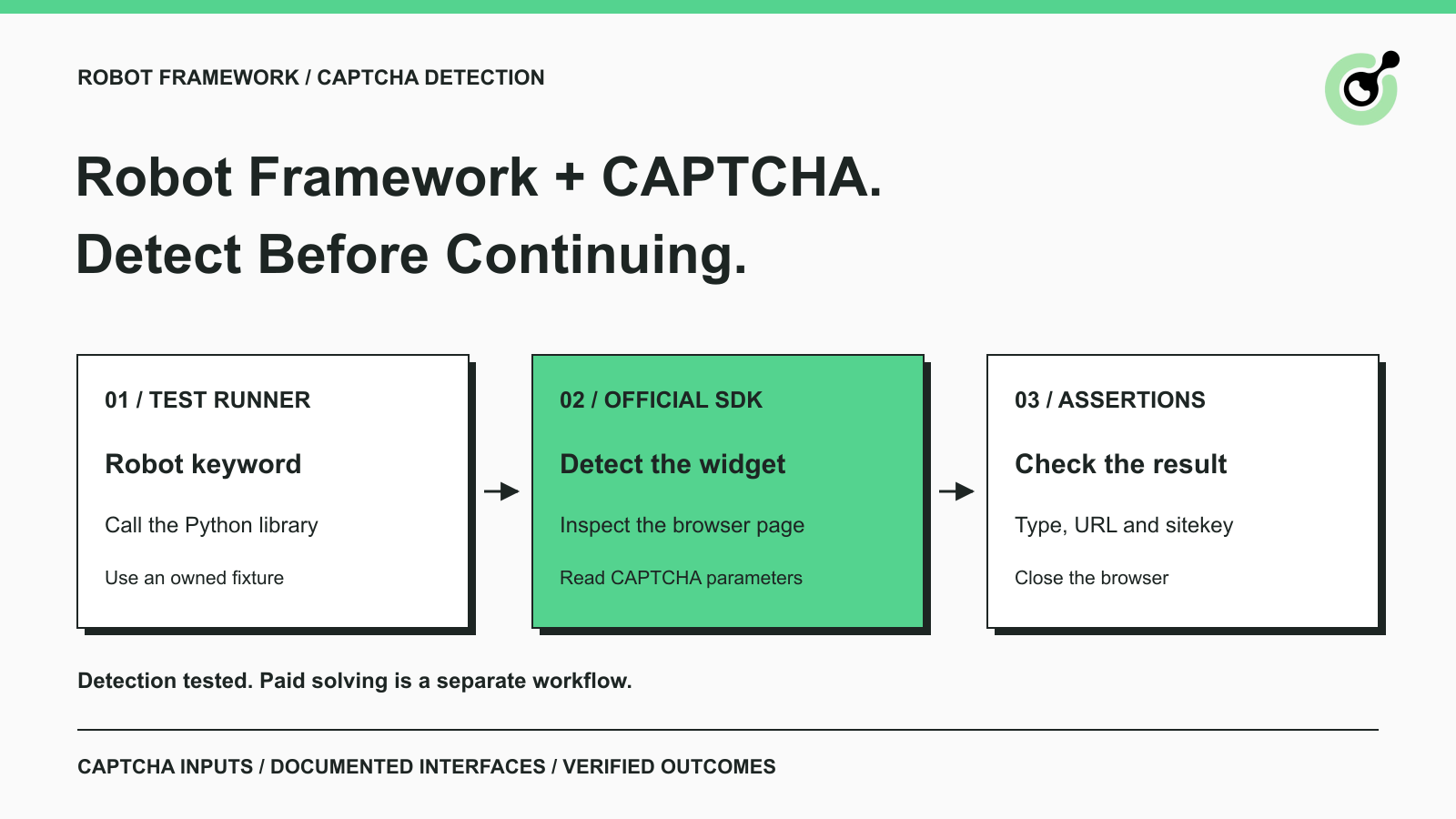
How to Detect CAPTCHA in Robot Framework Browser Tests
Detect CAPTCHA in Robot Framework with a tested Python keyword and the official solver SDK. Inspect page parameters and understand where detection stops.
Aloísio Vítor
26-Oct-2026
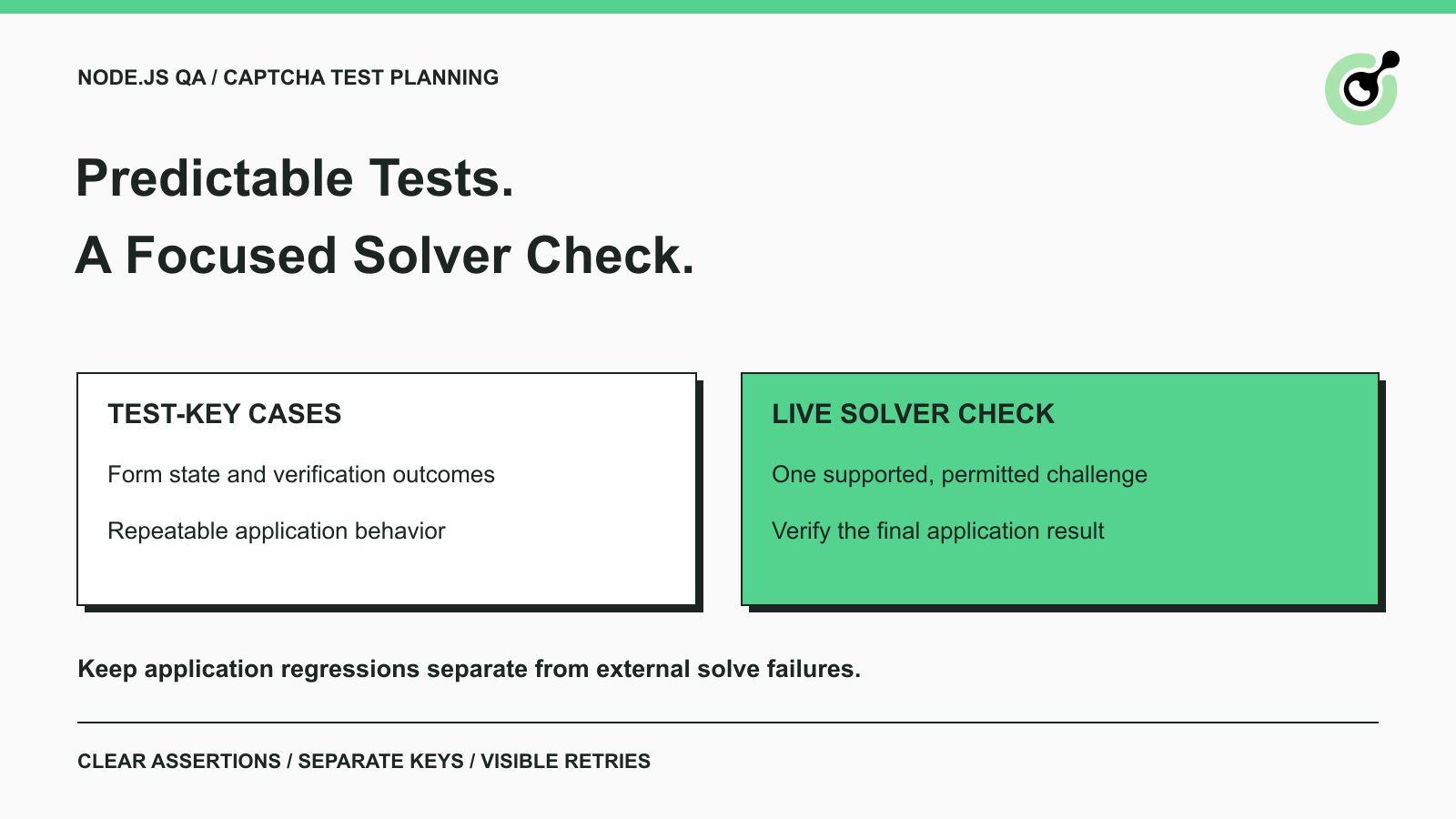
CAPTCHA Testing in Node.js: Test Keys and Solver Checks
Plan Node.js CAPTCHA tests with vendor test keys, controlled solver checks, and clear assertions. Separate form regressions from external solving failures.

Khadija Santos
16-Oct-2026
CAPTCHA Handling at Scale: A Browser Automation Guide
Improve CAPTCHA handling in browser automation with current task inputs, isolated browser sessions, bounded retries, and checks that confirm the final result.
Nikolai Smirnov
14-Oct-2026
Common Selenium CAPTCHA Problems and How to Fix Them
Fix common Selenium CAPTCHA integration problems by checking test configuration, extensions, waits, iframe context, solver responses, and application results.
Nikolai Smirnov
22-Sep-2026
CapSolver Python Core SDK vs HTTP API: Which Should You Use?
Choose the CapSolver Python Core SDK or direct HTTP API by task support, page access, response handling, and the responsibilities your application owns.

Ethan Collins
16-Sep-2026