











Skyvern Integrating CapSolver: A Guide to CAPTCHA Handling in AI Browser Automation

Ethan Collins
How to use CapSolver
28-Jul-2026
Skyvern Integrating CapSolver: A Guide to CAPTCHA Handling in AI Browser Automation
TL;DR
-
Skyvern is responsible for opening webpages, filling forms, and progressing through business workflows, while CapSolver handles returning the CAPTCHA Token.
-
Directly install the official
capsolverSDK and callcapsolver.solve()to avoid implementingcreateTaskand polling logic yourself. -
Once the Token is obtained, return it to the current browser page, then let Skyvern submit the form and verify the results.
Introduction
Skyvern is an AI browser automation platform built on Playwright, vision models, and Large Language Models (LLMs). Skyvern can understand text, forms, and interactive elements within a webpage, completing tasks such as page navigation, button clicks, content input, file uploads, information extraction, and multi-step workflows based on natural language instructions. This approach reduces script maintenance costs caused by changes in page structure, making it ideal for scenarios like logins, form submissions, back-office operations, and data collection.
When an automation workflow encounters a CAPTCHA challenge, you can call the official CapSolver Python SDK by providing parameters such as the current page URL, Site Key, and CAPTCHA type. After CapSolver completes the task, it returns a corresponding verification Token. The program then uses Playwright to write this Token into the current page's response fields, JavaScript callbacks, or business requests. Once verification is passed, Skyvern can continue executing the original user-authorized task, such as submitting the form, entering the next page, or checking the final operation results.
1. Installing Dependencies
Skyvern currently requires Python 3.11, 3.12, or 3.13. Install Skyvern, the CapSolver SDK, and Chromium:
Bash
pip install "skyvern[local]"
pip install --upgrade capsolver
python -m playwright install chromium
2. CapSolver Code
Python
# pip install --upgrade capsolver
# export CAPSOLVER_API_KEY='...'

import capsolver

# capsolver.api_key = "..."
solution = capsolver.solve({
    "type": "ReCaptchaV2TaskProxyLess",
    "websiteURL": "https://www.google.com/recaptcha/api2/demo",
    "websiteKey": "6Le-wvkSAAAAAPBMRTvw0Q4Muexq9bi0DJwx_mJ-",
})

print(solution)
Upon success, the returned result primarily uses:
Python
token = solution["gRecaptchaResponse"]The role of the parameters:
websiteURL and websiteKey must be consistent with the actual configuration of the current page.
3. Skyvern Integration Example
Below is a minimal integration example. Skyvern first opens the page and fills the form, then retrieves the Token via the official SDK, and finally returns the Token to the page for submission.
Python
import asyncio
import capsolver
from skyvern import Skyvern


TARGET_URL = "https://www.google.com/recaptcha/api2/demo"
WEBSITE_KEY = "6Le-wvkSAAAAAPBMRTvw0Q4Muexq9bi0DJwx_mJ-"


async def inject_token(page, token: str):
    await page.evaluate(
        """
        (token) => {
            const textarea = document.getElementById('g-recaptcha-response');
            if (textarea) {
                textarea.value = token;
            }
        }
        """,
        token,
    )


async def main():
    skyvern = Skyvern.local()
    browser = await skyvern.launch_local_browser(headless=False)
    page = await browser.get_working_page()

    try:
        await page.goto(TARGET_URL)
        solution = await asyncio.to_thread(
            capsolver.solve,
            {
                "type": "ReCaptchaV2TaskProxyLess",
                "websiteURL": TARGET_URL,
                "websiteKey": WEBSITE_KEY,
            },
        )

        token = solution["gRecaptchaResponse"]
        await inject_token(page, token)

        await page.act("Submit")
        await page.validate("Verification successful... Great!")
    finally:
        await browser.close()
4. How to Return the Token to the Page
CapSolver is only responsible for returning the Token; it does not automatically submit the target website's business form. Different websites handle Tokens in various ways, with common methods including:
-
Writing to the
g-recaptcha-responsehidden field; -
Calling a JavaScript callback configured on the page;
-
Submitting the Token as a business interface parameter.
The inject_token() in the example attempts both the hidden field and a test callback. In actual use, this snippet should be adjusted according to your own website's frontend implementation.
5. Common Issues
Token returned, but the page still fails
Check the following parameters:
-
Is
websiteURLthe current page address? -
Is
websiteKeyfrom the current site? -
Did the page refresh after obtaining the Token?
-
Was the Token handed over to the correct page callback or business interface?
6. Using CapSolver API to Solve ImageToText
In addition to reCAPTCHA, Skyvern can also work with CapSolver to handle standard image-to-text CAPTCHAs. Taking the BotDetect CAPTCHA Demo as an example: the CAPTCHA image element ID is demoCaptcha_CaptchaImage, the result input box ID is captchaCode, and the validation button ID is validateCaptchaButton.
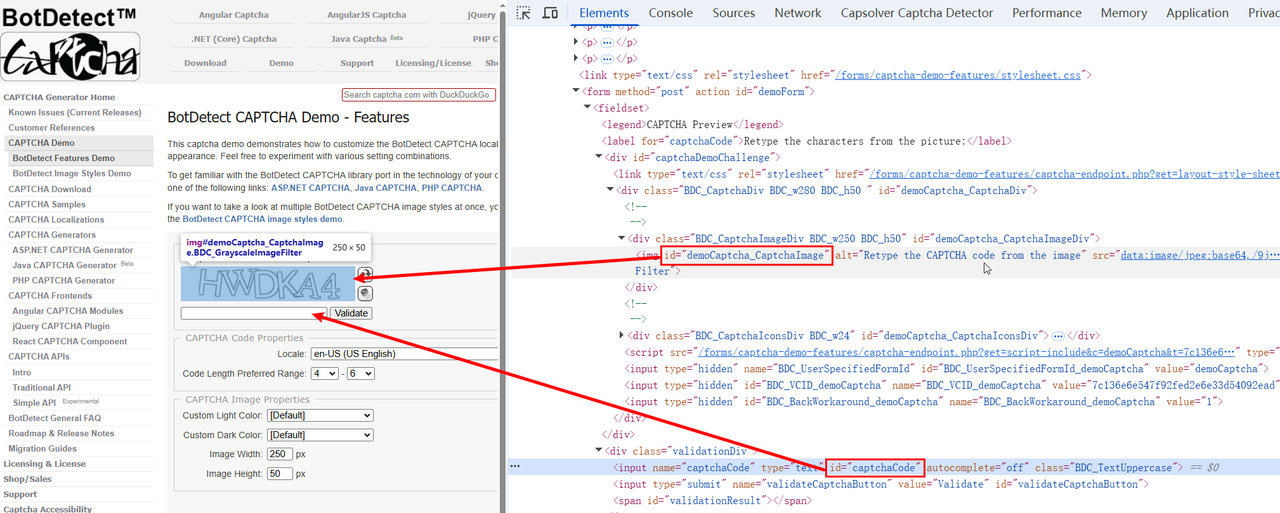
ImageToTextTask requires converting the CAPTCHA image to Base64 and submitting it via the body parameter. If the image src is a Data URL, for example:
Plain Text
data:image/png;base64,iVBORw0KGgoAAA...When passing it to CapSolver, keep only the Base64 content after the comma, excluding the data:image/...;base64, prefix. Unlike Token-type tasks, ImageToTextTask returns the recognition result directly without requiring additional polling of getTaskResult.
Below is the complete Skyvern integration example:
Python
import asyncio

import capsolver
from skyvern import Skyvern


TARGET_URL = "https://captcha.com/demos/features/captcha-demo.aspx"


async def main():
    skyvern = Skyvern.local()
    browser = await skyvern.launch_local_browser(headless=False)
    page = await browser.get_working_page()

    try:
        await page.goto(TARGET_URL)
        await page.locator("#demoCaptcha_CaptchaImage").wait_for()

        # Read the CAPTCHA image Data URL.
        image_src = await page.locator(
            "#demoCaptcha_CaptchaImage"
        ).get_attribute("src")

        if not image_src or "," not in image_src:
            raise RuntimeError("A valid Base64 CAPTCHA image was not found")

        # Remove the Data URL prefix and keep only the Base64 data.
        base64_image = image_src.split(",", 1)[1]

        solution = await asyncio.to_thread(
            capsolver.solve,
            {
                "type": "ImageToTextTask",
                "websiteURL": TARGET_URL,
                "module": "common",
                "body": base64_image,
            },
        )

        captcha_text = solution["text"]
        print("Recognition result:", captcha_text)

        await page.locator("#captchaCode").fill(captcha_text)
        await page.locator("#validateCaptchaButton").click()
        await page.wait_for_timeout(5000)
    finally:
        await browser.close()


if __name__ == "__main__":
    asyncio.run(main())
The code execution process can be summarized as:
Plain Text
Skyvern opens the CAPTCHA page
  -> Locate #demoCaptcha_CaptchaImage
  -> Extract and clean Base64 image data
  -> Call capsolver.solve(ImageToTextTask)
  -> Read solution["text"]
  -> Fill into #captchaCode
  -> Click #validateCaptchaButton
Choosing the Right Recognition Model
module is an optional parameter; common can be used by default. If the CAPTCHA only contains numbers, you can use number; for some special styles, you can also select the corresponding independent model according to the CapSolver documentation to improve recognition accuracy.
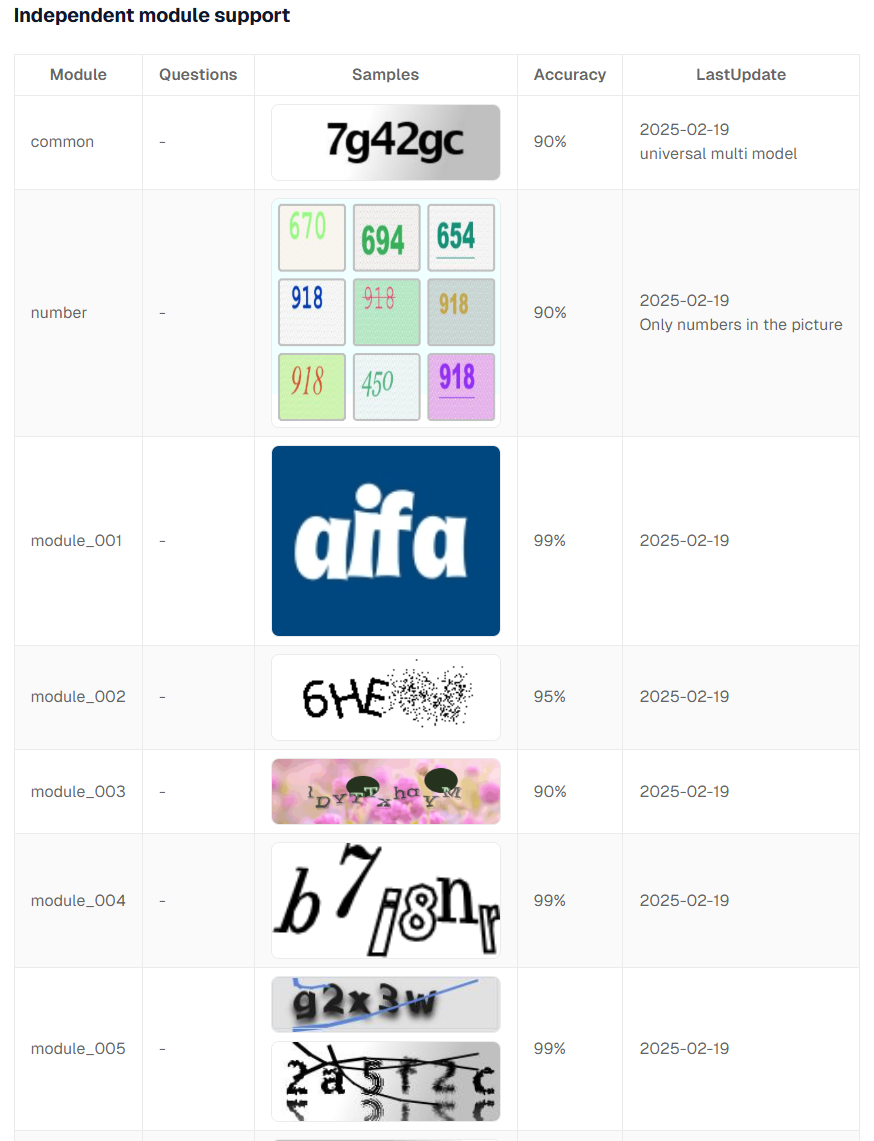
For example, when recognizing only numeric CAPTCHAs, you can change the task parameters to:
Python
solution = capsolver.solve({
    "type": "ImageToTextTask",
    "module": "number",
    "images": [base64_image],
})

answers = solution["answers"]
The number model supports submitting multiple images at once, and images can contain up to 9 Base64 strings. For other model names and applicable image types, please refer to the Official CapSolver ImageToTextTask Documentation.
7. Summary
Choosing the right technical solution for AI browser automation depends on task complexity, the frequency of page changes, and the target website's verification mechanism. Traditional tools like Selenium and Playwright are suitable for automation workflows with stable structures and clear operation paths. Skyvern builds on this by introducing vision models and LLMs, making it more suitable for web tasks where page structures change frequently, require semantic understanding, or involve multi-step operations. Since Skyvern controls the browser based on Playwright, it can complete page navigation, form filling, button clicks, and data extraction through natural language. When the process encounters a CAPTCHA challenge, developers can combine the official CapSolver SDK to obtain a verification Token and then fill the result back into the current page, allowing Skyvern to continue subsequent operations such as form submission, page transitions, and result verification. By combining Skyvern and CapSolver, developers can build more flexible, maintainable, and scalable browser automation workflows, reducing the maintenance costs of traditional selectors while improving the execution efficiency and stability of complex web tasks. Clearly defining the scope of authorization, protecting API Keys, and verifying and recording automation results are important prerequisites for the stable operation of related projects.
References
Redeem Your CapSolver Bonus Code
Boost your automation budget instantly!
Use bonus code CAP26 when topping up your CapSolver account to get an extra 5% bonus on every recharge — with no limits.
Redeem it now in your CapSolver Dashboard

Frequently Asked Questions (FAQ)
Q1: How to handle CAPTCHAs within iframes?
A1: Switch to the iframe context first using page.frame_locator('iframe_selector') before injecting the token. Ensure the websiteURL sent to CapSolver is the parent page URL, not the iframe URL.
Q2: What if the website uses a custom JavaScript callback?
A2: Identify the callback function name (e.g., onCaptchaResolved) and execute it via Playwright: await page.evaluate("onCaptchaResolved(token)", token).
Q3: How to improve ImageToText recognition rates?
A3: Use specific module parameters (like number for numeric CAPTCHAs) and ensure the extracted Base64 image is clear and high-resolution.
Q4: How to handle API Key security?
A4: Never hardcode your API key. Use environment variables (e.g., os.getenv("CAPSOLVER_API_KEY")) to load it securely.
Q5: Should I implement a retry mechanism?
A5: Yes, use libraries like tenacity to implement exponential backoff retries for capsolver.solve() to handle temporary network or service issues.
Q6: What about Token expiration?
A6: CAPTCHA tokens expire quickly (e.g., 2 minutes). Inject and submit the token immediately after receiving it from CapSolver.
Q7: Can Skyvern auto-route different CAPTCHA types?
A7: Yes, you can use Skyvern's vision capabilities to identify the CAPTCHA type first, then dynamically construct the appropriate CapSolver payload (e.g., switching between ReCaptchaV2TaskProxyLess and ImageToTextTask).
Q8: How else does Skyvern's vision help?
A8: It enables dynamic element location (finding CAPTCHAs without fixed IDs), visual post-submission validation (checking for success messages), and visual error detection for smarter retries.
Compliance Disclaimer: The information provided on this blog is for informational purposes only. CapSolver is committed to compliance with all applicable laws and regulations. The use of the CapSolver network for illegal, fraudulent, or abusive activities is strictly prohibited and will be investigated. Our captcha-solving solutions enhance user experience while ensuring 100% compliance in helping solve captcha difficulties during public data crawling. We encourage responsible use of our services. For more information, please visit our Terms of Service and Privacy Policy.
More
CAPTCHA in an iframe Not Detected? How to Find the Right Frame
Find why a visible CAPTCHA is missed inside an iframe. Check document context, widget loading, site parameters, and the browser handoff to your solver.

Nikolai Smirnov
27-Oct-2026
How to Detect CAPTCHA in Robot Framework Browser Tests
Detect CAPTCHA in Robot Framework with a tested Python keyword and the official solver SDK. Inspect page parameters and understand where detection stops.

Aloísio Vítor
26-Oct-2026
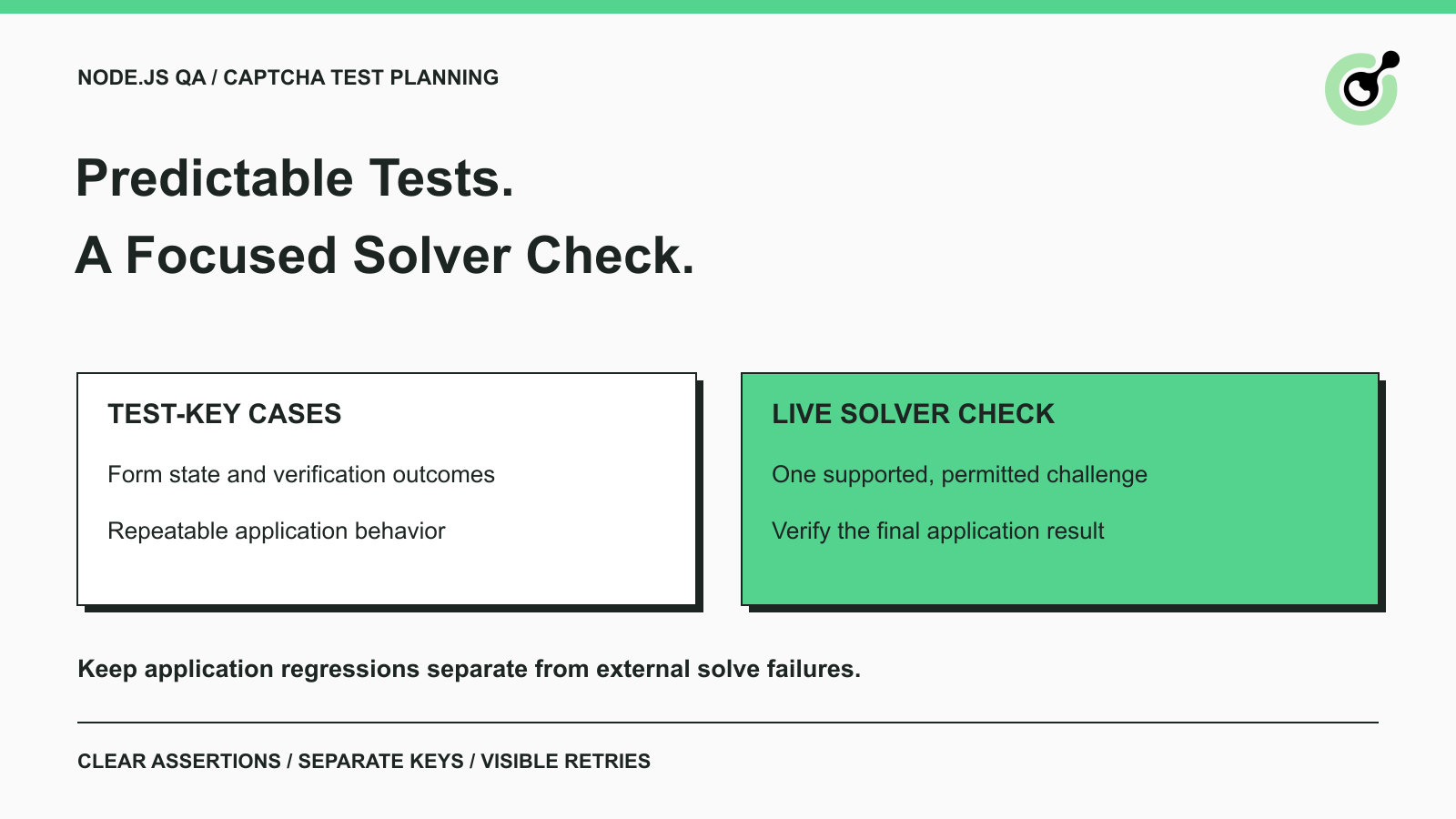
CAPTCHA Testing in Node.js: Test Keys and Solver Checks
Plan Node.js CAPTCHA tests with vendor test keys, controlled solver checks, and clear assertions. Separate form regressions from external solving failures.

Khadija Santos
16-Oct-2026
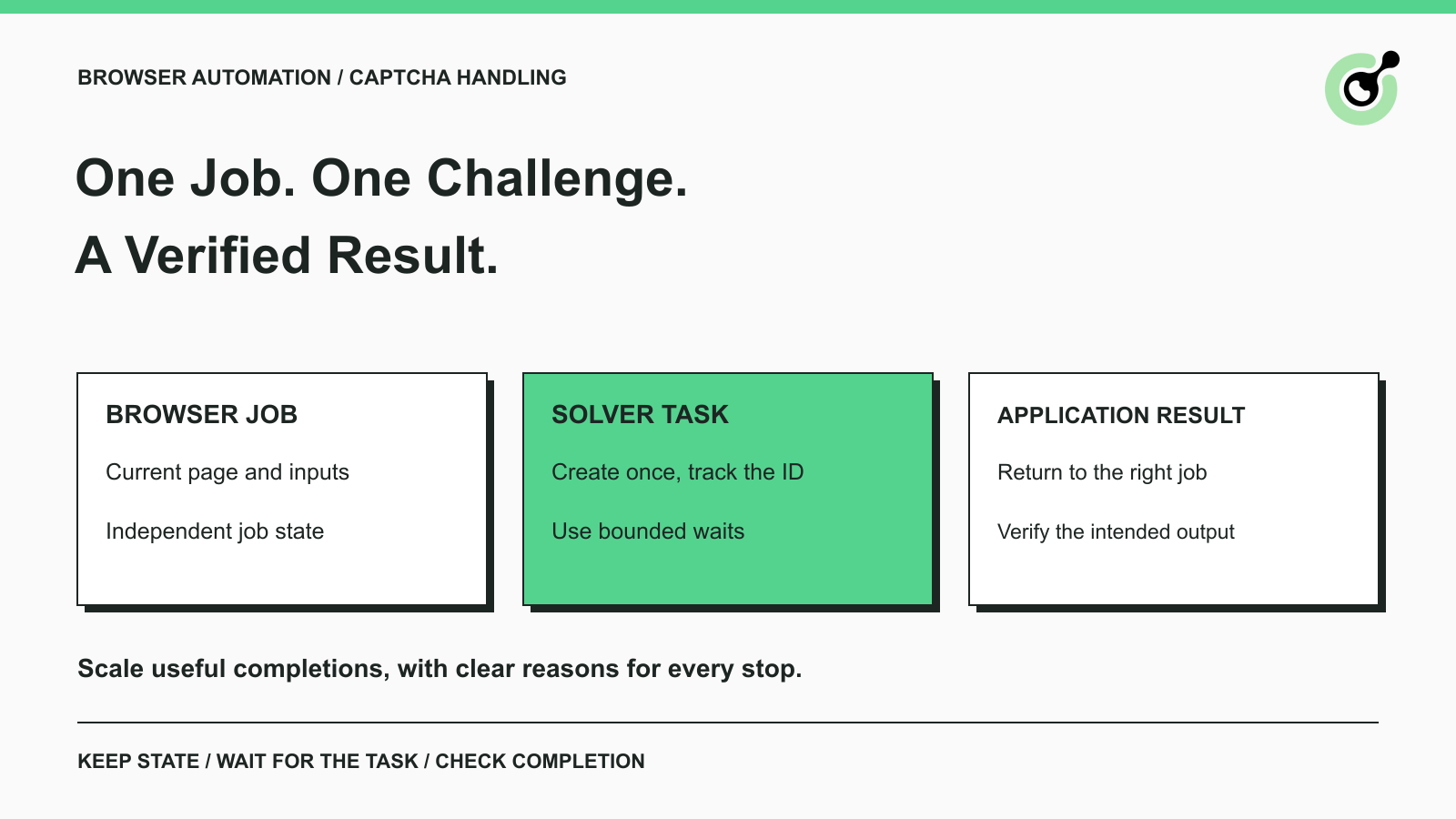
CAPTCHA Handling at Scale: A Browser Automation Guide
Improve CAPTCHA handling in browser automation with current task inputs, isolated browser sessions, bounded retries, and checks that confirm the final result.
Nikolai Smirnov
14-Oct-2026
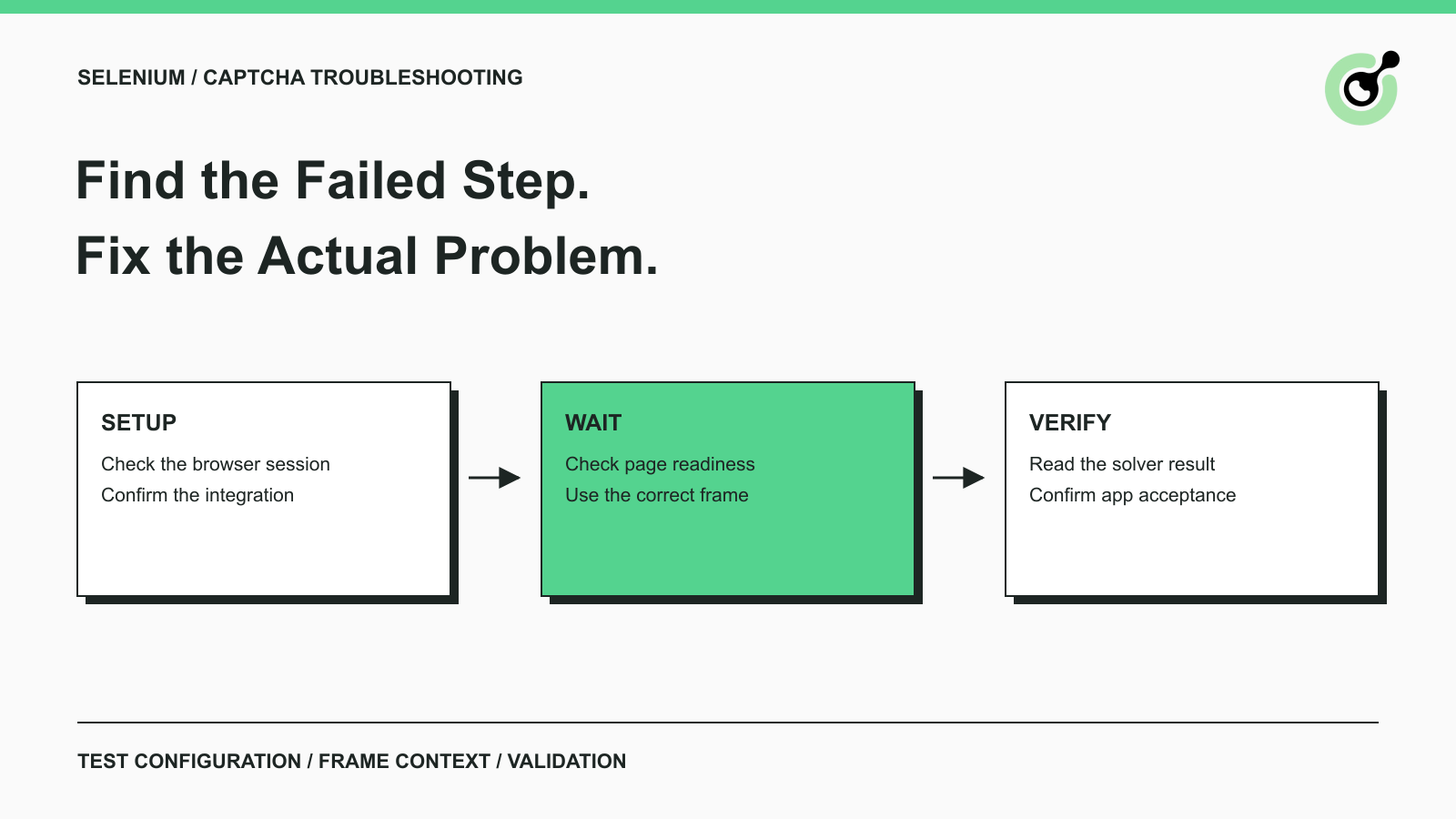
Common Selenium CAPTCHA Problems and How to Fix Them
Fix common Selenium CAPTCHA integration problems by checking test configuration, extensions, waits, iframe context, solver responses, and application results.
Nikolai Smirnov
22-Sep-2026
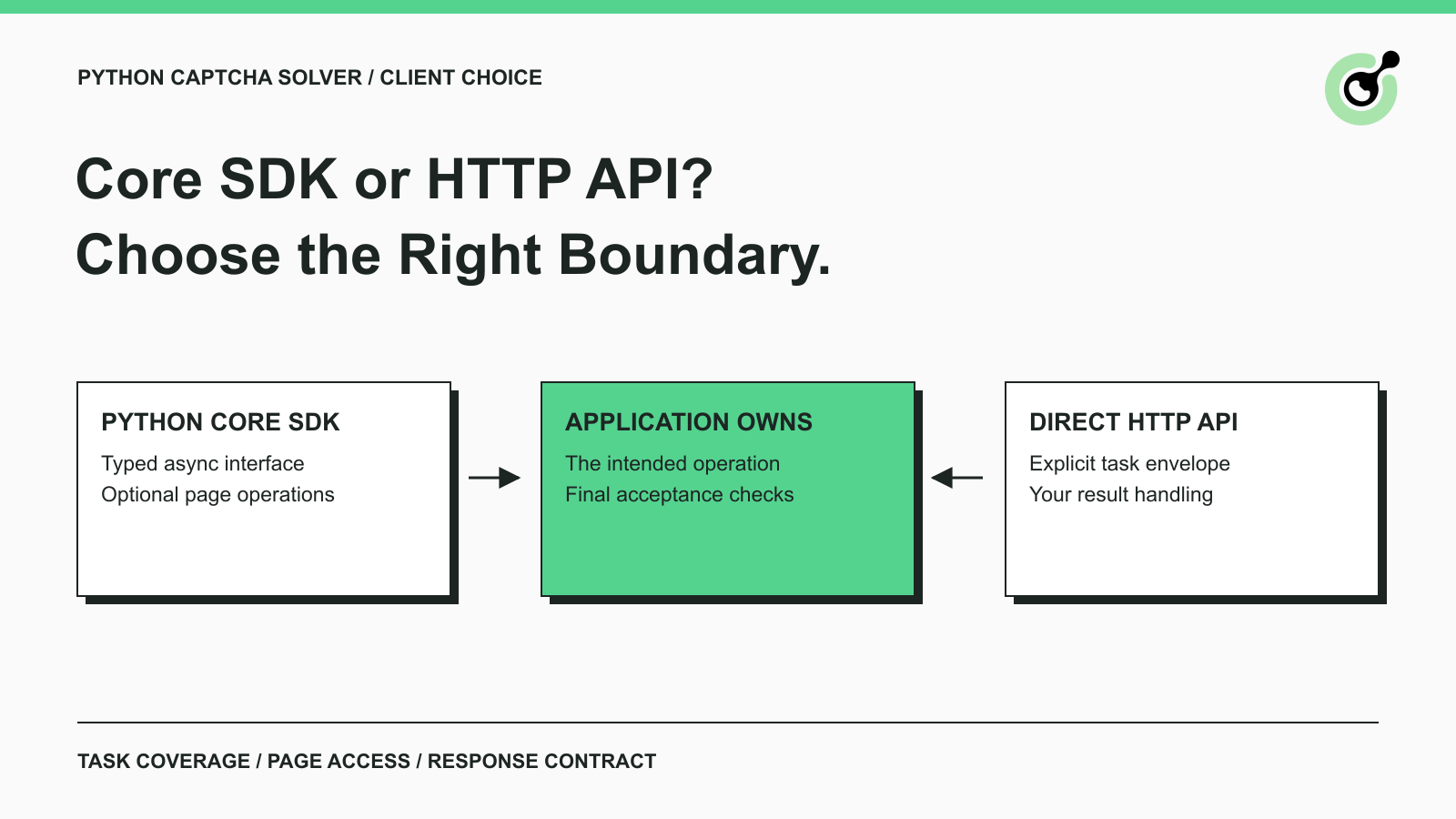
CapSolver Python Core SDK vs HTTP API: Which Should You Use?
Choose the CapSolver Python Core SDK or direct HTTP API by task support, page access, response handling, and the responsibilities your application owns.
Ethan Collins
16-Sep-2026