










CloakBrowser CAPTCHA Solver: How to Integrate CapSolver with Playwright Browser Automation

Ethan Collins
How to use CapSolver
31-Aug-2026
TL;DR
- CloakBrowser launches a Chromium build through a Playwright-compatible Python API; CapSolver handles the CAPTCHA task and returns a token or image-recognition result.
- CloakBrowser is not a CAPTCHA-solving service. The integration keeps browser state in CloakBrowser, sends only the required challenge parameters to CapSolver, and submits the result through the same Playwright page.
- For an existing Playwright script, the main browser-side change is replacing the standard Chromium launcher with
from cloakbrowser import launch. - Keep the page URL, site key, proxy, cookies, locale, and user agent consistent when a challenge is tied to the current session.
- A returned token is an intermediate result. Treat the workflow as successful only after the target page or authorized application accepts it.
What CloakBrowser and CapSolver Do
CloakBrowser is a Chromium-based browser package for Playwright and Puppeteer automation. Its official repository describes source-level changes to browser signals such as canvas, WebGL, audio, fonts, GPU, screen, WebRTC, and automation-related behavior. The Python launcher returns a standard Playwright Browser, so familiar methods such as new_page(), locators, evaluate(), clicks, and form operations remain available.
CloakBrowser does not solve CAPTCHAs. CapSolver supplies that separate service: your application creates a task with the challenge parameters, receives a solution, and uses the current page to submit it. This boundary matters because browser environment management and CAPTCHA handling have different inputs and failure modes.
The responsibilities look like this:
text
CloakBrowser
  -> launch Chromium and maintain cookies, proxy, page, and browser context
  -> read the challenge parameters shown to the current session

CapSolver
  -> receive the supported task type and required challenge parameters
  -> return a token or image-recognition result

Playwright API
  -> put the result back into the same page
  -> invoke the expected callback or submit the form
  -> verify the final page or application response
If you need a Playwright refresher before integrating the two services, see CapSolver's Playwright glossary and Playwright browser automation guide.
Prerequisites
Use this workflow only on websites and applications you own or are authorized to test or automate. You will need:
- Python 3.9 or later;
- a CloakBrowser installation and license or supported evaluation setup;
- a CapSolver account and API key;
- the target URL and challenge parameters from the page you are authorized to automate.
Install the Python packages:
bash
pip install cloakbrowser capsolverFor CloakBrowser licensing, the current repository documents cloakbrowser login for an interactive setup and the CLOAKBROWSER_LICENSE_KEY environment variable for CI or servers. Keep both vendor credentials outside source control. Environment variables or a secret manager are safer than committing literal keys.
Step 1: Launch CloakBrowser with the Playwright API
The following minimal example opens a page, reads its title, and closes the browser:
python
from cloakbrowser import launch

browser = launch(
    headless=False,
    humanize=True,
    license_key="cb_...",
)

page = browser.new_page()
page.goto("https://example.com", wait_until="domcontentloaded")
print(page.title())
browser.close()
The launcher options control the browser environment:
| Parameter | Purpose |
|---|---|
headless |
Runs with or without a visible browser window. |
humanize |
Enables CloakBrowser's documented humanized interaction behavior. |
proxy |
Routes the browser session through a configured proxy. |
geoip |
Aligns location-derived browser settings when supported by the selected setup. |
locale and timezone settings |
Keep language and time-related signals consistent with the session. |
license_key |
Supplies a CloakBrowser license when it is not loaded from the environment or login state. |
For session-bound challenges, avoid changing the proxy, user agent, cookies, or browser context between reading the challenge and submitting its solution. CapSolver's FAQ on browser fingerprinting in web security explains why multiple browser signals can be evaluated together.
Step 2: Create a CapSolver reCAPTCHA v2 Task
The basic Python SDK flow sets the API key and sends a supported task object. This example uses Google's public reCAPTCHA v2 demo values:
python
import capsolver

capsolver.api_key = "CAP-..."

solution = capsolver.solve(
    {
        "type": "ReCaptchaV2TaskProxyLess",
        "websiteURL": "https://www.google.com/recaptcha/api2/demo",
        "websiteKey": "6Le-wvkSAAAAAPBMRTvw0Q4Muexq9bi0DJwx_mJ-",
    }
)

token = solution.get("gRecaptchaResponse")
if not isinstance(token, str) or not token:
    raise RuntimeError(f"CapSolver did not return a reCAPTCHA token: {solution}")

print("Token received")
The important fields are:
| Field | Meaning |
|---|---|
type |
The CapSolver task type that matches the challenge. |
websiteURL |
The complete page URL where the challenge appears. |
websiteKey |
The site key found in the page integration. |
isInvisible |
An optional flag used only when the page implements an invisible variant. |
Check the current CapSolver reCAPTCHA v2 documentation before production deployment, and use the values from the active page rather than copying demo parameters. The longer reCAPTCHA v2 solving guide covers task selection and response fields in more detail.
Redeem Your CapSolver Bonus Code
Boost your automation budget instantly!
Use bonus code CAP26 when topping up your CapSolver account to get an extra 5% bonus on every recharge — with no limits.
Redeem it now in your CapSolver Dashboard

Step 3: Return the Token Through the Same CloakBrowser Page
The complete demo below keeps navigation and token submission inside one CloakBrowser page. The CSS selector and submission behavior are specific to the public demo; a real application may use a callback, a framework-managed field, or another form flow.
python
import re

import capsolver
from cloakbrowser import launch


def inject_recaptcha_token(page, token):
    if not isinstance(token, str) or not token:
        raise ValueError("A non-empty reCAPTCHA token is required")

    page.evaluate(
        """
        (token) => {
            const textarea = document.getElementById('g-recaptcha-response');
            if (!textarea) {
                throw new Error('g-recaptcha-response was not found');
            }
            textarea.value = token;
        }
        """,
        token,
    )

    with page.expect_navigation(
        wait_until="domcontentloaded",
        timeout=30_000,
    ):
        page.click("#recaptcha-demo-submit")

    return page.content()


def main():
    capsolver.api_key = "CAP-..."  # YOUR_CAPSOLVER_API_KEY

    browser = launch(
        license_key="cb_...",  # YOUR_CLOAKBROWSER_LICENSE_KEY
        headless=False,
        locale="en-US",
    )

    try:
        page = browser.new_page()
        page.goto(
            "https://www.google.com/recaptcha/api2/demo",
            wait_until="domcontentloaded",
            timeout=60_000,
        )

        solution = capsolver.solve(
            {
                "type": "ReCaptchaV2TaskProxyLess",
                "websiteURL": page.url,
                "websiteKey": "6Le-wvkSAAAAAPBMRTvw0Q4Muexq9bi0DJwx_mJ-",
            }
        )

        token = solution.get("gRecaptchaResponse")
        result_page = inject_recaptcha_token(page, token)

        match = re.search(
            r'<div class="recaptcha-success">(.*?)</div>',
            result_page,
        )
        print(match.group(1) if match else "Verification failed")
    finally:
        browser.close()


if __name__ == "__main__":
    main()
Run it as a normal Python script:
bash
python cloakbrowser-capsolver.pyIn production, load keys from environment variables, add bounded retries around transient API or navigation failures, log CapSolver task IDs without logging secrets, and validate the final business outcome. CapSolver also provides a focused FAQ on integrating CAPTCHA solving with Playwright or Puppeteer.
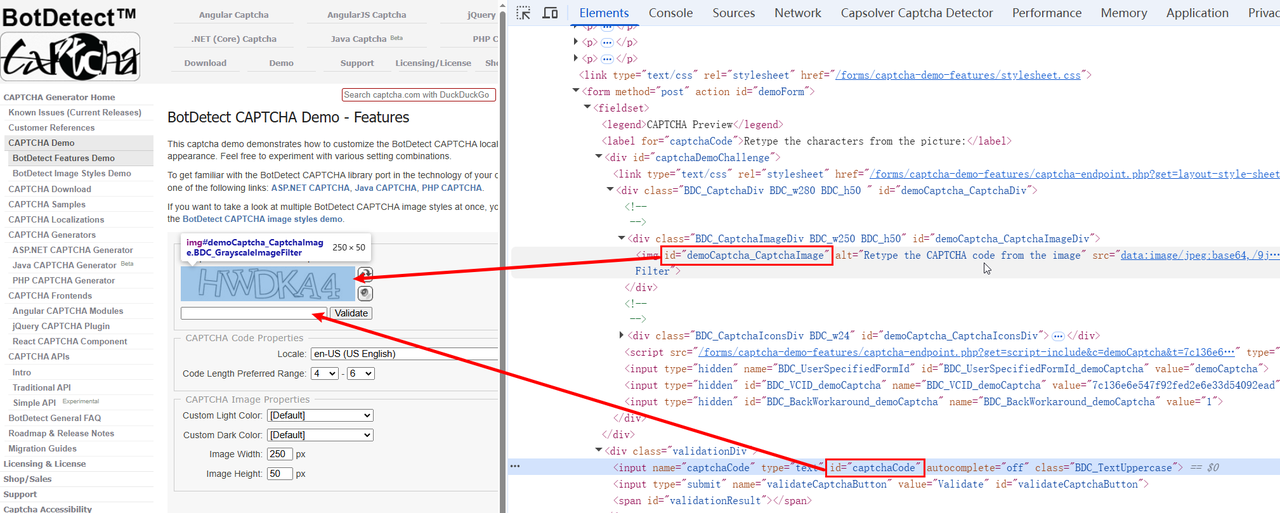
Step 4: Handle Image CAPTCHAs with ImageToTextTask
Some authorized testing workflows expose a CAPTCHA as an image rather than a token-based widget. In that case, capture or extract the image, convert it to Base64 without the Data URL prefix, and submit it to ImageToTextTask.
The screenshot below from the original workflow shows the image element and input field on the BotDetect feature demo:
python
import capsolver
from cloakbrowser import launch


TARGET_URL = "https://captcha.com/demos/features/captcha-demo.aspx"

browser = launch(headless=False, humanize=True)

try:
    page = browser.new_page()
    page.goto(TARGET_URL, wait_until="domcontentloaded")

    image_src = page.locator("#demoCaptcha_CaptchaImage").get_attribute("src")
    if not image_src or "," not in image_src:
        raise RuntimeError("Captcha image is not a Data URL")

    base64_image = image_src.split(",", 1)[1].replace("\n", "")

    solution = capsolver.solve(
        {
            "type": "ImageToTextTask",
            "websiteURL": page.url,
            "module": "common",
            "body": base64_image,
        }
    )

    text = solution.get("text")
    if not isinstance(text, str) or not text:
        raise RuntimeError(f"CapSolver did not return OCR text: {solution}")

    page.locator("#captchaCode").fill(text)
    page.locator("#validateCaptchaButton").click()
finally:
    browser.close()
The selectors are intentionally tied to the demo page. Inspect the authorized target page and use its actual image, input, and submit selectors.
Multiple images and the number module
ImageToTextTask can use different modules for supported image formats. The original article included this module overview, which is preserved here for reference:
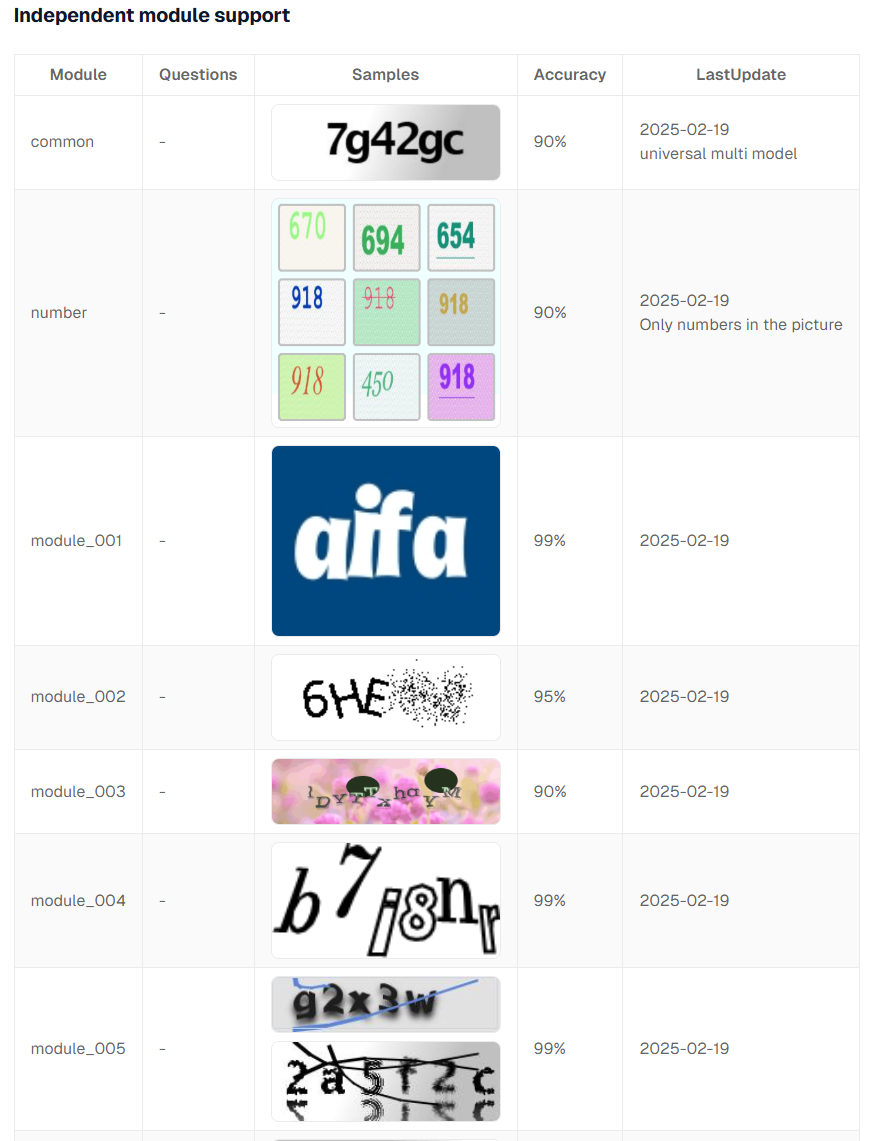
When a supported module accepts several images, send the array documented for that module and read the corresponding answers:
python
solution = capsolver.solve(
    {
        "type": "ImageToTextTask",
        "module": "number",
        "images": [base64_image],
    }
)

answers = solution["answers"]
Module names, request fields, and supported formats can change, so verify them against the current ImageToTextTask documentation. For a broader Python API pattern, see how to integrate a CAPTCHA-solving API in Python.
What Changes for reCAPTCHA v3?
The browser architecture stays the same, but the CapSolver task and page parameters must match a v3 implementation. In particular:
- Use the supported reCAPTCHA v3 task type documented by CapSolver.
- Supply the action value expected by the page when the integration uses one.
- Read the URL and site key from the active page rather than from an unrelated example.
- Keep the resulting token in the same browser session and submit it before it expires.
- Verify the application response. A score or token returned by an API does not guarantee that the target application accepted the request.
Do not open a fresh page without the original cookies and session state merely to submit the token. That breaks the context that the target application may use when evaluating the result.
Troubleshooting CloakBrowser and CapSolver
The script launches standard Playwright Chromium
This code launches Playwright's bundled Chromium, not CloakBrowser:
python
from playwright.sync_api import sync_playwright

pw = sync_playwright().start()
browser = pw.chromium.launch()
Use CloakBrowser's launcher instead:
python
from cloakbrowser import launch

browser = launch()
According to the CloakBrowser repository, playwright install-deps chromium may be useful on Linux when shared system libraries are missing. Running playwright install chromium is different: it downloads Playwright's browser and does not repair a CloakBrowser launch path.
CapSolver returns a token, but the page rejects it
Check each boundary in order:
websiteURLis the complete URL used by the active page;websiteKeybelongs to that page;- the selected task type and optional action match the challenge;
- the token is written to the expected field or passed to the page's callback;
- the page has not refreshed or replaced the challenge;
- cookies, proxy, user agent, and browser context remain consistent;
- the final page or application response confirms acceptance.
The image task returns no text
Confirm that the image body is valid Base64, the Data URL prefix has been removed, the chosen module supports the image, and the response field matches the current documentation. Capture the CapSolver error code and task ID for debugging, but do not log API keys or sensitive page data.
Navigation waits forever after submission
Not every submission causes a full navigation. Some sites update the DOM or make an XHR request instead. Replace expect_navigation() with the condition that actually represents success: a locator becoming visible, a URL change, a response event, or an application-specific status element. Playwright's official Browser API reference is the best source for current API behavior.
Responsible and Reliable Automation
CAPTCHA systems are access-control and abuse-prevention mechanisms. Use CapSolver and CloakBrowser only for lawful automation on systems you own or have explicit permission to test. Respect site terms, rate limits, privacy requirements, and applicable laws. Do not use automation to access private data, create abusive traffic, or interfere with other users.
For QA and monitoring, prefer dedicated test environments and provider test keys when available. Record the page URL, task type, task ID, elapsed time, and final application status so failures can be traced without storing credentials or personal data. The CAPTCHA automation for QA testing guide provides additional patterns for controlled test workflows.
Build Reliable Automation Workflows with CapSolver
CloakBrowser can supply the Playwright-compatible browser environment, while CapSolver handles the supported CAPTCHA task. Keeping those responsibilities separate makes the workflow easier to test: read the challenge from the active page, request the matching solution, submit it in the same context, and verify the application outcome.
Try CapSolver for an authorized CloakBrowser or Playwright workflow, and consult the current documentation before moving demo code into production.
FAQ
Q: Is CloakBrowser a CAPTCHA solver?
No. CloakBrowser supplies a Chromium browser and Playwright-compatible automation interface. A separate service such as CapSolver handles supported CAPTCHA tasks.
Q: Can an existing Playwright script use CloakBrowser?
Usually, yes. Replace the browser launch path with from cloakbrowser import launch, then keep using the returned Playwright Browser, pages, locators, and evaluation methods. Test browser-specific options and dependencies in your environment.
Q: Why must the CAPTCHA result be submitted in the same browser context?
The target application may associate a challenge with cookies, proxy address, browser signals, URL, or other session data. Switching contexts can make otherwise valid challenge parameters inconsistent.
Q: Where do I find the reCAPTCHA site key?
Use the key configured in the page you are authorized to automate. It may appear in the widget markup or page scripts. Do not copy a key from an unrelated tutorial or domain.
Q: Does a CapSolver token guarantee success?
No. A token is an intermediate result. The final success condition is the response from the target page or application after the token is submitted correctly and on time.
Q: Can the integration handle image CAPTCHAs?
CapSolver's ImageToTextTask supports documented image-recognition modules. Extract the authorized page's image, send the required Base64 payload, and enter the returned text through the same CloakBrowser page.
Q: Should API and license keys appear in the script?
No. The examples use recognizable placeholders. Production code should read secrets from environment variables or a secret manager and must never commit them to source control.
Q: How should I test this integration safely?
Start with provider demos or an application you control. Use bounded request rates, log task IDs and final outcomes, and move to a production site only when you have authorization and a clear operational need.
Compliance Disclaimer: The information provided on this blog is for informational purposes only. CapSolver is committed to compliance with all applicable laws and regulations. The use of the CapSolver network for illegal, fraudulent, or abusive activities is strictly prohibited and will be investigated. Our captcha-solving solutions enhance user experience while ensuring 100% compliance in helping solve captcha difficulties during public data crawling. We encourage responsible use of our services. For more information, please visit our Terms of Service and Privacy Policy.
More
How to Install CapSolver MCP from the Official MCP Registry
Find CapSolver MCP in the Official MCP Registry, install version 0.1.3 with uvx or pip, configure a local client, and verify the stdio tools.

Khadija Santos
18-Sep-2026
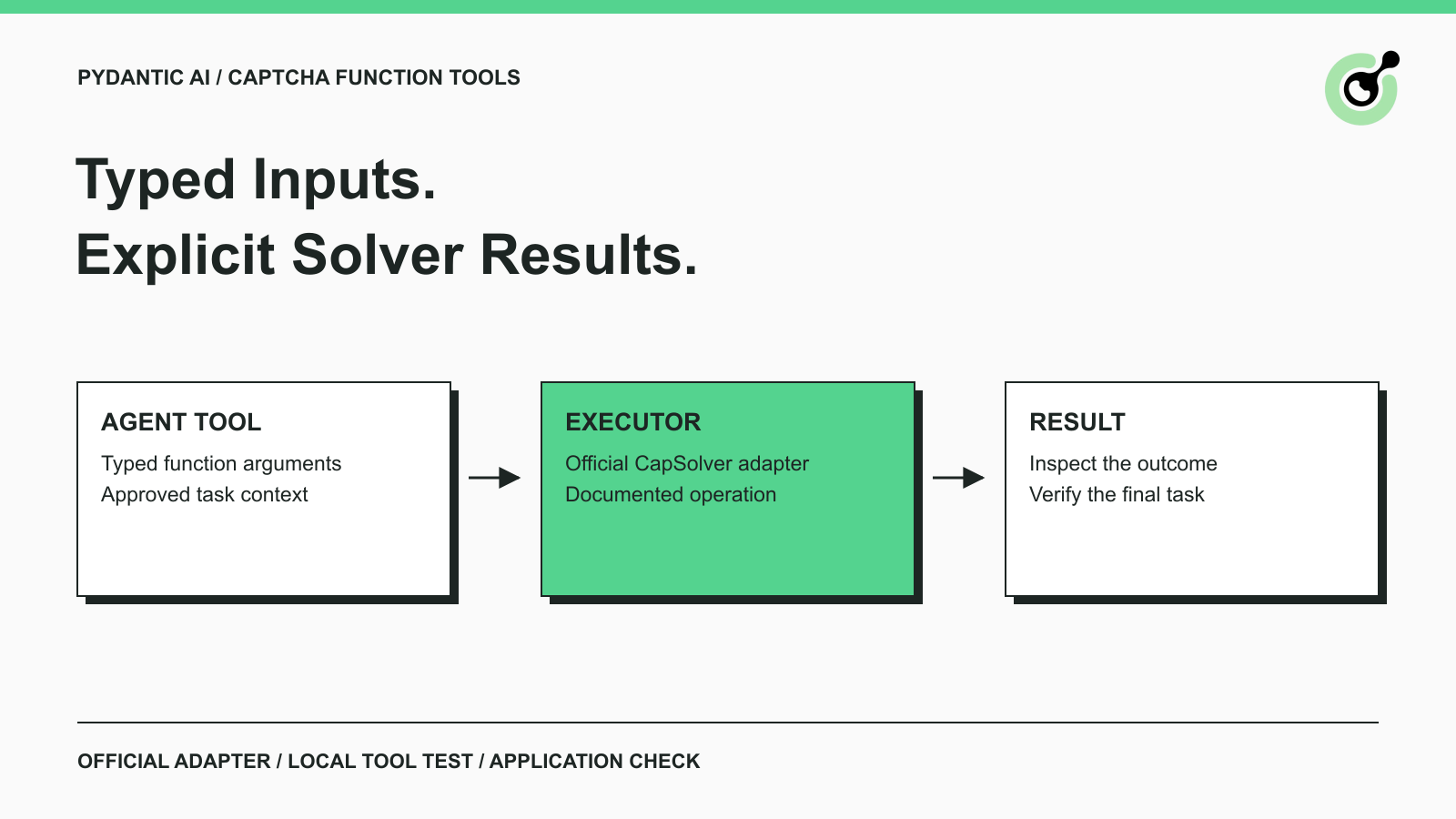
Pydantic AI CAPTCHA Tools: Typed Inputs and Solver Results
Add CAPTCHA tools to Pydantic AI using the official CapSolver adapter, test tool execution locally, and handle typed inputs and structured solver results.
Khadija Santos
18-Sep-2026
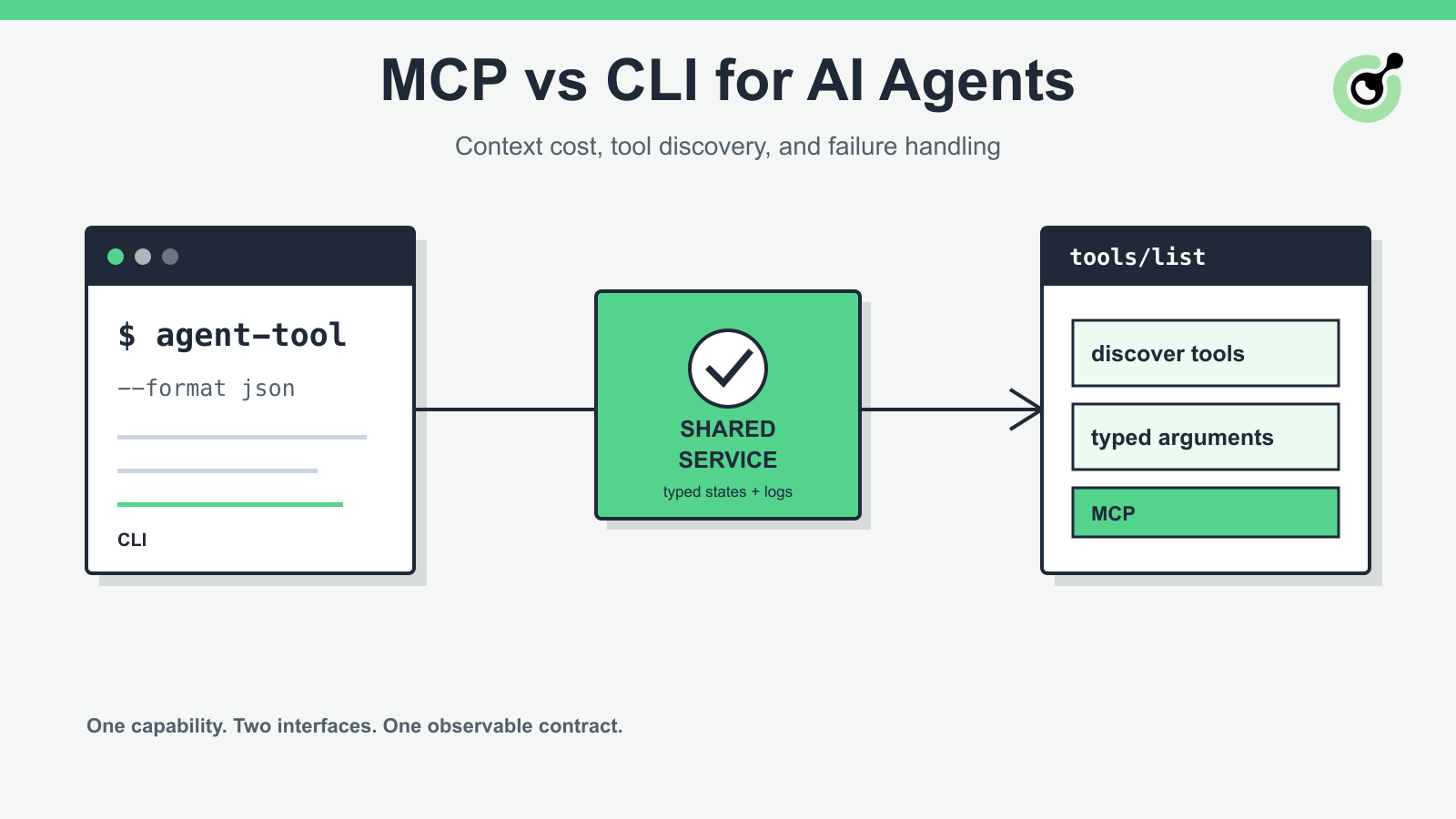
MCP vs CLI for AI Agents: Context Cost and Failure Handling
Compare MCP and CLI interfaces for AI agents across tool discovery, context cost, security, debugging, failure handling, and hybrid architecture.

Nikolai Smirnov
18-Sep-2026
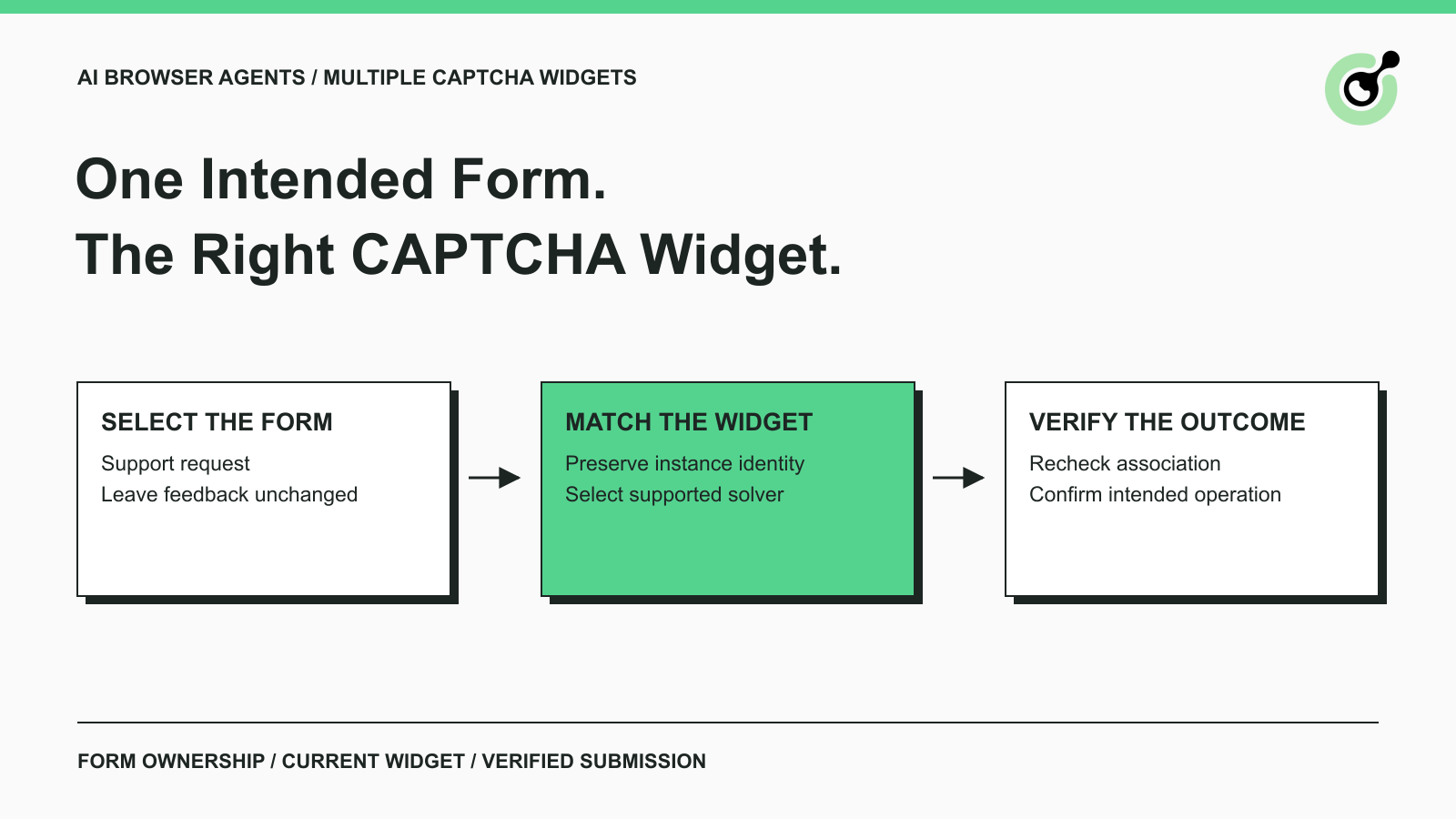
How to Handle Multiple CAPTCHA Widgets in AI Browser Agents
Handle multiple CAPTCHA widgets on one page with explicit form ownership, solver parameters, result routing, and checks for the intended AI agent action.

Lucas Mitchell
15-Sep-2026

CapSolver MCP Server Is Now Available for AI Agents
Install CapSolver MCP Server from PyPI and give compatible AI agents five tools for authorized CAPTCHA handling through the Model Context Protocol.

Sora Fujimoto
11-Sep-2026

AI Agents vs Scripts: How to Choose for Web Automation
Choose between AI agents, scripts, and hybrid web automation by task uncertainty, testability, cost, and the controls needed for reliable execution.
Lucas Mitchell
11-Sep-2026