











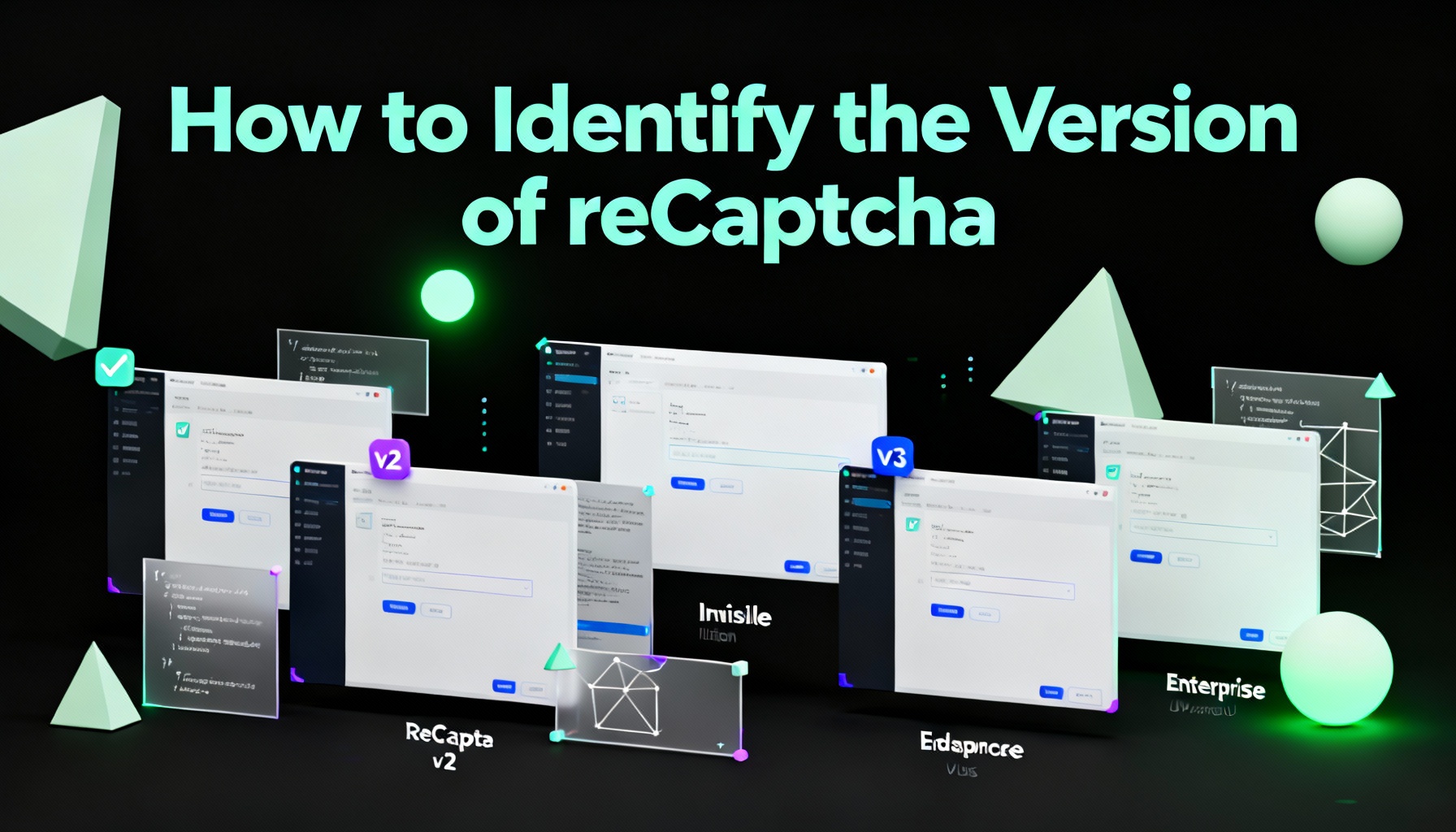
How to Identify the Version of reCaptcha

Lucas Mitchell
How to use CapSolver
10-Sep-2026
TL;DR
- Start with the CapSolver extension, then check the page's integration and network requests if the version is unclear.
- reCAPTCHA v2 can show a checkbox without requiring an image challenge every time.
- Invisible v2 and v3 can both appear without a checkbox; a badge alone does not distinguish them.
- Enterprise request paths identify the API family, not the exact key type.
- Charles screenshots and packet-field positions are useful historical clues, but should not be treated as permanent version tests.
To identify what reCAPTCHA version is being used, start with the extension method below, then compare the visible widget and the requests associated with the form you are inspecting. This guide covers reCAPTCHA v2, v2 Enterprise, invisible v2, v3, and v3 Enterprise, keeping Charles as an optional inspection tool. CapSolver provides a detector for supported CAPTCHA parameters. If the result is ambiguous, confirm it against the application code or, for a site you manage, the configured key. The reCAPTCHA glossary explains the basic terminology.
Method #1: Use the CapSolver Extension
Use the detector described in the official CapSolver extension identification guide:
- Install the extension from the store link in that guide.
- Open your browser's developer tools and select the CapSolver CAPTCHA detector panel.
- Keep the panel open while loading the permitted page and performing the normal action that invokes reCAPTCHA.
- Inspect the detected site key and available indicators such as
isInvisible,isEnterprise, andisReCaptchaV3.
The guide also documents pageAction and other parameters. Check that the result belongs to the form you are inspecting; different forms can use different integrations. If detection is incomplete, continue with the manual checks below.
Method #2: Identify the Patterns
Identifying reCAPTCHA v2
Key Points:
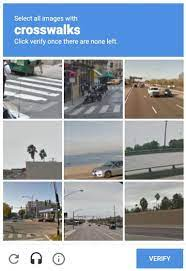
- The checkbox version displays an “I’m not a robot” checkbox. An image challenge may follow, but it is not required on every interaction.
- The CAPTCHA is loaded from the domain
google.comorrecaptcha.net.
Google’s reCAPTCHA version overview explains that checkbox v2 may pass a user immediately or present a challenge. The hostname alone does not identify the version.
Identifying reCAPTCHA v2 Enterprise
Key Points:
- A checkbox-based Enterprise integration can look like ordinary checkbox v2; an image challenge is not guaranteed.
- The CAPTCHA can include an extra data parameter named
s. This parameter is not exclusive to Enterprise. More details on this can be found in the reCAPTCHA v2 Enterprise Documentation. - The CAPTCHA is loaded from the domain
google.comorrecaptcha.net. - Requests containing
/enterprise/are an Enterprise-family clue. Confirm the key type and the relevant widget before classifying it as v2 Enterprise.
Example URL:https://www.google.com/recaptcha/enterprise/anchor
Other Versions: reCAPTCHA v2 Invisible, reCAPTCHA v3, and reCAPTCHA v3 Enterprise
For these versions, Charles Proxy can help inspect the requests behind an invisible interaction. You can also use the browser’s Network panel and the page’s integration code; Charles is optional.
If you prefer browser developer tools, skip the Charles setup and use the integration checks in each section below.
Setting Up Charles
-
Download and install Charles Proxy.
-
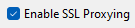
In Charles, open the SSL Proxying settings under the
Proxymenu. Follow the official SSL Proxying instructions for the installed version.
-
Add only the hosts you observe in the relevant requests, on port
443; common examples arewww.google.comandwww.recaptcha.net. Match the actual subdomain rather than assuming a bare domain covers it. -
HTTPS inspection also requires the Charles root certificate to be installed and trusted in the browser or system used for your test. Follow Charles’s certificate setup instructions for that environment.
Use a dedicated, authorized debugging environment: decrypted traffic may contain tokens or account data. Stop the capture when finished and follow your environment’s procedure for removing temporary certificate trust. The original screenshot above illustrates an older Charles interface; menu labels may differ by version.
Identifying reCAPTCHA v2 Invisible
Key Points:
- An image challenge may appear when the interaction is assessed as requiring one; it is not shown on every submission.
- The CAPTCHA is loaded from the domain
google.comorrecaptcha.net. - The “I’m not a robot” checkbox is absent. A badge may appear in a corner or inline, so badge position is not a reliable version test.
Using Charles for Detection
- With Charles configured, load the authorized page and perform the normal action that invokes reCAPTCHA.
- Filter the captured requests for
recaptcha, then inspect the relevantreloadrequest if one is present.
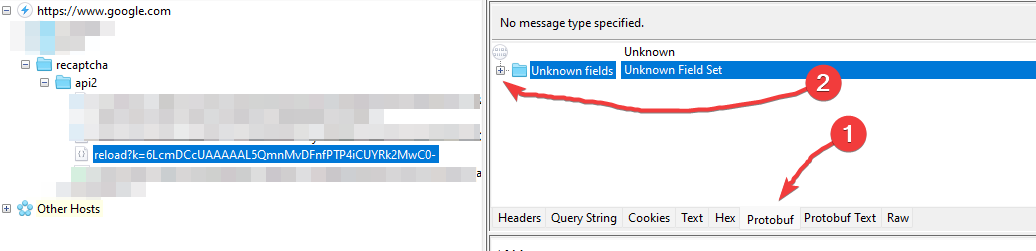
The original capture shows fi at protobuf position 6. Treat this as a historical observation from that capture, not a guaranteed detection rule: internal packet layouts are not a stable public API.
Without Charles, inspect the widget configuration and how the action invokes it. Google’s invisible reCAPTCHA guide documents button binding and programmatic rendering with data-size="invisible". Check the surrounding integration as well; an absent checkbox alone does not prove invisible v2.

Identifying reCAPTCHA v3 and v3 Enterprise
Key Points:
- Classic reCAPTCHA v3 is score-based and does not present an image challenge as part of that v3 interaction. For Enterprise, confirm that the active key is score-based; Enterprise also supports other key types.
- The CAPTCHA is loaded from the domain
google.comorrecaptcha.net. - A badge may be visible without an “I’m not a robot” checkbox. This appearance is also possible with invisible v2.
Using Charles for Detection
- With Charles configured, load the authorized page and perform the normal action that invokes reCAPTCHA.
- Filter the captured requests for
recaptcha, then inspect the relevantreloadrequest if one is present.
The original screenshot shows an action string at protobuf position 8. That position is a historical packet-layout detail, not sufficient proof of v3 or Enterprise. The presence of an action alone is also insufficient: CapSolver documents a pageAction field for some v2 tasks.
Without Charles, inspect the active integration. Google’s v3 guide documents action-based execution, including a site-key render parameter and an action passed to grecaptcha.execute. That method name alone is not decisive because invisible v2 also uses it. For Enterprise, check enterprise.js, the relevant invocation, and the owner’s key configuration.
Once identified, use the current CapSolver reCAPTCHA v3 task documentation to map the observed action to the supported request fields.

Additional Resources
Conclusion
Start with the extension, then use widget behavior, integration code, and Charles or browser Network observations to check the result. Keep the original packet screenshots as examples, and confirm uncertain cases against the active key configuration. Use CapSolver with the documented parameters for the identified integration.
FAQ
Q: Does reCAPTCHA v2 always display an image challenge?
No. Checkbox v2 can complete without an image challenge. Invisible v2 can also run without showing one on every interaction.
Q: Does a badge without a checkbox mean reCAPTCHA v3?
No. Invisible v2 can look similar. Inspect the widget configuration, active invocation, and associated key rather than relying on the badge.
Q: Does an Enterprise request prove the page uses v3 Enterprise?
No. It identifies the Enterprise API family. Confirm the active key type and behavior before selecting a task type.
Q: Do I need Charles to identify the version?
No. The CapSolver extension and browser developer tools provide alternative inspection paths. Charles is useful for permitted network debugging, but its packet-field positions are not permanent version identifiers.
Compliance Disclaimer: The information provided on this blog is for informational purposes only. CapSolver is committed to compliance with all applicable laws and regulations. The use of the CapSolver network for illegal, fraudulent, or abusive activities is strictly prohibited and will be investigated. Our captcha-solving solutions enhance user experience while ensuring 100% compliance in helping solve captcha difficulties during public data crawling. We encourage responsible use of our services. For more information, please visit our Terms of Service and Privacy Policy.
More
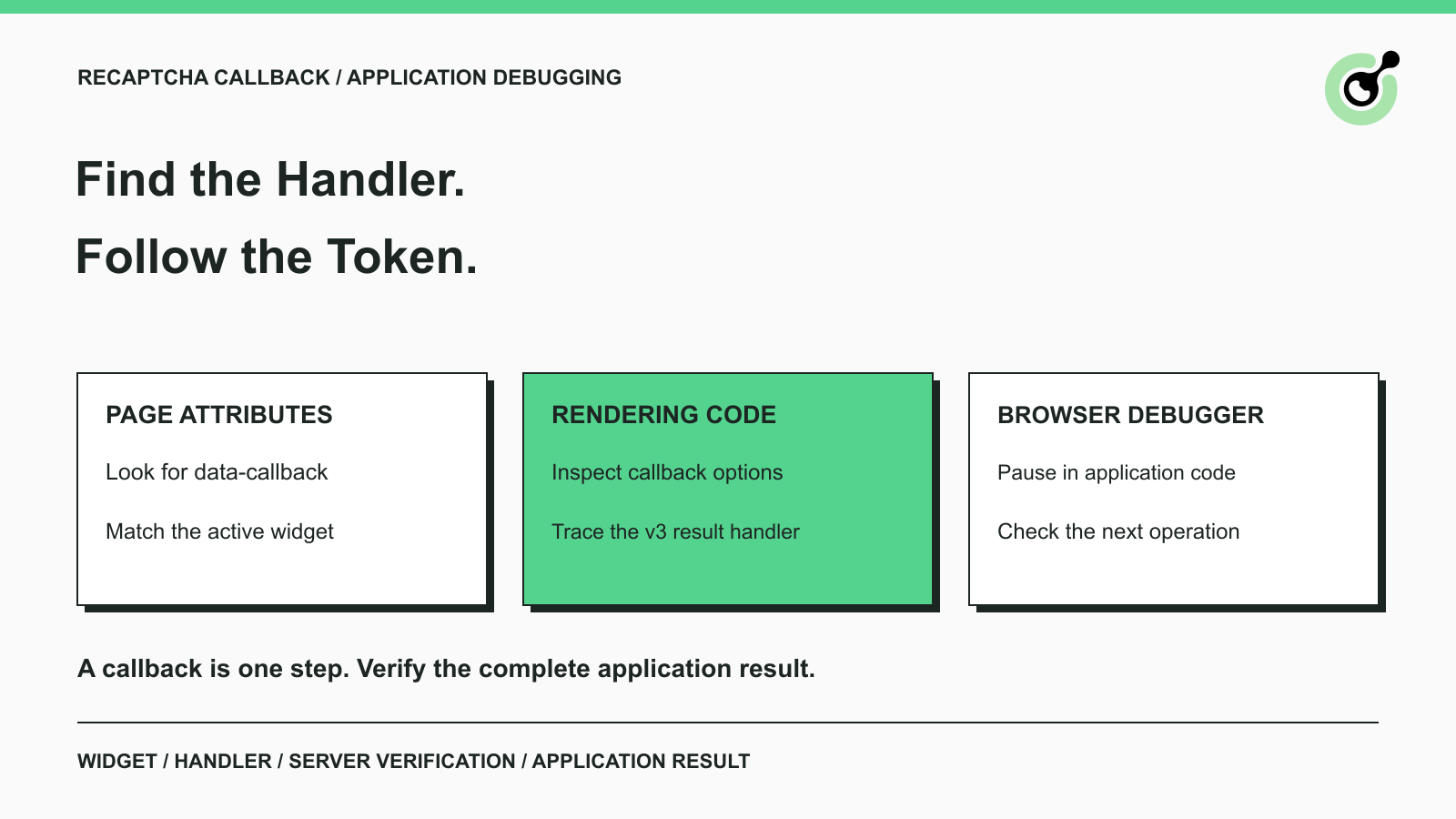
How to Find a reCAPTCHA Callback and Check Token Handling
Find a reCAPTCHA callback through widget attributes, rendering code, and browser debugging. Check token handling without relying on fragile internal paths.

Emma Foster
16-Oct-2026
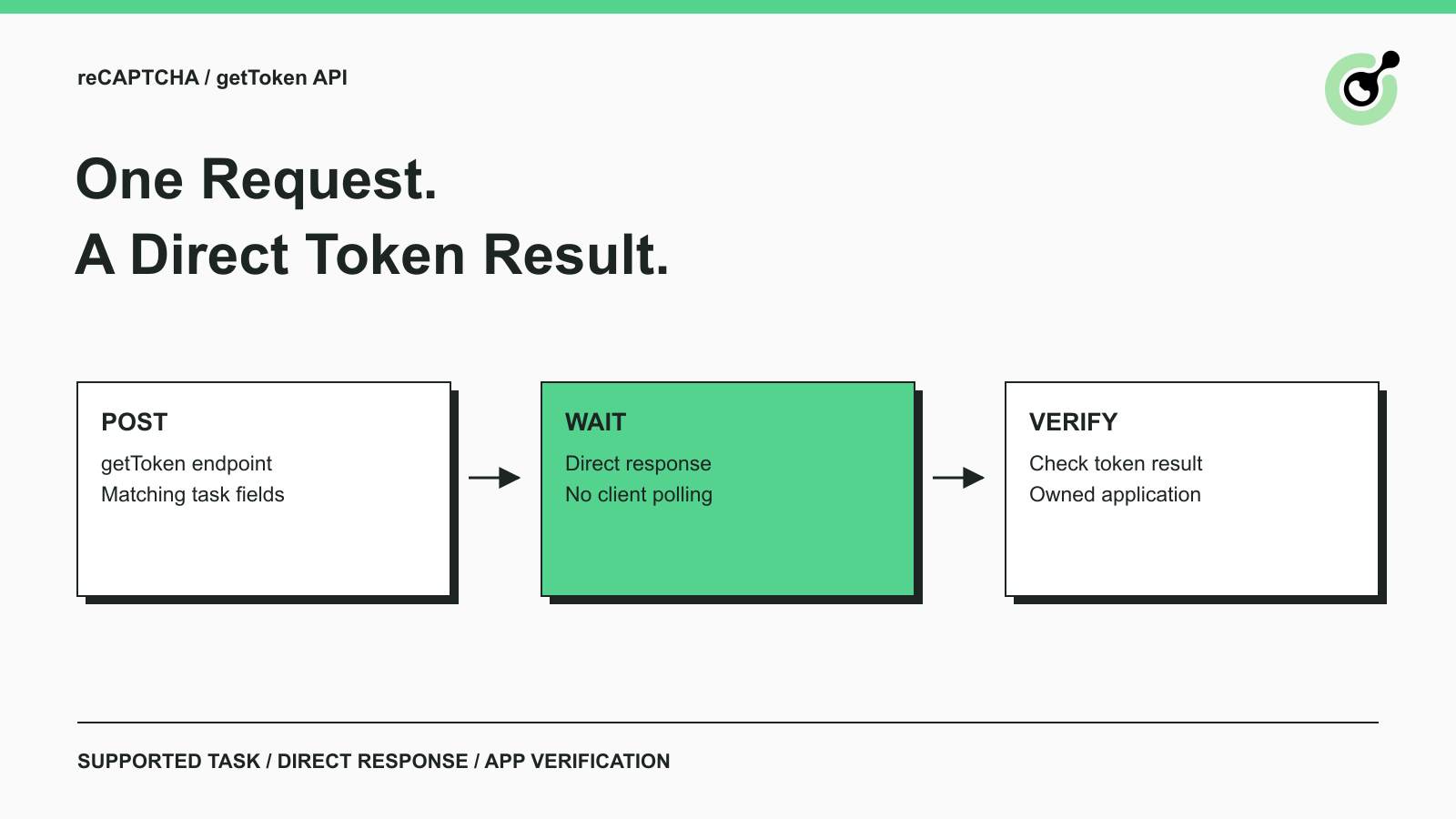
Solve reCAPTCHA with getToken: One Request, No Polling
Use CapSolver getToken for supported reCAPTCHA tasks with a documented JSON request, a cURL example, direct results, and clear token-validation steps.
Emma Foster
17-Sep-2026

reCAPTCHA Test Keys: How to Set Up Reliable QA Environments
Use reCAPTCHA test keys in QA with separate environments, backend validation checks, negative tests, and release guards that keep test settings out of production.
Lucas Mitchell
11-Sep-2026
How to Identify the Version of reCaptcha
In this article, we will show you how to identify what reCaptcha version is being used.
Lucas Mitchell
10-Sep-2026

How to Solve "Unusual Traffic from Your Computer Network"
Struggling with 'Unusual traffic from your computer network' errors on Google? Our guide explains the triggers and offers solutions to solve captchas, including tips and a look at how CAPSOLVER.COM can streamline your browsing experience by automatically resolving these interruptions.

Ethan Collins
09-Sep-2026
How to Solve reCAPTCHA v3 with Playwright: Complete Guide
The reliable way to implement playwright recaptcha v3 is to pause the permitted browser task at the verification checkpoint, recover inside the same Playwright page, and resume only after the original action passes its own assertion. CapSolver provides the official `capsolver-core` browser pipeline for detection, parameter reading, solving, and fill-back. Playwright remains responsible for navigation, form state, credentials, and test assertions. This separation avoids stale
Ethan Collins
13-Aug-2026