











How to Solve "Unusual Traffic from Your Computer Network"

Ethan Collins
How to use CapSolver
09-Sep-2026
TL;DR
- Complete the visible reCAPTCHA first; if it does not load, check your browser and JavaScript settings.
- Repeated warnings can involve shared networks, VPN services, or software sending automated searches. The message alone does not prove that your device has a virus.
- Change one setting at a time and compare the same search across browsers or networks to narrow the problem.
- Clearing cookies or restarting a router is a troubleshooting step, not a guaranteed fix for a network warning.
- CapSolver supports documented CAPTCHA tasks for authorized automation; a successful task does not guarantee that Google will accept subsequent traffic.
Introduction: Understanding Google's Security Mechanism
Google Search can interrupt an ordinary search with the message “Our systems have detected unusual traffic from your computer network.” The page may ask you to complete a reCAPTCHA verification challenge, leaving you unsure whether to check your browser, your device, or the network you share with other people.
The useful first distinction is between a challenge that you can complete and a warning that keeps returning. Those situations need different next steps. Start with likely causes, work through targeted checks, and then consider how persistent challenges affect professional workflows. For developers, this guide also explains where CapSolver fits into authorized CAPTCHA handling and where network troubleshooting still needs separate attention.
Part One: Root Causes of the Unusual Traffic Warning
Google's unusual traffic warning means its systems have identified apparently automated searches associated with your network. Google's official unusual traffic guidance names automated programs, search scrapers, and software that checks search rankings among the relevant sources.
Shared networks and VPN connections
Other users on a business, school, VPN, or internet provider's network may contribute to the problem. Google also identifies IPv6 tunnel services as a possible factor. This does not mean that IPv6 itself is inherently suspicious or that all VPN connections will trigger a warning.
For troubleshooting, record the network you were using when the problem appeared. A warning seen only through a particular connection is more useful evidence than the assumption that your Google account has been blocked.
Automated requests and unexpected software activity
Pause any search automation you control while investigating. Review scheduled jobs as well as tools you have open: a background process is easy to overlook when you are focused on the browser window.
Malware is another possible source, but the warning is not a malware diagnosis. Avoid treating search phrases such as “IPv4 Google CAPTCHA virus” as the name of a confirmed infection. Investigate unfamiliar software and scan the device if there are reasons for concern.
Browser problems that prevent verification
A challenge that fails to display deserves a browser check. reCAPTCHA's browser and accessibility guidance covers supported browsers, JavaScript, and plugins that may conflict with the challenge. These requirements explain how to troubleshoot the widget; they do not reveal Google's private traffic-detection rules.
Use the observations below to choose a starting point. The interpretations are diagnostic clues, not proof of a particular cause.
| What you observe | What to investigate | Useful next check |
|---|---|---|
| The challenge is missing or fails to load | Browser compatibility or page functionality | Compare with an updated browser profile |
| One profile has trouble while another works | Profile settings, extensions, or stored site data | Change one relevant setting and retest |
| Several devices have trouble on the same connection | Shared network activity or connection path | Give the network owner the affected scope |
| The issue appears through a VPN connection | VPN configuration or the shared service | Run one permitted comparison without the VPN |
| The warning begins around a scheduled search job | Requests from that job or related workers | Pause the workload and review its activity |
Part Two: Step-by-Step Solutions for Unusual Traffic
To troubleshoot unusual traffic, start with the visible challenge, then isolate browser and network differences before making broader changes. Keep a short note of each result so you do not repeat an unsuccessful test.
1. Complete the displayed challenge
Follow the reCAPTCHA instructions when the challenge is available. If the image task is difficult to use, check for an audio alternative in the widget.
After verification, try one ordinary search and observe what happens. Did results appear, did the challenge fail, or did the warning immediately return? Record that distinction. Repeatedly refreshing the same page gives you less useful information than noting the actual outcome.
2. Check the browser when reCAPTCHA does not appear
Use an updated, supported browser and confirm that JavaScript is enabled for the affected page. In Chrome, site-specific permission settings let you review what a particular site can use. Check the relevant permission instead of broadly changing settings for every website.
Next, compare with a clean browser profile or another supported browser. If the challenge works there, return to the original profile and inspect its differences. Disable a suspected extension individually, test once, and restore it if the change has no effect.
For example, suppose a challenge remains blank in your usual profile but loads in a fresh one on the same laptop. Begin with profile-level settings. Replacing the router at this point would change a different part of the setup without explaining the observation.
3. Use cookies and private browsing as diagnostic checks
A private window can help compare browser state, but it is not a network reset. Google's explanation of Incognito mode describes a separate browsing session, not invisibility to websites or network operators. Check which extensions are allowed to run in that window before interpreting the result.
If the problem is confined to one profile, consider removing only the affected site's stored data. Save any work and expect that you may need to sign in again. Avoid deleting all browsing data as an automatic first step.
If removing site data helps, record that result without claiming you have removed an IP restriction. The test changed local browser state; it does not establish how Google classified traffic from the network.
4. Review search activity and scan the device
Look for ranking tools, search scripts, scheduled tasks, and unfamiliar extensions. Temporarily stop relevant jobs that you own, including workers running outside the browser, and check their logs for repeated requests or errors.
Run a malware scan with your device's trusted security software if the activity is unexpected. On a managed computer, involve IT in investigating unfamiliar processes. Record the scan result separately from the search test: a clean scan is useful evidence, but it does not identify every possible network cause.
5. Compare the connection and handle router changes carefully
If your organization's rules allow it, make one comparison without the VPN or proxy. Keep the browser and search the same so the connection is the main variable. Another option is one test on a trusted alternative network, such as your own mobile hotspot, when appropriate.
A different result helps identify where to investigate; it is not a reason to keep switching connections. Contact the VPN provider if the issue appears limited to its service.
Restart a home router only when a connection problem makes that a reasonable step. Do not assume a restart will assign a new public IP address. A factory reset is a much broader change and is unnecessary for this initial diagnosis. Leave IPv4/IPv6 configuration changes to a specific network investigation instead of treating them as a standard remedy.
6. Escalate recurring warnings with a useful incident note
Contact the network administrator or internet provider when the problem persists across devices or browser checks. Include the time and timezone, connection type, affected devices, whether the challenge loaded, and the result of your controlled comparisons.
An actionable note could read: “Two devices receive the warning on office Wi-Fi. One laptop works on a mobile hotspot using the same browser. The challenge loads, but another search brings the warning back.” This gives the administrator a starting point without asserting an unconfirmed blacklist or infection.
Part Three: Dealing with Persistent CAPTCHA Challenges
Persistent CAPTCHA challenges in professional workflows require an explicit handling plan alongside investigation of the underlying traffic. Market research and automated testing should distinguish a supported verification task from a network condition that needs an operator's attention.
How does CapSolver work?
CapSolver's API accepts a documented task through the createTask endpoint. The request supplies a task type and its required parameters. When processing is asynchronous, the integration uses getTaskResult to retrieve task status and output.
This model requires your application to identify the appropriate task and follow its documented integration. Calling the API does not automatically monitor every browser tab or diagnose a Google network warning. Check the current task documentation before deciding that a challenge belongs in an automated path.
Redeem Your CapSolver Bonus Code
Boost your automation budget instantly!
Use bonus code CAP26 when topping up your CapSolver account to get an extra 5% bonus on every recharge — with no limits.
Redeem it now in your CapSolver Dashboard

Keep task completion separate from workflow success
A completed CAPTCHA task should lead to a separate check of the destination page. Confirm that the expected page or permitted result actually loaded before continuing. If the warning remains, stop that workflow and inspect the outcome instead of treating the solve result as permission to repeat indefinitely.
For an authorized test, define the expected page state in advance. Record the task outcome and page outcome separately, set a bounded retry policy, and route persistent failures to an operator. Do not put API keys or sensitive page contents in diagnostic logs.
The distinction is useful even outside Google Search: a verification result is one component of a browser workflow. CapSolver's explanation of how CAPTCHA works provides background on that checkpoint. Technical support for a task does not grant access to restricted data or replace the destination's terms and permissions.
Conclusion and Outlook
Resolving unusual traffic starts with identifying whether the immediate problem is a visible challenge, a browser issue, or a recurring network condition. Work through focused comparisons and share the results with the person who can investigate the affected layer.
For professional automation, CapSolver can provide documented CAPTCHA handling within an authorized workflow. Review the task requirements, validate the destination after completion, and retain a clear stop condition for unresolved warnings.
FAQ
Q: Does Google's unusual traffic message mean my computer has a virus?
The message alone does not establish an infection. Review unexpected activity and scan the device when appropriate, while also checking whether the problem affects other users or devices on the connection.
Q: Why does Google keep asking me to verify that I am human?
A recurring challenge needs investigation beyond the last successful verification. Note whether the warning returns in one browser profile, across devices, or only on a particular connection, then follow the relevant checks above.
Q: How long does Google's unusual traffic warning last?
There is no fixed duration to promise for every incident. Keep track of when the issue occurs and investigate persistent warnings rather than assuming a particular waiting period will resolve them.
Q: Will clearing cookies or restarting my router fix unusual traffic?
Neither action is a guaranteed fix. Clearing affected site data is most useful as a browser-state test; a router restart should have a specific connection-related reason. Compare the result before making another change.
Q: Can CapSolver resolve every Google unusual traffic warning?
No. CapSolver supports documented CAPTCHA tasks, while a recurring traffic warning may require separate browser, device, or network investigation. Check the destination after task completion and stop if the expected result is still unavailable.
Compliance Disclaimer: The information provided on this blog is for informational purposes only. CapSolver is committed to compliance with all applicable laws and regulations. The use of the CapSolver network for illegal, fraudulent, or abusive activities is strictly prohibited and will be investigated. Our captcha-solving solutions enhance user experience while ensuring 100% compliance in helping solve captcha difficulties during public data crawling. We encourage responsible use of our services. For more information, please visit our Terms of Service and Privacy Policy.
More
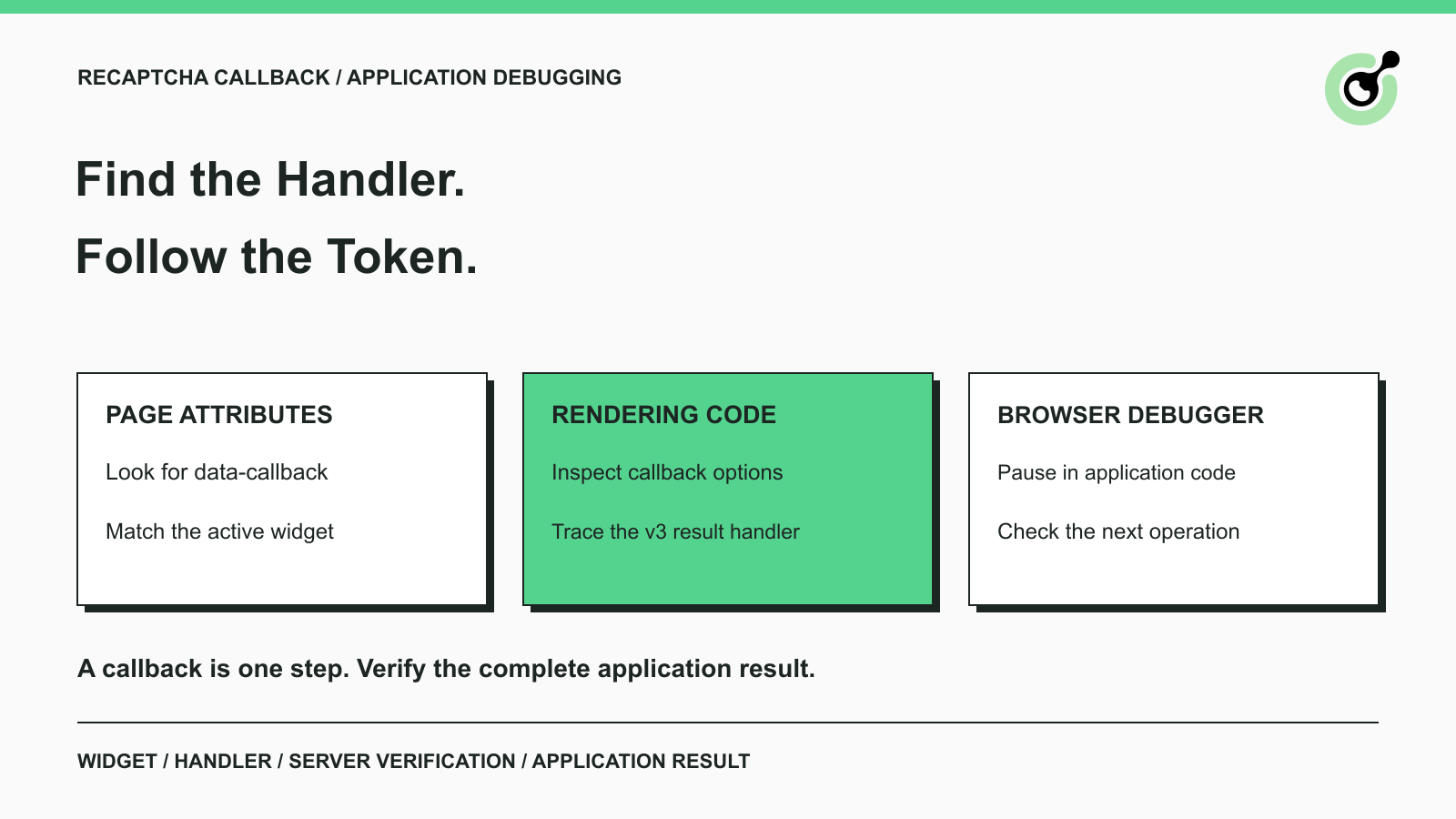
How to Find a reCAPTCHA Callback and Check Token Handling
Find a reCAPTCHA callback through widget attributes, rendering code, and browser debugging. Check token handling without relying on fragile internal paths.

Emma Foster
16-Oct-2026
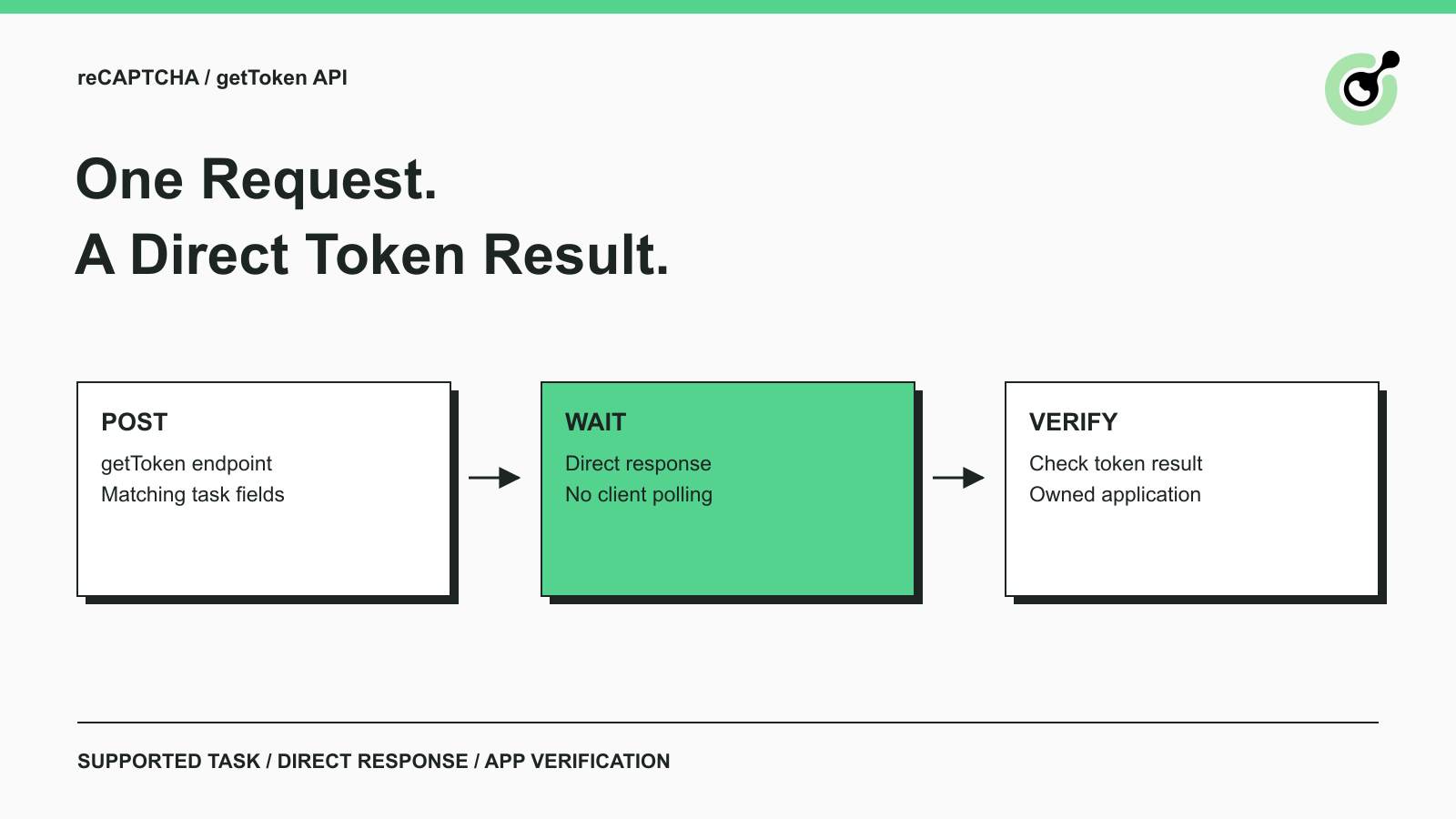
Solve reCAPTCHA with getToken: One Request, No Polling
Use CapSolver getToken for supported reCAPTCHA tasks with a documented JSON request, a cURL example, direct results, and clear token-validation steps.
Emma Foster
17-Sep-2026

reCAPTCHA Test Keys: How to Set Up Reliable QA Environments
Use reCAPTCHA test keys in QA with separate environments, backend validation checks, negative tests, and release guards that keep test settings out of production.

Lucas Mitchell
11-Sep-2026

How to Identify the Version of reCaptcha
In this article, we will show you how to identify what reCaptcha version is being used.
Lucas Mitchell
10-Sep-2026

How to Solve "Unusual Traffic from Your Computer Network"
Struggling with 'Unusual traffic from your computer network' errors on Google? Our guide explains the triggers and offers solutions to solve captchas, including tips and a look at how CAPSOLVER.COM can streamline your browsing experience by automatically resolving these interruptions.
Ethan Collins
09-Sep-2026
How to Solve reCAPTCHA v3 with Playwright: Complete Guide
The reliable way to implement playwright recaptcha v3 is to pause the permitted browser task at the verification checkpoint, recover inside the same Playwright page, and resume only after the original action passes its own assertion. CapSolver provides the official `capsolver-core` browser pipeline for detection, parameter reading, solving, and fill-back. Playwright remains responsible for navigation, form state, credentials, and test assertions. This separation avoids stale
Ethan Collins
13-Aug-2026